Clean and dry the screen, disconnect its charger and accessories, and test another area of the display. Use Apple's force-restart steps only if the iPhone itself is unresponsive.
On iPhone, prefer Apple’s built-in Settings and reset options; use “Reset All Settings” or a full erase only when a narrower fix has failed and you have a backup.
Why this can happen
Touch can fail because of moisture, a case or protector pressing on the display, a connected accessory, a frozen app, or screen damage. One dead area across multiple apps is different from a single app freeze.
Troubleshoot from low-risk to high-risk
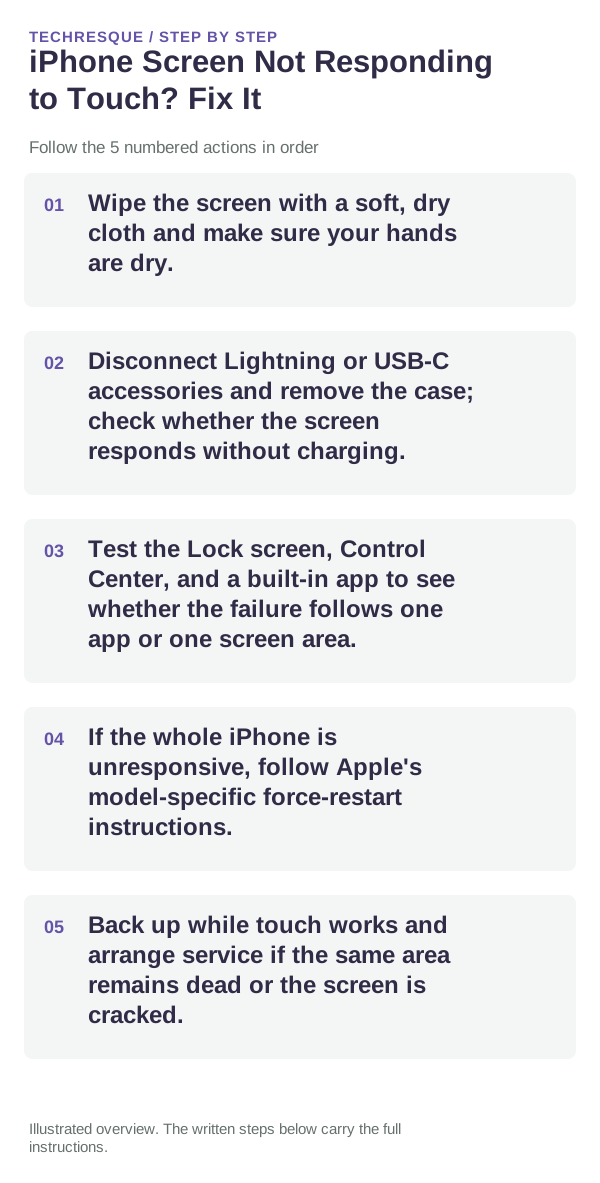
- Wipe the screen with a soft, dry cloth and make sure your hands are dry.
- Disconnect Lightning or USB-C accessories and remove the case; check whether the screen responds without charging.
- Test the Lock screen, Control Center, and a built-in app to see whether the failure follows one app or one screen area.
- If the whole iPhone is unresponsive, follow Apple's model-specific force-restart instructions.
- Back up while touch works and arrange service if the same area remains dead or the screen is cracked.
What each result tells you
Touch working outside one app points to the app. A consistent dead strip across the Lock screen and multiple apps suggests display hardware, especially after impact or liquid exposure.
Do not make troubleshooting harder
Do not press harder, apply heat, or erase the device to fix a touch area. Stop charging if the device becomes hot or the screen is lifting.
How to confirm the fix
Confirm touches register in several areas after removing accessories and restarting. If one zone still fails, do not treat the problem as solved.
When to use support or repair
Contact Apple or an authorized service provider for a persistent dead area, cracked display, or liquid exposure; back up first if possible.
Frequently asked questions
Should I reset the whole device immediately?
Usually not. Check the affected app, accessory or setting first. Reset All Settings or erase the phone only after a backup.
How do I know when the fix is real?
Confirm touches register in several areas after removing accessories and restarting. If one zone still fails, do not treat the problem as solved.