Turn Wi-Fi off temporarily and confirm whether a cellular data indicator appears. Then toggle Airplane Mode for about ten seconds, then reconnect.
On iPhone, prefer Apple’s built-in Settings and reset options; use “Reset All Settings” or a full erase only when a narrower fix has failed and you have a backup.
Likely causes to check first
- mobile data is disabled for the line or app
- the phone is registered to the network but has no working data session
- coverage is weak or the local network is congested
- the APN/carrier settings are wrong or stale
- the SIM/eSIM plan has a billing, activation or roaming restriction
The practical troubleshooting sequence
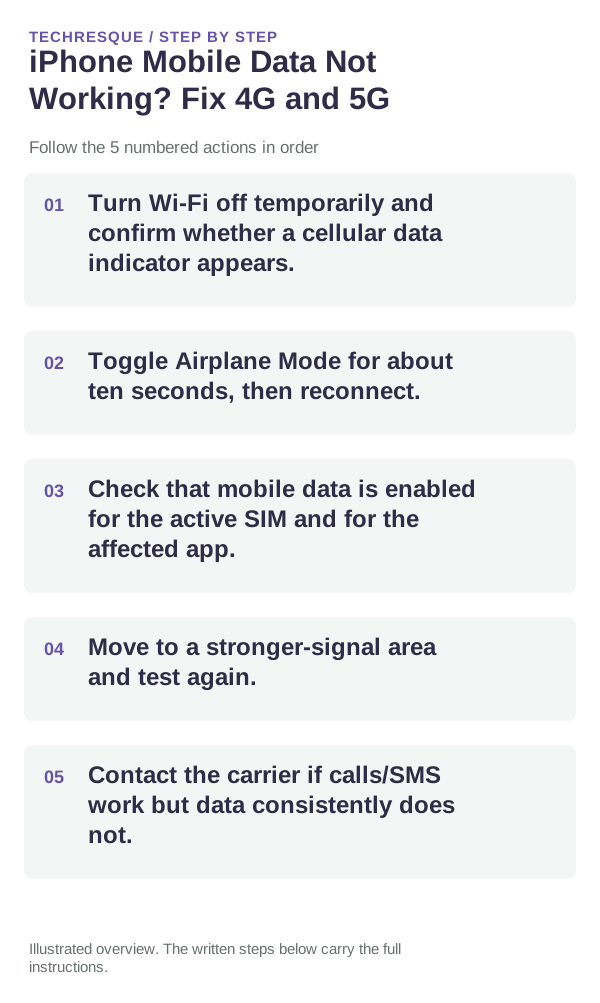
- Turn Wi-Fi off temporarily and confirm whether a cellular data indicator appears.
- Toggle Airplane Mode for about ten seconds, then reconnect.
- Check that mobile data is enabled for the active SIM and for the affected app.
- Move to a stronger-signal area and test again.
- Contact the carrier if calls/SMS work but data consistently does not.
A quick way to narrow it down
Repeat the same action in the same iPhone app after one change. Check another app before resetting network or privacy settings.
What not to change first
Verify before you move on
Test on two unrelated services, such as a webpage and maps, with Wi-Fi disabled.
When to use support or repair
If the issue persists across apps or networks after updates and model-specific checks, contact Apple Support with the model and iOS version.
Record iPhone model, iOS version, affected app or setting, exact message and whether it follows one network. Hide personal details in screenshots.
Frequently asked questions
Should I reset the whole device immediately?
Usually not. Check the affected app, accessory or setting first. Reset All Settings or erase the phone only after a backup.
How do I know when the fix is real?
Test on two unrelated services, such as a webpage and maps, with Wi-Fi disabled.
Official sources and further reading
iPhone settings labels can move between iOS versions. Use Settings search if a path differs, and check whether the symptom affects one app or the whole device.