An iPhone can dim because of Auto-Brightness, attention-aware features, heat, Low Power Mode, or accessibility display filters. Determine whether the dimming follows warmth, time, or one app. Check Auto-Brightness under Accessibility > Display & Text Size and compare in stable light. Review Attention Aware, Reduce White Point, Night Shift, and Low Power Mode one at a time.
iOS and macOS menu names can change by release; use Settings search and confirm whether the issue affects one app, one contact, or the entire device.
Likely causes to check first
An iPhone can dim because of Auto-Brightness, attention-aware features, heat, Low Power Mode, or accessibility display filters. Determine whether the dimming follows warmth, time, or one app.
- Auto-Brightness responds to a changing light sensor reading.
- Attention Aware lowers alert/display behavior when the phone detects attention.
- The device is warm and iOS limits display brightness.
- Low Power Mode, Auto-Lock, or accessibility filters change screen appearance.
- The screen dims only in one app or during video playback.
The practical troubleshooting sequence
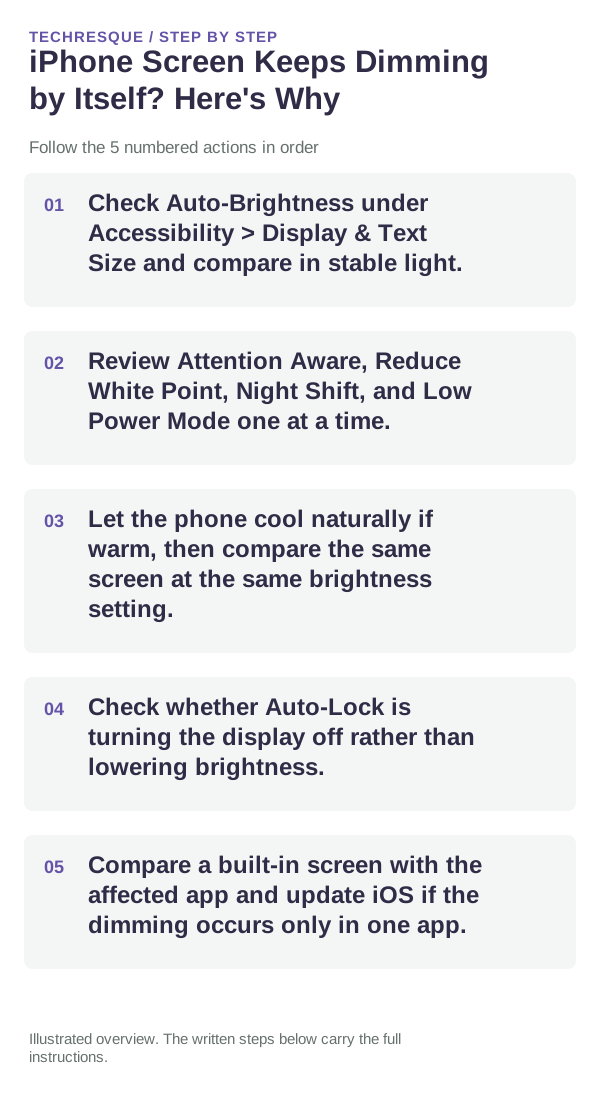
- Check Auto-Brightness under Accessibility > Display & Text Size and compare in stable light.
- Review Attention Aware, Reduce White Point, Night Shift, and Low Power Mode one at a time.
- Let the phone cool naturally if warm, then compare the same screen at the same brightness setting.
- Check whether Auto-Lock is turning the display off rather than lowering brightness.
- Compare a built-in screen with the affected app and update iOS if the dimming occurs only in one app.
How to tell which cause applies
Repeat at similar temperature and lighting; a hot iPhone may limit peak brightness temporarily.
Repeat at similar temperature and lighting; a hot iPhone may limit peak brightness temporarily.
Changes to avoid until you know the cause
- Do not cool the phone artificially.
- Do not treat True Tone or Night Shift color changes as a brightness fault.
Confirm that the problem is actually gone
Repeat at similar temperature and lighting; a hot iPhone may limit peak brightness temporarily.
When to use support or repair
If the issue persists across apps or networks after updates and model-specific checks, contact Apple Support with the model and iOS version.
Record iPhone model, iOS version, affected app or setting, exact message and whether it follows one network. Hide personal details in screenshots.
Frequently asked questions
What should I check first?
Check Auto-Brightness under Accessibility > Display & Text Size and compare in stable light. Review Attention Aware, Reduce White Point, Night Shift, and Low Power Mode one at a time. Let the phone cool naturally if warm, then compare the same screen at the same brightness setting.
Should I reset the whole device immediately?
Usually not. Check the affected app, accessory or setting first. Reset All Settings or erase the phone only after a backup.
How do I know when the fix is real?
Repeat at similar temperature and lighting; a hot iPhone may limit peak brightness temporarily.
Official sources and further reading
iPhone settings labels can move between iOS versions. Use Settings search if a path differs, and check whether the symptom affects one app or the whole device.