iPhone alarms use the Clock schedule and the Ringer and Alerts volume. Silent mode and Focus do not normally silence a standard Clock alarm, so check the alarm itself and its sound first. Open Clock and verify the alarm's time, repeat days, label, and enabled switch. Choose a built-in sound and raise Settings > Sounds & Haptics > Ringtone and Alerts; preview it.
iOS and macOS menu names can change by release; use Settings search and confirm whether the issue affects one app, one contact, or the entire device.
Start by narrowing the cause
iPhone alarms use the Clock schedule and the Ringer and Alerts volume. Silent mode and Focus do not normally silence a standard Clock alarm, so check the alarm itself and its sound first.
- The alarm is disabled, scheduled for the wrong day/time, or set as a sleep schedule alarm.
- The selected sound is None or too quiet at the current Ringer and Alerts level.
- Attention Aware features reduce alert volume when the phone detects attention.
- A Bluetooth output or speaker issue changes what you hear.
- A third-party alarm app has notification or background limitations.
The practical troubleshooting sequence
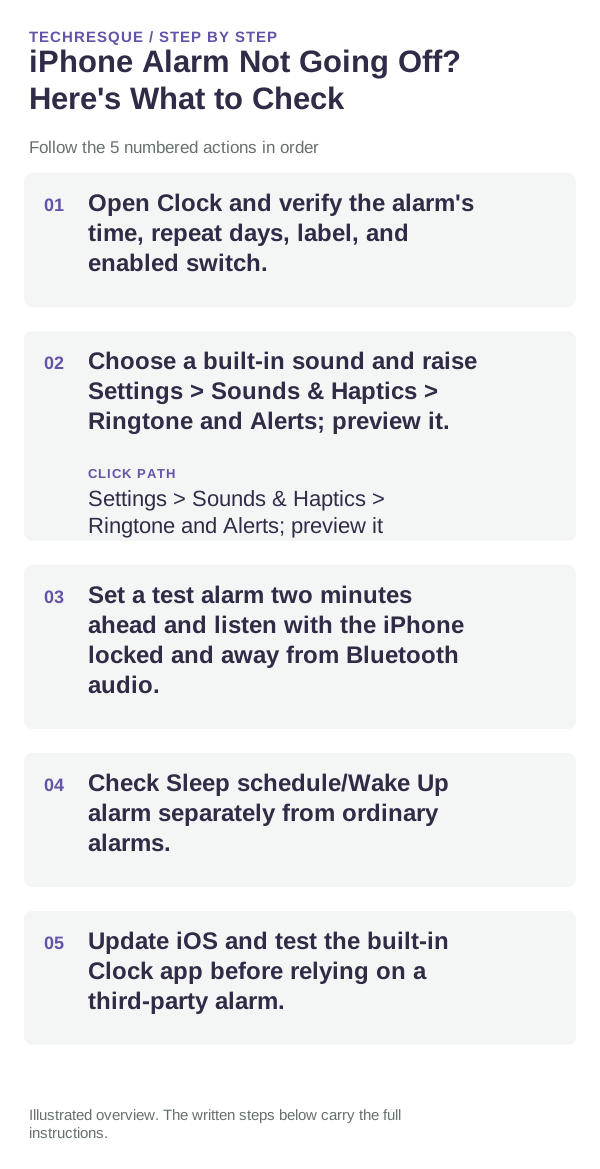
- Open Clock and verify the alarm's time, repeat days, label, and enabled switch.
- Choose a built-in sound and raise Settings > Sounds & Haptics > Ringtone and Alerts; preview it.
- Set a test alarm two minutes ahead and listen with the iPhone locked and away from Bluetooth audio.
- Check Sleep schedule/Wake Up alarm separately from ordinary alarms.
- Update iOS and test the built-in Clock app before relying on a third-party alarm.
What each result tells you
Run one short test alarm with the intended sound and volume, then repeat with the phone locked.
Run one short test alarm with the intended sound and volume, then repeat with the phone locked.
Shortcuts that usually waste time
- Do not rely on a third-party app until its background and notification behavior is confirmed.
- Keep a backup alarm for critical appointments.
Confirm that the problem is actually gone
Run one short test alarm with the intended sound and volume, then repeat with the phone locked.
When to use support or repair
If the issue persists across apps or networks after updates and model-specific checks, contact Apple Support with the model and iOS version.
Record iPhone model, iOS version, affected app or setting, exact message and whether it follows one network. Hide personal details in screenshots.
Frequently asked questions
What should I check first?
Open Clock and verify the alarm's time, repeat days, label, and enabled switch. Choose a built-in sound and raise Settings > Sounds & Haptics > Ringtone and Alerts; preview it. Set a test alarm two minutes ahead and listen with the iPhone locked and away from Bluetooth audio.
Should I reset the whole device immediately?
Usually not. Check the affected app, accessory or setting first. Reset All Settings or erase the phone only after a backup.
How do I know when the fix is real?
Run one short test alarm with the intended sound and volume, then repeat with the phone locked.
Official sources and further reading
iPhone settings labels can move between iOS versions. Use Settings search if a path differs, and check whether the symptom affects one app or the whole device.