Open Settings > Notifications > the affected app and allow notifications. Check Scheduled Summary and Focus schedules too; these can hide or group alerts that the app has already sent.
On iPhone, prefer Apple’s built-in Settings and reset options; use “Reset All Settings” or a full erase only when a narrower fix has failed and you have a backup.
Where this problem usually comes from
Start by separating a notification that never arrives from one that appears later in a summary or after Focus ends. The first points toward app delivery, connectivity, or the app’s service; the second is usually an iPhone notification setting.
- Notifications are disabled or set to deliver quietly for that app.
- Scheduled Summary groups the app’s alerts for a later time.
- A Focus schedule silences notifications from the app or contact.
- The app’s own account, server, or network connection delays the alert.
- A paired device or notification preview setting changes where or when an alert is visible.
Fix it in this order
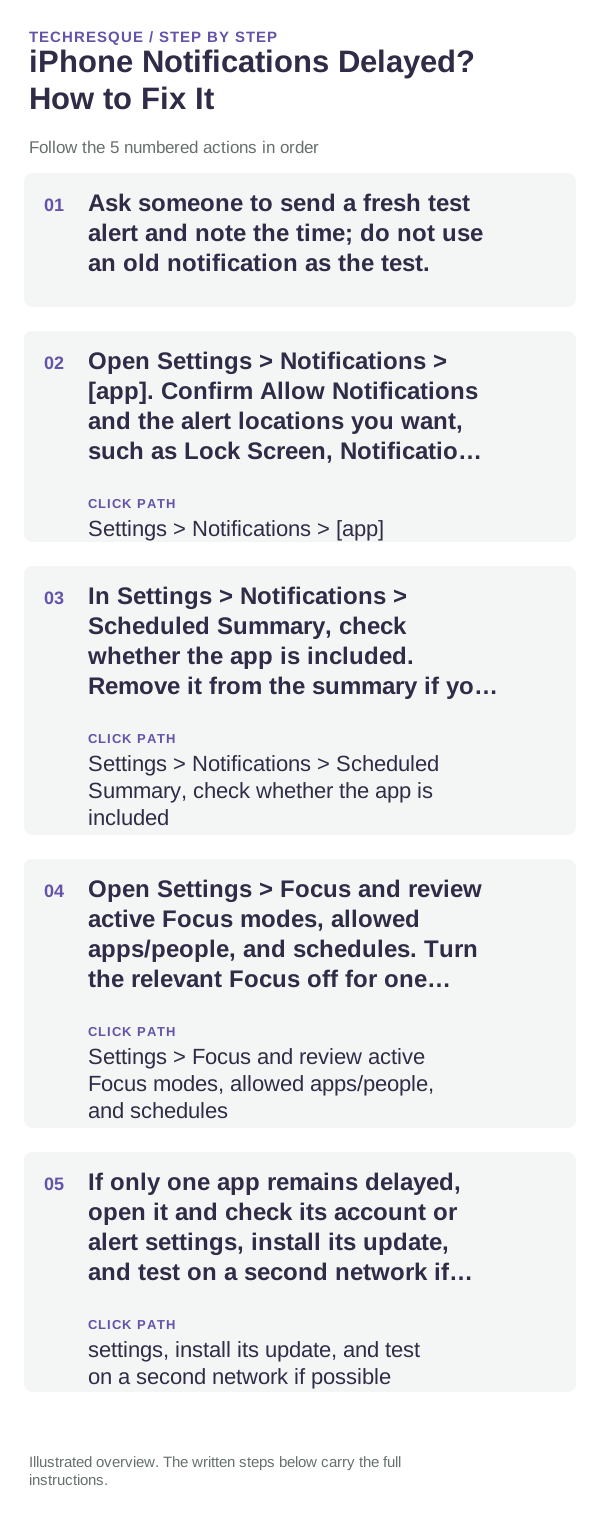
- Ask someone to send a fresh test alert and note the time; do not use an old notification as the test.
- Open Settings > Notifications > [app]. Confirm Allow Notifications and the alert locations you want, such as Lock Screen, Notification Centre, or Banners.
- In Settings > Notifications > Scheduled Summary, check whether the app is included. Remove it from the summary if you need its alerts immediately.
- Open Settings > Focus and review active Focus modes, allowed apps/people, and schedules. Turn the relevant Focus off for one test.
- If only one app remains delayed, open it and check its account or alert settings, install its update, and test on a second network if possible.
A quick way to narrow it down
If the alert appears when Scheduled Summary runs or Focus ends, change that schedule or allowed-app list. If the app’s notification never appears on any network while other apps alert normally, check the app account and service status. iOS settings cannot make a server send an alert it has not created.
What not to change first
Verify before you move on
After changing one setting, have a person or service send a new test alert while the phone is locked. Note whether it appears immediately, in Notification Centre, or only when a summary or Focus ends.
When to use support or repair
If one app still delivers late with Allow Notifications enabled, no summary or Focus rule, and a working connection, contact that app’s support with the alert timestamp and app version. If alerts from several apps stop together, check Apple System Status and update iOS before changing system settings.
Frequently asked questions
Does Background App Refresh control push notifications?
No. Background App Refresh is separate from push notification permission; check Settings > Notifications and the app’s own delivery settings first.
Can Focus delay an alert?
Focus can silence or hide notifications until you review them. Check which apps and people are allowed and whether a schedule turns Focus on automatically.
Why do notifications arrive in a group?
Scheduled Summary can collect selected apps’ notifications and show them at its scheduled time. Remove the app from the summary if you want its alerts separately.
Official sources and further reading
Focus can silence alerts, while Scheduled Summary groups selected notifications for later. Menu names can vary by iOS version.