Test the power path first: known-good charger, cable and outlet, then check port debris, temperature and any charge-limit setting before assuming the battery is bad.
On iPhone, prefer Apple’s built-in Settings and reset options; use “Reset All Settings” or a full erase only when a narrower fix has failed and you have a backup.
Likely causes to check first
- the cable or adapter cannot deliver the expected power
- lint or damage in the charging port prevents a stable connection
- the device is hot and is intentionally reducing charge speed
- background use is consuming power while the battery is charging
- battery protection or an 80% charge limit is deliberately slowing or pausing charging
Use this order so you can identify the cause
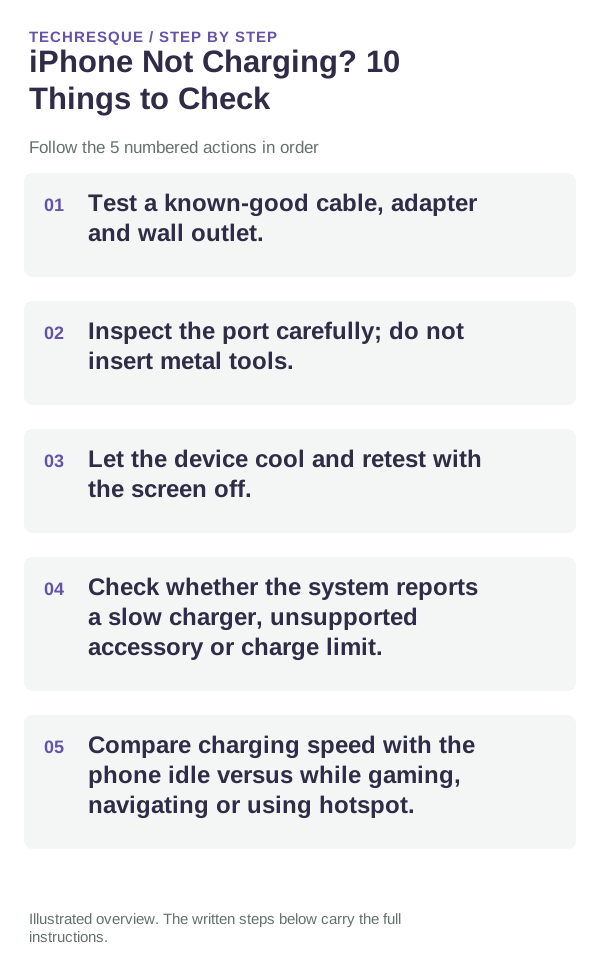
- Test a known-good cable, adapter and wall outlet.
- Inspect the port carefully; do not insert metal tools.
- Let the device cool and retest with the screen off.
- Check whether the system reports a slow charger, unsupported accessory or charge limit.
- Compare charging speed with the phone idle versus while gaming, navigating or using hotspot.
A quick way to narrow it down
Watch both battery percentage and the system charging message. A device can be connected to power yet charge slowly because of heat, a low-power adapter or heavy foreground use. Testing while the screen is off removes one major variable.
Repeat the same action in the same iPhone app after one change. Check another app before resetting network or privacy settings.
Do not make troubleshooting harder
- Do not scrape a charging port with metal.
- Do not compare charge speed while using the phone heavily with charge speed while idle.
- Do not cool a hot phone with ice or a freezer.
- Do not assume any USB-C cable supports the same power or data capability.
How to confirm the fix
The best test is the same charger, same battery level and same temperature before and after the change.
When to use support or repair
Seek service if the port is physically loose, the battery is swelling, the device becomes abnormally hot during light charging, or multiple known-good chargers fail. Back up important data before repair.
Record iPhone model, iOS version, affected app or setting, exact message and whether it follows one network. Hide personal details in screenshots.
Control temperature during the test
For a clean comparison, start at a similar battery percentage, let the device cool, use the same charger and keep the screen off for a short interval. Temperature and foreground use can otherwise hide the effect of the change you made.
Frequently asked questions
What should I check first for iphone not charging? 10 things to check?
Test the power path first: known-good charger, cable and outlet, then check port debris, temperature and any charge-limit setting before assuming the battery is bad.
Should I reset the whole device immediately?
Usually not. Check the affected app, accessory or setting first. Reset All Settings or erase the phone only after a backup.
How do I know when the fix is real?
The best test is the same charger, same battery level and same temperature before and after the change.
Official sources and further reading
iPhone settings labels can move between iOS versions. Use Settings search if a path differs, and check whether the symptom affects one app or the whole device.