iMessage activation can require internet access and carrier SMS, and Apple may take time to register a phone number. A pending status is different from a network error. Confirm the number can send and receive ordinary SMS and that the correct SIM/eSIM is active. Set Date & Time automatically and use a stable Wi-Fi or mobile-data connection.
iOS and macOS menu names can change by release; use Settings search and confirm whether the issue affects one app, one contact, or the entire device.
Likely causes to check first
iMessage activation can require internet access and carrier SMS, and Apple may take time to register a phone number. A pending status is different from a network error.
- The phone number is not active on the SIM/eSIM or cannot send SMS.
- Automatic date/time or internet access is unavailable.
- A recent SIM, number port, or carrier change is still propagating.
- The wrong phone number or Apple Account address is selected for Send & Receive.
- Apple's activation service is temporarily delayed.
Work through these checks
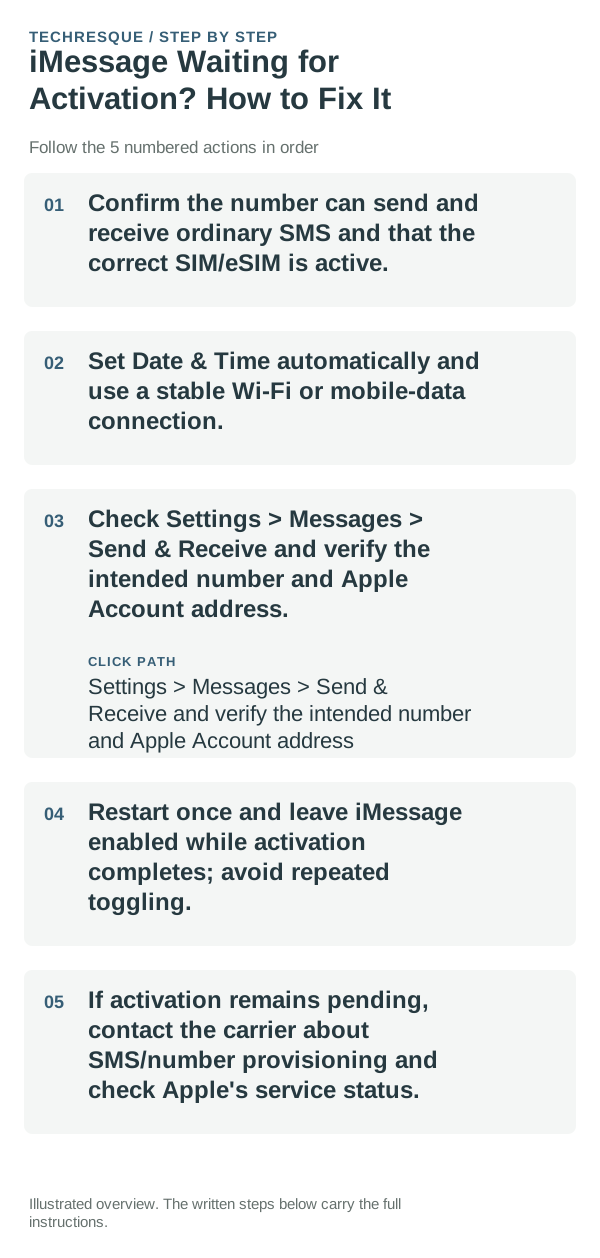
- Confirm the number can send and receive ordinary SMS and that the correct SIM/eSIM is active.
- Set Date & Time automatically and use a stable Wi-Fi or mobile-data connection.
- Check Settings > Messages > Send & Receive and verify the intended number and Apple Account address.
- Restart once and leave iMessage enabled while activation completes; avoid repeated toggling.
- If activation remains pending, contact the carrier about SMS/number provisioning and check Apple's service status.
What each result tells you
Check the exact activation status after a reasonable wait and verify ordinary carrier SMS independently.
Check the exact activation status after a reasonable wait and verify ordinary carrier SMS independently.
Do not make troubleshooting harder
- Do not repeatedly turn iMessage off/on or remove the SIM during number activation.
- Carrier SMS charges may apply.
Retest the original failure
Check the exact activation status after a reasonable wait and verify ordinary carrier SMS independently.
When to use support or repair
If the issue persists across apps or networks after updates and model-specific checks, contact Apple Support with the model and iOS version.
Record iPhone model, iOS version, affected app or setting, exact message and whether it follows one network. Hide personal details in screenshots.
Frequently asked questions
What should I check first?
Confirm the number can send and receive ordinary SMS and that the correct SIM/eSIM is active. Set Date & Time automatically and use a stable Wi-Fi or mobile-data connection. Check Settings > Messages > Send & Receive and verify the intended number and Apple Account address.
Should I reset the whole device immediately?
Usually not. Check the affected app, accessory or setting first. Reset All Settings or erase the phone only after a backup.
How do I know when the fix is real?
Check the exact activation status after a reasonable wait and verify ordinary carrier SMS independently.
Official sources and further reading
iPhone settings labels can move between iOS versions. Use Settings search if a path differs, and check whether the symptom affects one app or the whole device.