A useful Android backup is a set of separate checks: device settings, photos, messages, app data, and files may use different services and schedules. Open Settings > Google > Backup and verify the account and most recent backup time. Check Google Photos separately for its account, backup status, and a few recent items.
Android backup coverage varies by phone, account, app, and Android version. Verify photos, local files, and account recovery separately before a factory reset.
Before you start
Before resetting, confirm which Google account is on the phone, when its last backup completed, and which items are stored separately. Photos, downloads, authenticator access, and some app data may need their own checks.
The cleanest method
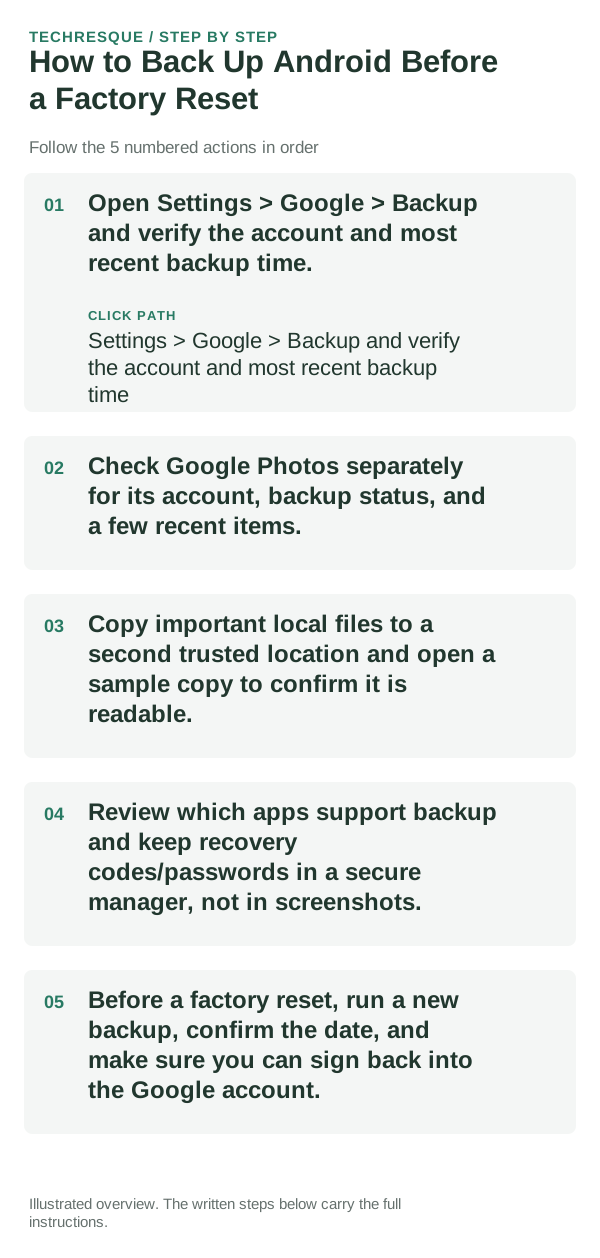
- Open Settings > Google > Backup and verify the account and most recent backup time.
- Check Google Photos separately for its account, backup status, and a few recent items.
- Copy important local files to a second trusted location and open a sample copy to confirm it is readable.
- Review which apps support backup and keep recovery codes/passwords in a secure manager, not in screenshots.
- Before a factory reset, run a new backup, confirm the date, and make sure you can sign back into the Google account.
How to check the result
Open the Backup screen and verify a recent timestamp for the intended account. Check Photos and important local folders separately, then confirm you can sign in to the account from another trusted device.
If the option is missing
Backup menus and supported data depend on Android version, manufacturer, app, and account. Use Settings search and each app's own export/sync status; no single screen guarantees every local file is included.
Keep the change easy to undo
Do not delete the source data while preparing a backup. Copy important local files to a second trusted location and open samples from that destination.
What to do if it still fails
If a category is missing, use the relevant app's export or sync option and make a separate copy of local files. Keep recovery methods available before resetting the phone.
Use a controlled test instead of changing several settings at once
Check each backup category separately: device settings, Photos, local files, and app-specific data do not necessarily share one status.
Do not reset until the timestamp is current, important files are verified from the destination, and account recovery works.
A completed device backup does not prove that Photos, Downloads, authenticator access, or every app's data is included.
| What you observe | What it points to | Best next check |
|---|---|---|
| Known-good alternative works | Original component likely involved | Replace/reconfigure that component |
| No change after reversible checks | Deeper system or service issue | Escalate with test results documented |
| Only one app/device fails | Local configuration or hardware path | Keep troubleshooting scoped locally |
Before you make a bigger change
Do not factory-reset until the backup timestamp is recent, important items have been checked in their destination, and you know the Google account password plus recovery method. Some app data cannot be restored.
Frequently asked questions
Can I reset the phone as soon as backup says complete?
Wait until you verify the account and timestamp, check photos and local files separately, and confirm you can sign back in. Some app data is not part of the Android backup.
Does Android back up every file and app?
No. App developers choose what data can be restored, and photos, downloads, authenticator access, and cloud files may use separate services. Check each one before resetting.
How can I verify a backup?
Check a recent backup time and open a sample copied file or photo from a separate device/account. Make sure account recovery works before erasing the phone.
Official sources and further reading
Cloud quota and local storage are separate. Confirm whether the warning appears in the provider account or on the device before deleting files.