A Play Store crash is separate from an app download that stays pending. Check whether the store opens, whether downloads work, and whether other Google services are affected. Restart the phone and confirm automatic date/time, network access, and free storage. Open Play Store > Manage apps and device and check whether another update is paused or waiting.
Android Settings labels differ across Pixel, Samsung, and other brands; search Settings for the named control and change one item at a time.
Likely causes to check first
A Play Store crash is separate from an app download that stays pending. Check whether the store opens, whether downloads work, and whether other Google services are affected.
- The Play Store cache or update is stale.
- Network, date/time, account sign-in, or storage blocks requests.
- Google Play services or Play system updates are pending.
- A download queue is paused or another update is holding the queue.
- A managed profile or certification issue limits store access.
The practical troubleshooting sequence
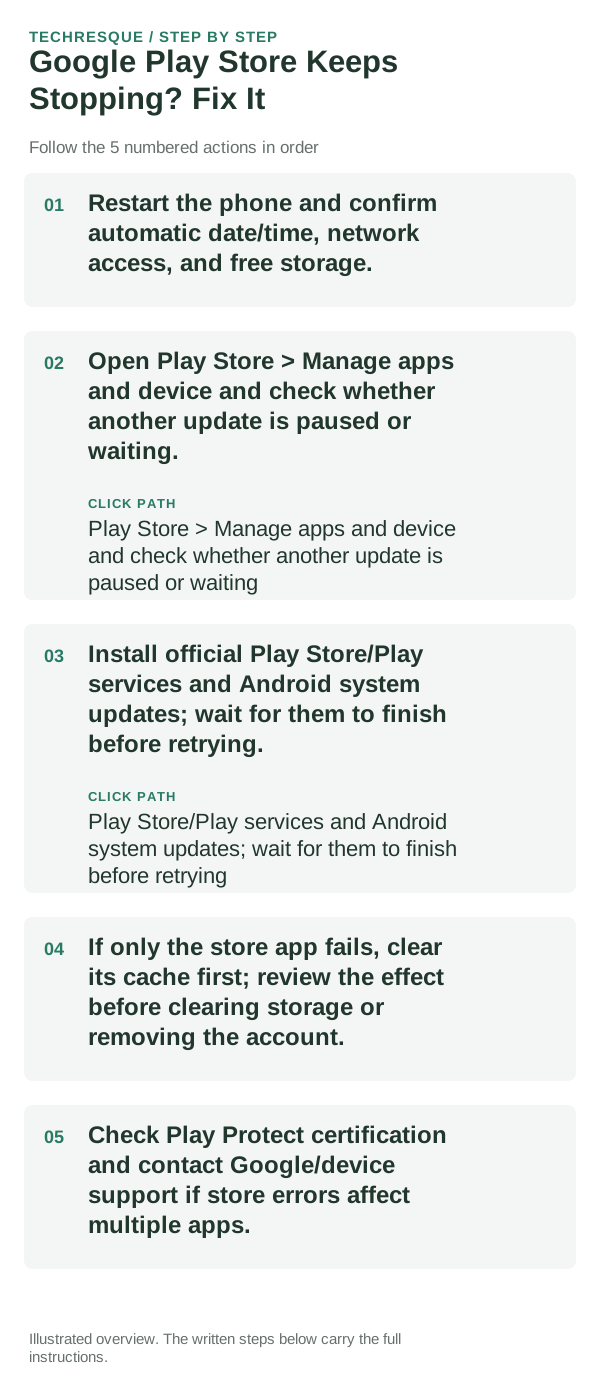
- Restart the phone and confirm automatic date/time, network access, and free storage.
- Open Play Store > Manage apps and device and check whether another update is paused or waiting.
- Install official Play Store/Play services and Android system updates; wait for them to finish before retrying.
- If only the store app fails, clear its cache first; review the effect before clearing storage or removing the account.
- Check Play Protect certification and contact Google/device support if store errors affect multiple apps.
What each result tells you
Test opening the Store separately from downloading one small free app; record the exact status or error text.
Test opening the Store separately from downloading one small free app; record the exact status or error text.
Do not make troubleshooting harder
- Do not clear Google Play services data or remove the account as an early step; confirm sync and recovery access first.
Retest the original failure
Test opening the Store separately from downloading one small free app; record the exact status or error text.
When to use support or repair
If several apps fail after updates and a restart, compare Safe Mode if supported. Swelling, unusual heat, damaged ports or shutdowns need service.
Note the phone model, Android version, affected app or setting, exact message and whether restarting or Safe Mode changes the result.
Frequently asked questions
What should I check first?
Restart the phone and confirm automatic date/time, network access, and free storage. Open Play Store > Manage apps and device and check whether another update is paused or waiting. Install official Play Store/Play services and Android system updates; wait for them to finish before retrying.
Should I reset the whole device immediately?
Usually not. Test the affected feature with a built-in tool or second app first. Back up local-only files before clearing app storage or considering a factory reset.
How do I know when the fix is real?
Test opening the Store separately from downloading one small free app; record the exact status or error text.