Google Play services is a system component used by many apps for sign-in, notifications, location, and other features. A stopping alert may follow an update, storage issue, or device compatibility problem. Restart the phone and check free storage, automatic date/time, and a stable connection. Update Google Play services through its supported system/Play Store route and install pending Android/Play system updates.
Android Settings labels differ across Pixel, Samsung, and other brands; search Settings for the named control and change one item at a time.
Why this can happen
Google Play services is a system component used by many apps for sign-in, notifications, location, and other features. A stopping alert may follow an update, storage issue, or device compatibility problem.
- A Play services or Play system update is pending or incomplete.
- System storage is low or date/time/network settings prevent components from updating.
- The issue follows a Google app or a specific account rather than every app.
- The device is uncertified, managed, or running an unsupported system build.
- A recent update exposed a compatibility bug.
Work through these checks
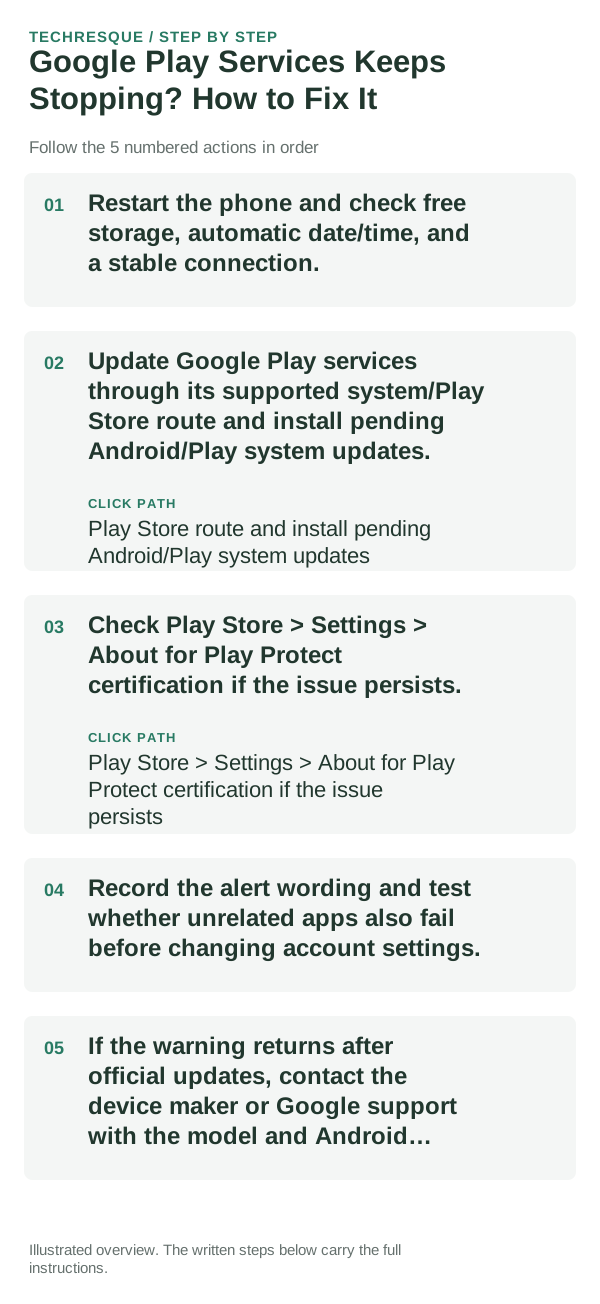
- Restart the phone and check free storage, automatic date/time, and a stable connection.
- Update Google Play services through its supported system/Play Store route and install pending Android/Play system updates.
- Check Play Store > Settings > About for Play Protect certification if the issue persists.
- Record the alert wording and test whether unrelated apps also fail before changing account settings.
- If the warning returns after official updates, contact the device maker or Google support with the model and Android version.
Use a clean A/B test
After updates, repeat the same app/sign-in action and note whether the alert returns across multiple apps.
After updates, repeat the same app/sign-in action and note whether the alert returns across multiple apps.
What not to change first
- Do not download Play services APKs from third-party sites or remove your Google account before confirming sync and recovery access.
Verify before you move on
After updates, repeat the same app/sign-in action and note whether the alert returns across multiple apps.
When to use support or repair
If several apps fail after updates and a restart, compare Safe Mode if supported. Swelling, unusual heat, damaged ports or shutdowns need service.
Note the phone model, Android version, affected app or setting, exact message and whether restarting or Safe Mode changes the result.
Frequently asked questions
What should I check first?
Restart the phone and check free storage, automatic date/time, and a stable connection. Update Google Play services through its supported system/Play Store route and install pending Android/Play system updates. Check Play Store > Settings > About for Play Protect certification if the issue persists.
Should I reset the whole device immediately?
Usually not. Test the affected feature with a built-in tool or second app first. Back up local-only files before clearing app storage or considering a factory reset.
How do I know when the fix is real?
After updates, repeat the same app/sign-in action and note whether the alert returns across multiple apps.