A lost GPS signal can be caused by the environment, app permission, or location accuracy. A blue dot moving slowly indoors is different from navigation losing its route on an open road. Test outdoors with a clear view of the sky and wait for the location marker to stabilize. Check Maps' Location permission and precise-location setting; confirm the device-wide Location switch is on.
Android Settings labels differ across Pixel, Samsung, and other brands; search Settings for the named control and change one item at a time.
Start by narrowing the cause
A lost GPS signal can be caused by the environment, app permission, or location accuracy. A blue dot moving slowly indoors is different from navigation losing its route on an open road.
- Buildings, tunnels, metal-coated glass, or a vehicle dashboard block satellite signals.
- Google Maps lacks precise location or location is disabled.
- Battery saver or background limits pause navigation.
- Compass calibration or network-assisted accuracy is poor.
- The problem follows one route/app or a recent Maps update.
Fix it in this order
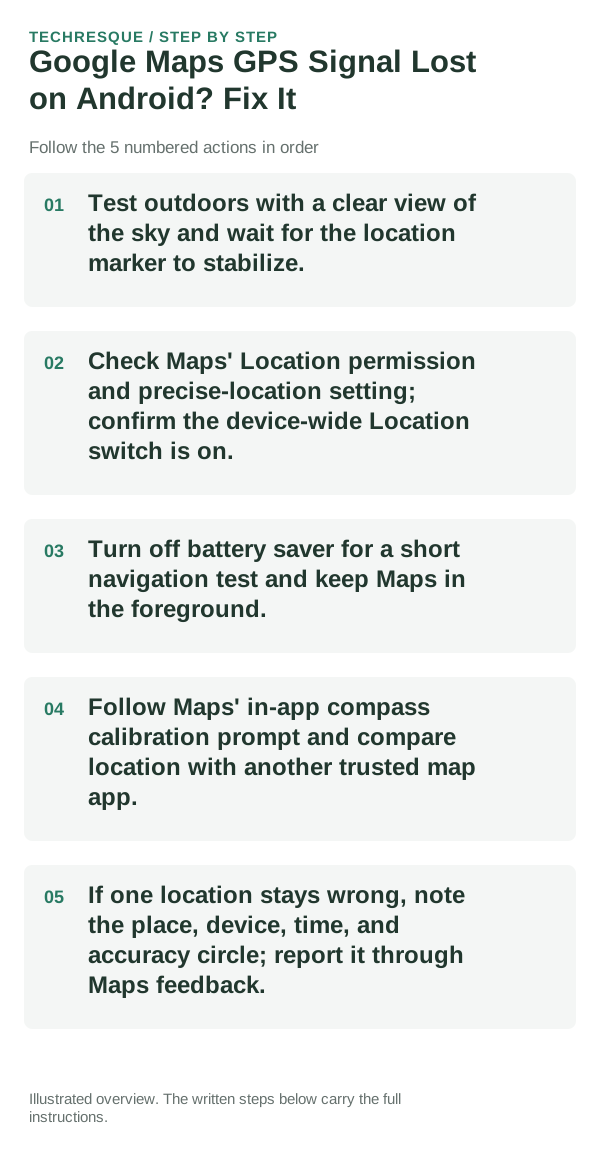
- Test outdoors with a clear view of the sky and wait for the location marker to stabilize.
- Check Maps' Location permission and precise-location setting; confirm the device-wide Location switch is on.
- Turn off battery saver for a short navigation test and keep Maps in the foreground.
- Follow Maps' in-app compass calibration prompt and compare location with another trusted map app.
- If one location stays wrong, note the place, device, time, and accuracy circle; report it through Maps feedback.
Use a clean A/B test
Compare one outdoor location with one indoor location and keep Maps open; GPS performance naturally changes with surroundings.
Repeat the same location task in the same app. Check app permission and device Location separately before changing another setting.
Changes to avoid until you know the cause
- Do not post a screenshot with home/work addresses.
- Do not grant background location if foreground navigation is all you need.
Verify before you move on
Compare one outdoor location with one indoor location and keep Maps open; GPS performance naturally changes with surroundings.
When to use support or repair
If several location apps fail outdoors with Location enabled, check system updates; if only one app fails, contact its developer.
Record phone model, Android version, affected app, permission state and whether another location app works. Do not share location history.
Frequently asked questions
What should I check first?
Test outdoors with a clear view of the sky and wait for the location marker to stabilize. Check Maps' Location permission and precise-location setting; confirm the device-wide Location switch is on. Turn off battery saver for a short navigation test and keep Maps in the foreground.
Should I reset the whole device immediately?
Usually not. Check the Location toggle, app permission and another location app before resetting network or device settings.
How do I know when the fix is real?
Compare one outdoor location with one indoor location and keep Maps open; GPS performance naturally changes with surroundings.
Official sources and further reading
Location permissions and accuracy controls vary by Android version and app. Check the app’s permission separately from the device Location toggle.