Check YouTube's player mute and volume, the tab's mute icon, Chrome site sound permission, and the operating system mixer. Compare another YouTube video and another site.
Likely causes to check first
A YouTube player can be muted independently from the browser tab, and Chrome can be muted by the operating system. A silent advertisement or one video does not prove all Chrome audio is broken.
Fix it in this order
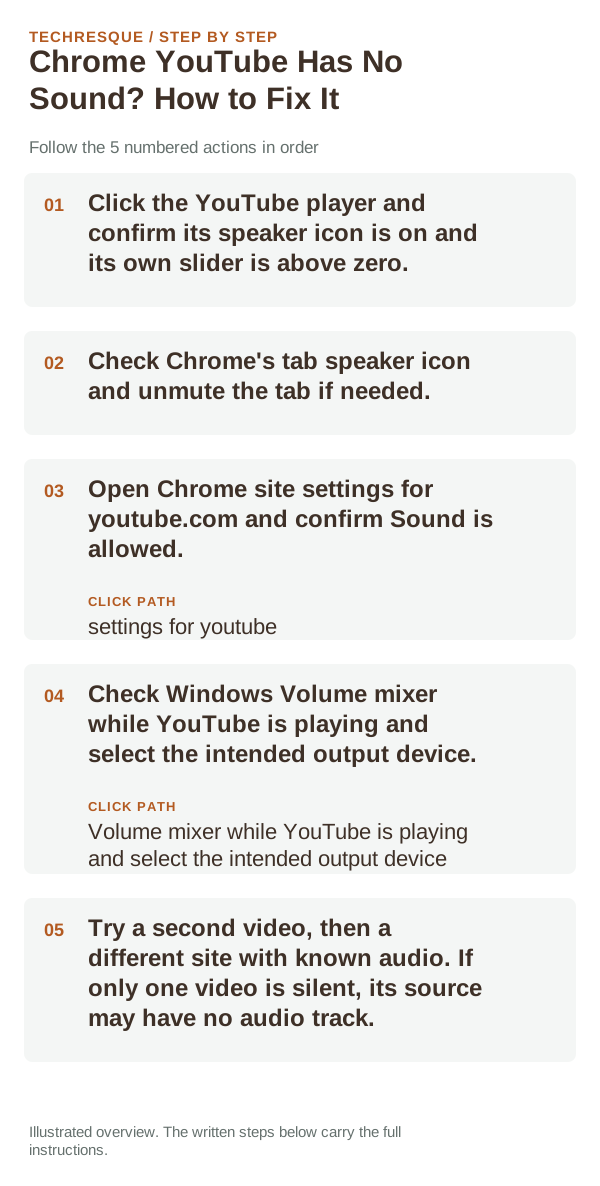
- Click the YouTube player and confirm its speaker icon is on and its own slider is above zero.
- Check Chrome's tab speaker icon and unmute the tab if needed.
- Open Chrome site settings for youtube.com and confirm Sound is allowed.
- Check Windows Volume mixer while YouTube is playing and select the intended output device.
- Try a second video, then a different site with known audio. If only one video is silent, its source may have no audio track.
How to tell which cause applies
If other Chrome sites play sound, the YouTube player, site permission, or video track is the likely boundary. If Chrome is silent everywhere, check its mixer and output route.
Do not make troubleshooting harder
Do not clear all cookies or disable security settings as an audio fix. Sign-in and viewing preferences can be lost without changing the sound path.
Confirm that the problem is actually gone
Play a second video and confirm sound at the player, tab, and system level. Restore any test permission or extension change if it made no difference.
When to use support or repair
If several known-good videos are silent but other apps work, update Chrome and check Google Chrome Help with the browser version and site permission state.
Confirm the active audio path before changing drivers or apps
For microphones and cameras, permission can be granted at both the operating-system level and inside the app or browser. A correct hardware connection will still fail if either permission layer blocks access.
A device can be paired without being the active input or output. Check the selected microphone, speaker or Bluetooth profile first, then reproduce the problem in a second app so you know whether the fault follows the accessory or only one application.
Bluetooth audio adds another layer: call audio and media audio can use different profiles, and multipoint devices can silently switch to another phone or computer. Disconnect extra devices during testing.
| What you observe | What it points to | Best next check |
|---|---|---|
| Cuts out or crackles | Signal, codec, driver or hardware path | Test closer, wired, or with another known-good device |
| Works in one app only | App permission or app-specific routing | Compare permissions and selected device |
| Paired but silent | Wrong output/profile or another device took focus | Select output manually and disconnect extras |
Frequently asked questions
Should I reset the whole device immediately?
Usually not. Compare a private window and another browser first. Reset Chrome only after checking the profile, extensions and sync.
How do I know when the fix is real?
Play a second video and confirm sound at the player, tab, and system level. Restore any test permission or extension change if it made no difference.