Open chrome://management to see whether Chrome reports that it is managed.
Start by narrowing the cause
- one extension or profile is misbehaving
- cached site data is stale
- memory pressure is forcing tabs to reload
- DNS/network problems affect only some sites
- security software or a proxy is intercepting connections
Work through these checks
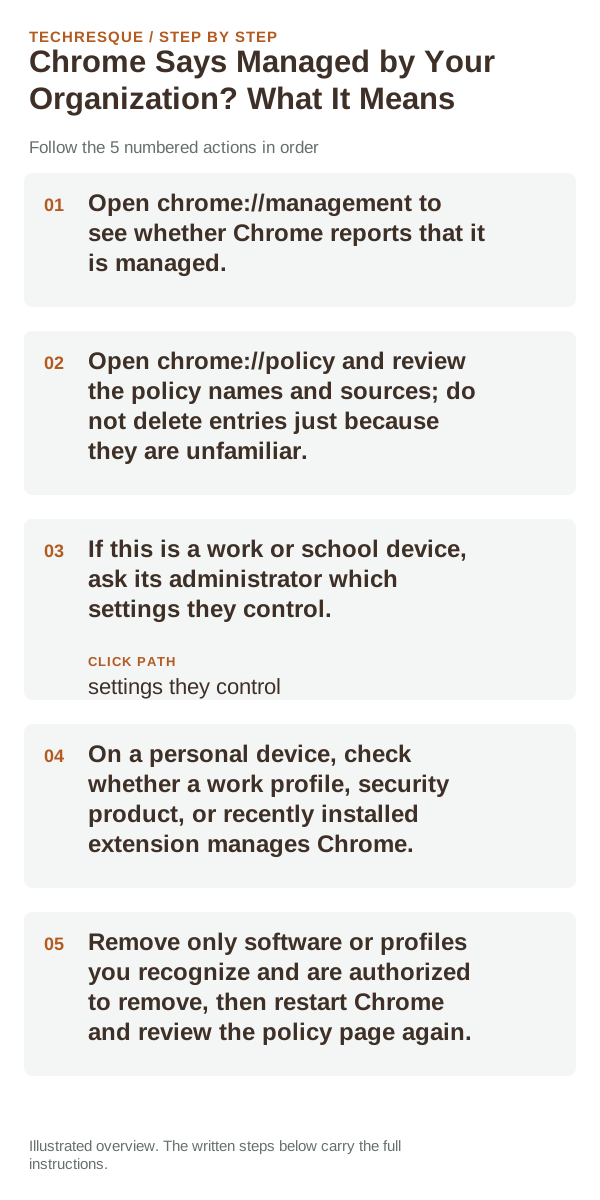
- Open chrome://management to see whether Chrome reports that it is managed.
- Open chrome://policy and review the policy names and sources; do not delete entries just because they are unfamiliar.
- If this is a work or school device, ask its administrator which settings they control.
- On a personal device, check whether a work profile, security product, or recently installed extension manages Chrome.
- Remove only software or profiles you recognize and are authorized to remove, then restart Chrome and review the policy page again.
Use a clean A/B test
A company or school policy is normal on an enrolled device. A personal device showing an unexpected policy deserves a careful review of installed profiles and software; the banner alone does not prove malware. Avoid registry-cleaning instructions until you know the policy source.
What not to change first
What success should look like
Open chrome://management and chrome://policy and confirm whether the listed policy is expected for this device. Ask the administrator on a managed device; do not remove a legitimate work or school policy.
When to use support or repair
If the same page fails in another browser, contact the site or network owner; if only Chrome fails, report its version and reproduction steps.
Record Chrome version, device/OS, profile and extension state, and the affected page without private tokens or account data.
Frequently asked questions
Should I reset the whole device immediately?
Usually not. Compare a private window and another browser first. Reset Chrome only after checking the profile, extensions and sync.
How do I know when the fix is real?
Open chrome://management and chrome://policy and confirm whether the listed policy is expected for this device. Ask the administrator on a managed device; do not remove a legitimate work or school policy.
Official sources and further reading
Chrome menu labels can change with releases. Search Settings for the named control if its location differs.