Open chrome://settings/content/pdfDocuments and choose whether PDFs should open in Chrome or download.
Likely causes to check first
- one extension or profile is misbehaving
- cached site data is stale
- memory pressure is forcing tabs to reload
- DNS/network problems affect only some sites
- security software or a proxy is intercepting connections
Use this order so you can identify the cause
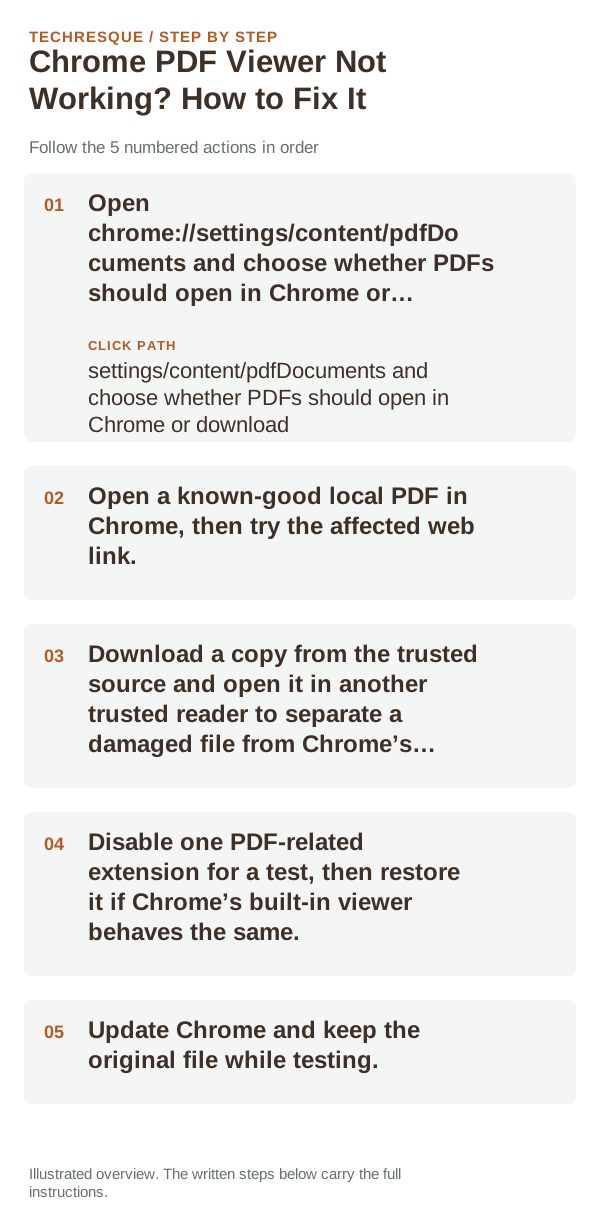
- Open chrome://settings/content/pdfDocuments and choose whether PDFs should open in Chrome or download.
- Open a known-good local PDF in Chrome, then try the affected web link.
- Download a copy from the trusted source and open it in another trusted reader to separate a damaged file from Chrome’s viewer.
- Disable one PDF-related extension for a test, then restore it if Chrome’s built-in viewer behaves the same.
- Update Chrome and keep the original file while testing.
Use a clean A/B test
If local PDFs work but one web PDF fails, the site or link may be responsible. If every PDF downloads or opens externally, check the PDF documents preference. If a file fails in multiple readers, request a fresh copy.
Changes to avoid until you know the cause
How to confirm the fix
Open a known-good PDF from a trusted source and confirm it displays inside Chrome or downloads according to your chosen setting. Compare one local file if the online file fails.
When to use support or repair
If the same page fails in another browser, contact the site or network owner; if only Chrome fails, report its version and reproduction steps.
Record Chrome version, device/OS, profile and extension state, and the affected page without private tokens or account data.
Frequently asked questions
Should I reset the whole device immediately?
Usually not. Compare a private window and another browser first. Reset Chrome only after checking the profile, extensions and sync.
How do I know when the fix is real?
Open a known-good PDF from a trusted source and confirm it displays inside Chrome or downloads according to your chosen setting. Compare one local file if the online file fails.
Official sources and further reading
Chrome’s download destination and PDF handling are separate settings; preserve the original file while testing.