Open Chrome’s profile menu and confirm you are using the profile that held the bookmarks.
Likely causes to check first
- one extension or profile is misbehaving
- cached site data is stale
- memory pressure is forcing tabs to reload
- DNS/network problems affect only some sites
- security software or a proxy is intercepting connections
Troubleshoot from low-risk to high-risk
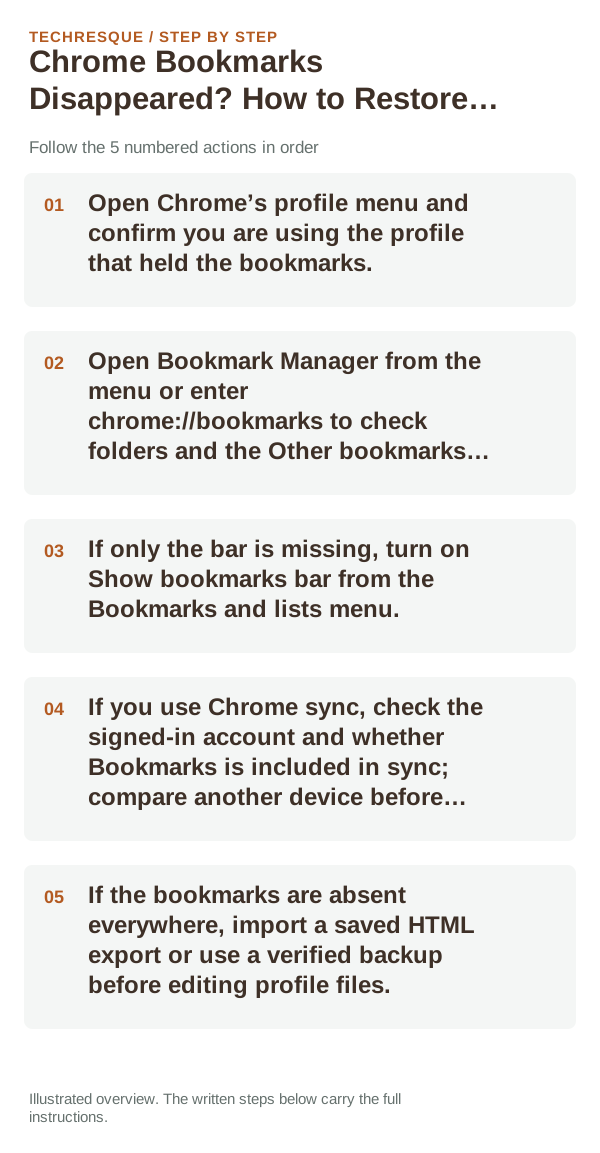
- Open Chrome’s profile menu and confirm you are using the profile that held the bookmarks.
- Open Bookmark Manager from the menu or enter chrome://bookmarks to check folders and the Other bookmarks folder.
- If only the bar is missing, turn on Show bookmarks bar from the Bookmarks and lists menu.
- If you use Chrome sync, check the signed-in account and whether Bookmarks is included in sync; compare another device before changing sync.
- If the bookmarks are absent everywhere, import a saved HTML export or use a verified backup before editing profile files.
Use a clean A/B test
Bookmarks visible in Bookmark Manager but not the bar are hidden or in another folder. Bookmarks present on another signed-in device point to a local profile or sync issue. If no copy exists on any device, avoid clearing browser data and restore only from a backup you recognize.
How to confirm the fix
Open a known bookmark and confirm its URL and folder are correct. Restart Chrome and check that it remains in the intended profile; do not remove or overwrite the old bookmark file during the test.
When to use support or repair
If the same page fails in another browser, contact the site or network owner; if only Chrome fails, report its version and reproduction steps.
Record Chrome version, device/OS, profile and extension state, and the affected page without private tokens or account data.
Frequently asked questions
Should I reset the whole device immediately?
Usually not. Compare a private window and another browser first. Reset Chrome only after checking the profile, extensions and sync.
How do I know when the fix is real?
Open a known bookmark and confirm its URL and folder are correct. Restart Chrome and check that it remains in the intended profile; do not remove or overwrite the old bookmark file during the test.
Official sources and further reading
Sync and saved information belong to a Chrome profile; confirm the account and backup before deleting local browser data.