Test one local video, one app, and a second headset; then check that Windows selects the headset's stereo playback output. Bluetooth latency is often normal and cannot be removed by reinstalling a driver.
On Windows 11, menu names vary by build. Use built-in Settings and Microsoft Support guidance before registry edits or third-party repair tools.
What this symptom usually means
Bluetooth audio is buffered and may lag behind video, especially in games or live monitoring. An app can add extra delay, and some headsets expose separate stereo and hands-free audio endpoints.
Use this order so you can identify the cause
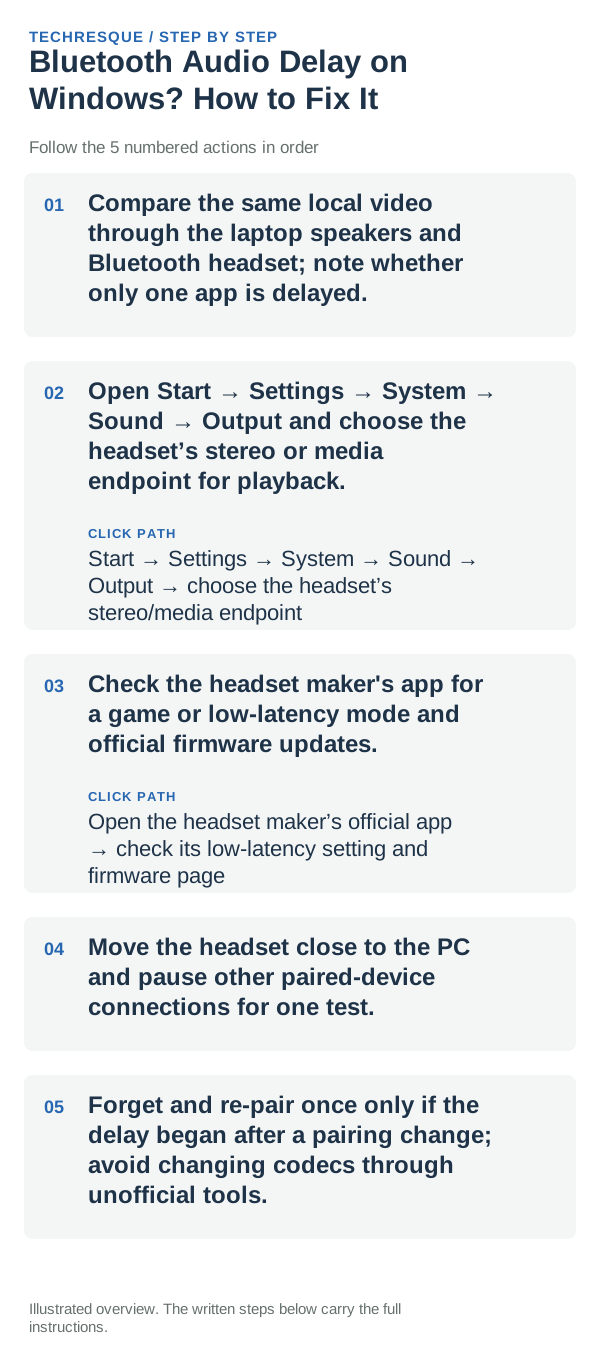
- Compare the same local video through the laptop speakers and Bluetooth headset; note whether only one app is delayed.
- Open Start → Settings → System → Sound → Output and choose the headset’s stereo or media endpoint for playback.
- Check the headset maker's app for a game or low-latency mode and official firmware updates.
- Move the headset close to the PC and pause other paired-device connections for one test.
- Forget and re-pair once only if the delay began after a pairing change; avoid changing codecs through unofficial tools.
What each result tells you
Only one app delayed points to app buffering. All Bluetooth apps delayed while speakers stay in sync points to the headset or wireless path; calls may use a separate hands-free mode.
Do not make troubleshooting harder
Do not uninstall Bluetooth drivers or alter registry codec flags as a first fix. Some delay is inherent in Bluetooth and may remain for games or live monitoring.
Confirm that the problem is actually gone
Repeat the same local video after selecting the stereo endpoint and compare against the speakers; restore the original output if quality or microphone use changes unexpectedly.
When to use support or repair
If multiple headsets show unusual delay after official Windows and OEM updates, contact the PC maker with its Bluetooth adapter and Windows build.
Pairing and audio are separate tests
First prove that the devices can pair. Then prove that the intended profile—media, calls, microphone or input—works. Solving the wrong layer is why many Bluetooth fixes appear inconsistent.
Frequently asked questions
What should I check first for bluetooth audio delay on windows? how to fix it?
Disconnect the accessory from other devices, forget the pairing on both sides, pair again, then confirm the correct audio/input profile is selected.
Should I reset the whole device immediately?
Usually not. Recheck charge, distance and the current pairing first; remove only the affected pairing before resetting devices.
How do I know when the fix is real?
Repeat the same local video after selecting the stereo endpoint and compare against the speakers; restore the original output if quality or microphone use changes unexpectedly.