Test a screenshot on the Home screen first. If it works there but not in one app, that app may block capture for privacy or security; if it fails everywhere, check the button gesture, device policy, and available storage.
On Android, menu names vary by maker, so use Settings search when a path in a guide does not match your phone exactly.
Where this problem usually comes from
A failed capture can mean the button combination was not recognized, the device is managed, the screenshot service is stuck, or the target app deliberately blocks screenshots. Banking, streaming, private browsing, and work-profile screens may show a security warning or a blank image by design.
Work through these checks
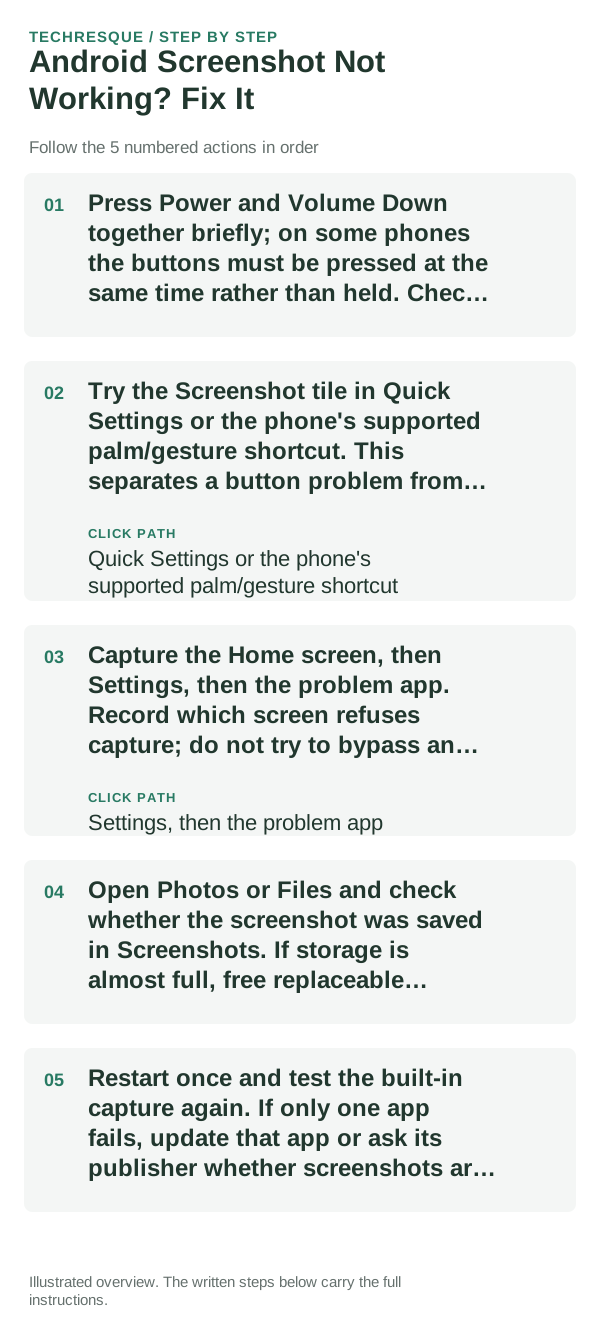
- Press Power and Volume Down together briefly; on some phones the buttons must be pressed at the same time rather than held. Check the phone maker's help page if the combination differs.
- Try the Screenshot tile in Quick Settings or the phone's supported palm/gesture shortcut. This separates a button problem from a system-wide capture problem.
- Capture the Home screen, then Settings, then the problem app. Record which screen refuses capture; do not try to bypass an app's security restriction.
- Open Photos or Files and check whether the screenshot was saved in Screenshots. If storage is almost full, free replaceable downloads and retry.
- Restart once and test the built-in capture again. If only one app fails, update that app or ask its publisher whether screenshots are disabled.
Isolate the failing layer
The pattern matters more than repeated attempts: failure in one protected app is different from failure on the entire device. On a managed phone, a work policy can also restrict capture outside that app.
What not to change first
Do not install screenshot utilities that request Accessibility or screen-recording access to work around a block. Keep private account, banking, and work information out of test images.
Retest the original failure
A successful Home-screen capture should appear in the Screenshots album or folder and open normally. Recheck the one screen that originally failed; if it is protected, treat the block as expected rather than a repair target.
When to use support or repair
If every screen fails after a restart and storage is available, contact the phone maker or the work-device administrator. Include the Android version, phone model, the capture method used, and whether the Quick Settings tile behaves differently.
Frequently asked questions
Should I reset the whole device immediately?
Usually not. Test the affected feature with a built-in tool or second app first. Back up local-only files before clearing app storage or considering a factory reset.
How do I know when the fix is real?
A successful Home-screen capture should appear in the Screenshots album or folder and open normally. Recheck the one screen that originally failed; if it is protected, treat the block as expected rather than a repair target.