Android clipboard behavior varies by keyboard and app. Recent copied text may expire, sensitive values may be hidden, and some apps deliberately block copying. Copy a harmless short phrase from a plain text field, then paste it into another basic text field. Open the keyboard's clipboard panel immediately; pin text only if you understand the privacy tradeoff.
Android Settings labels differ across Pixel, Samsung, and other brands; search Settings for the named control and change one item at a time.
Why this can happen
Android clipboard behavior varies by keyboard and app. Recent copied text may expire, sensitive values may be hidden, and some apps deliberately block copying.
- The clipboard history is temporary or has expired.
- The selected keyboard has its own clipboard panel that is disabled or empty.
- The source app blocks copying or copies formatted content the destination cannot accept.
- A work profile, password field, or device policy blocks clipboard access.
- A keyboard or system update has interrupted the clipboard service.
Use this order so you can identify the cause
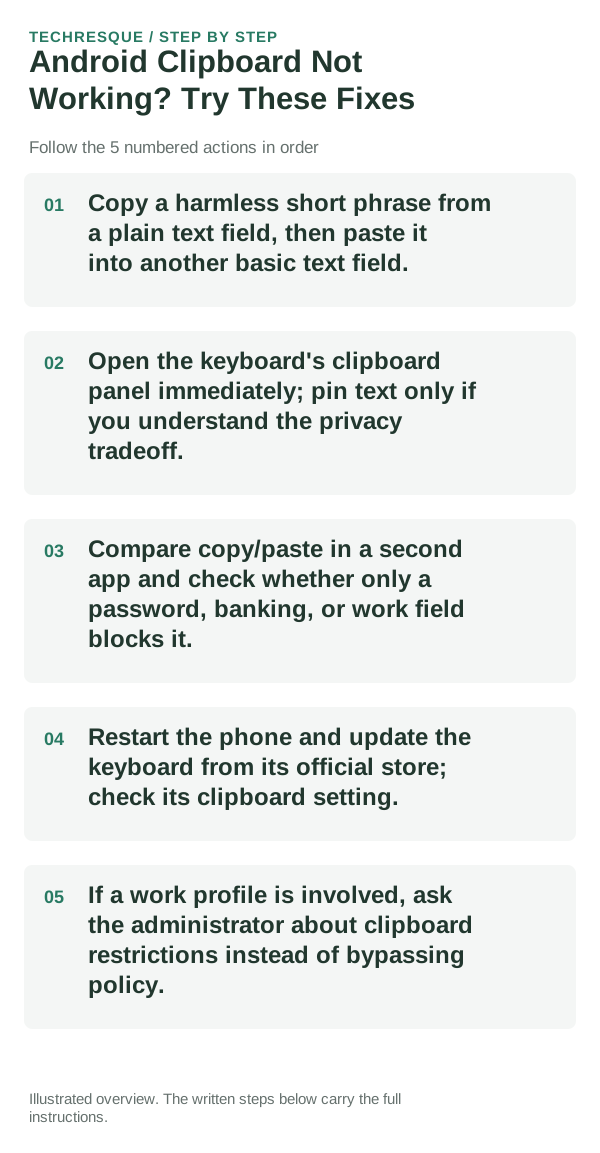
- Copy a harmless short phrase from a plain text field, then paste it into another basic text field.
- Open the keyboard's clipboard panel immediately; pin text only if you understand the privacy tradeoff.
- Compare copy/paste in a second app and check whether only a password, banking, or work field blocks it.
- Restart the phone and update the keyboard from its official store; check its clipboard setting.
- If a work profile is involved, ask the administrator about clipboard restrictions instead of bypassing policy.
How to tell which cause applies
Use the same short, non-sensitive phrase for the source and destination test. Keyboard clipboard history and expiration differ by app and Android version.
Use the same short, non-sensitive phrase for the source and destination test. Keyboard clipboard history and expiration differ by app and Android version.
Changes to avoid until you know the cause
- Do not copy passwords, payment details, or recovery codes into clipboard history.
- Do not change work-profile policy to bypass organizational controls.
Confirm that the problem is actually gone
Use the same short, non-sensitive phrase for the source and destination test. Keyboard clipboard history and expiration differ by app and Android version.
When to use support or repair
If several apps fail after updates and a restart, compare Safe Mode if supported. Swelling, unusual heat, damaged ports or shutdowns need service.
Note the phone model, Android version, affected app or setting, exact message and whether restarting or Safe Mode changes the result.
Frequently asked questions
What should I check first?
Copy a harmless short phrase from a plain text field, then paste it into another basic text field. Open the keyboard's clipboard panel immediately; pin text only if you understand the privacy tradeoff. Compare copy/paste in a second app and check whether only a password, banking, or work field blocks it.
Should I reset the whole device immediately?
Usually not. Test the affected feature with a built-in tool or second app first. Back up local-only files before clearing app storage or considering a factory reset.
How do I know when the fix is real?
Use the same short, non-sensitive phrase for the source and destination test. Keyboard clipboard history and expiration differ by app and Android version.