Text delivery depends on the message type, default messaging app, SIM, and carrier. Determine whether the failure is SMS/MMS or RCS and whether it affects one recipient or every recipient. Check mobile signal, SIM selection, and whether a normal phone call works; confirm the correct app is the default SMS app. Send a short plain-text SMS to one known contact, then compare with a second contact; note any exact error.
Android Settings labels differ across Pixel, Samsung, and other brands; search Settings for the named control and change one item at a time.
Where this problem usually comes from
Text delivery depends on the message type, default messaging app, SIM, and carrier. Determine whether the failure is SMS/MMS or RCS and whether it affects one recipient or every recipient.
- The phone has no service, an incorrect SIM, or a carrier SMS/MMS restriction.
- The default messaging app or its send/receive service is not ready.
- RCS is disconnected, still registering, or unavailable to the recipient.
- A blocked contact, spam filter, or short-code restriction applies.
- MMS media cannot download because mobile data/APN settings are unavailable.
Use this order so you can identify the cause
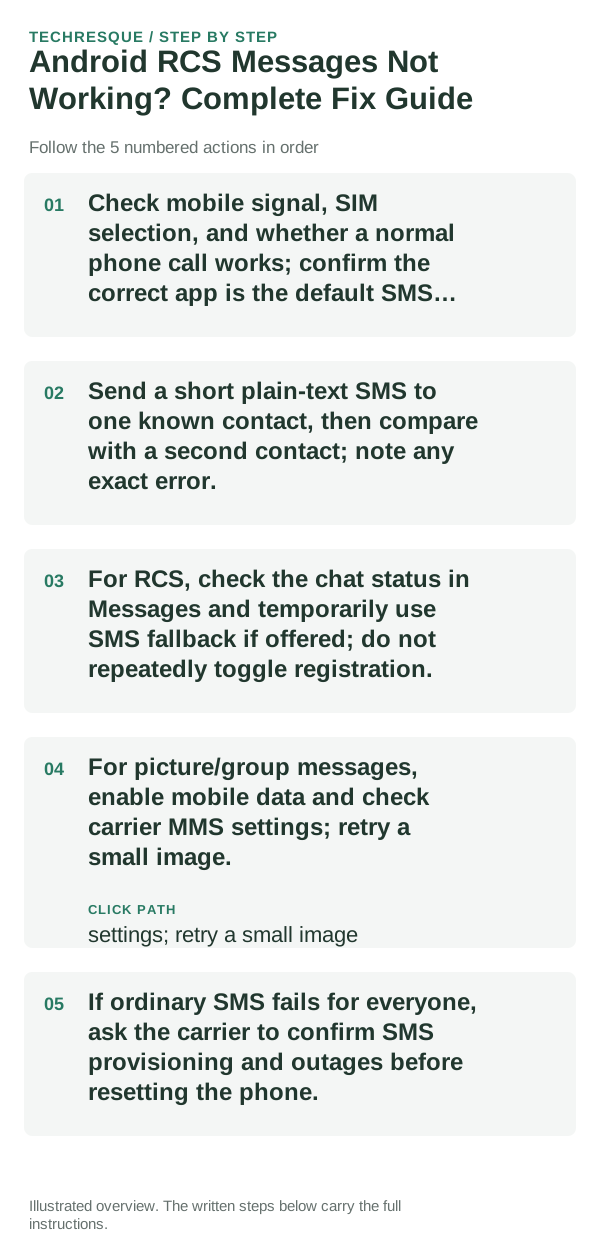
- Check mobile signal, SIM selection, and whether a normal phone call works; confirm the correct app is the default SMS app.
- Send a short plain-text SMS to one known contact, then compare with a second contact; note any exact error.
- For RCS, check the chat status in Messages and temporarily use SMS fallback if offered; do not repeatedly toggle registration.
- For picture/group messages, enable mobile data and check carrier MMS settings; retry a small image.
- If ordinary SMS fails for everyone, ask the carrier to confirm SMS provisioning and outages before resetting the phone.
What each result tells you
Test one plain SMS separately from an RCS chat and an MMS image. Keep the recipient and SIM consistent so the result is meaningful.
Test one plain SMS separately from an RCS chat and an MMS image. Keep the recipient and SIM consistent so the result is meaningful.
Do not make troubleshooting harder
- Do not delete message threads or clear messaging storage before confirming backups.
- Never send verification codes to a public support channel.
How to confirm the fix
Test one plain SMS separately from an RCS chat and an MMS image. Keep the recipient and SIM consistent so the result is meaningful.
When to use support or repair
If several apps fail after updates and a restart, compare Safe Mode if supported. Swelling, unusual heat, damaged ports or shutdowns need service.
Note the phone model, Android version, affected app or setting, exact message and whether restarting or Safe Mode changes the result.
Frequently asked questions
What should I check first?
Check mobile signal, SIM selection, and whether a normal phone call works; confirm the correct app is the default SMS app. Send a short plain-text SMS to one known contact, then compare with a second contact; note any exact error. For RCS, check the chat status in Messages and temporarily use SMS fallback if offered; do not repeatedly toggle registration.
Should I reset the whole device immediately?
Usually not. Test the affected feature with a built-in tool or second app first. Back up local-only files before clearing app storage or considering a factory reset.
How do I know when the fix is real?
Test one plain SMS separately from an RCS chat and an MMS image. Keep the recipient and SIM consistent so the result is meaningful.
Official sources and further reading
Android labels differ across Pixel, Samsung and other brands. Use Settings search for the named control if a menu path does not match your phone.