Turn Bluetooth off and on, restart both devices, make sure the accessory is charged and in pairing mode, then forget/remove the saved pairing and pair again.
Start with the simplest reversible checks before moving to resets or repair.
Why this happens
Do not assume the most expensive failure first. This problem usually becomes much easier once you separate a settings problem from a connection, app, accessory or hardware problem.
- The accessory is not actually in pairing mode.
- The device is already connected to another phone, tablet or computer.
- A stale saved pairing prevents a clean authentication handshake.
- Low accessory battery or excessive distance weakens the connection.
- The phone or accessory needs a firmware or system update.
Fix it in this order
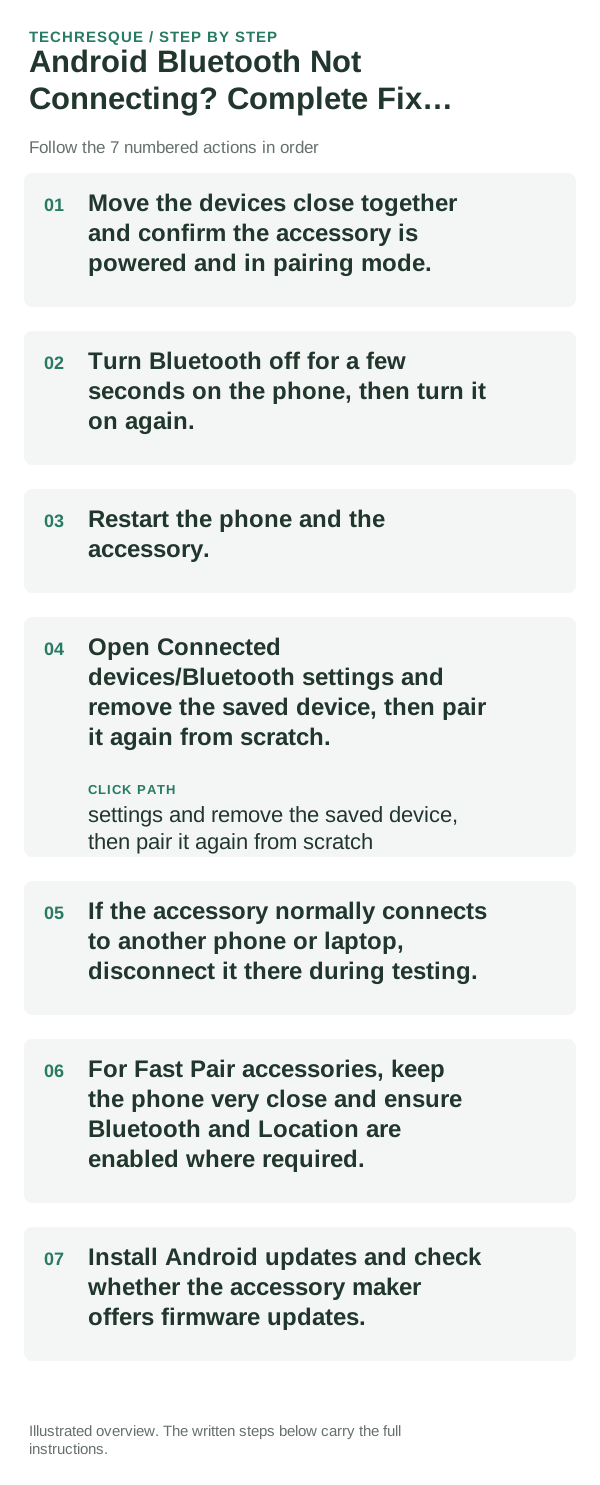
- Move the devices close together and confirm the accessory is powered and in pairing mode.
- Turn Bluetooth off for a few seconds on the phone, then turn it on again.
- Restart the phone and the accessory.
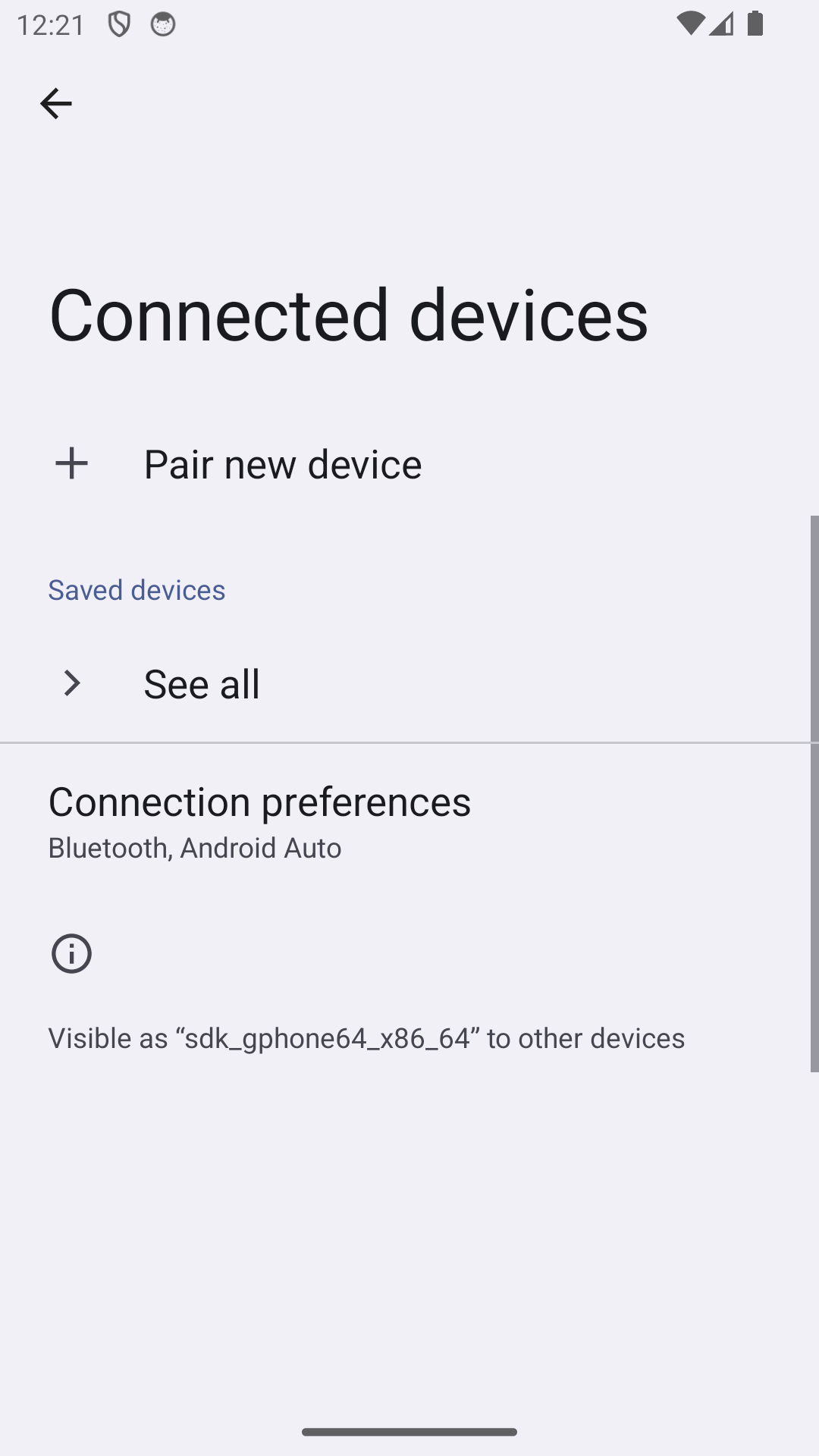
- Open Connected devices/Bluetooth settings and remove the saved device, then pair it again from scratch.
- If the accessory normally connects to another phone or laptop, disconnect it there during testing.
- For Fast Pair accessories, keep the phone very close and ensure Bluetooth and Location are enabled where required.
- Install Android updates and check whether the accessory maker offers firmware updates.
How to identify the real cause
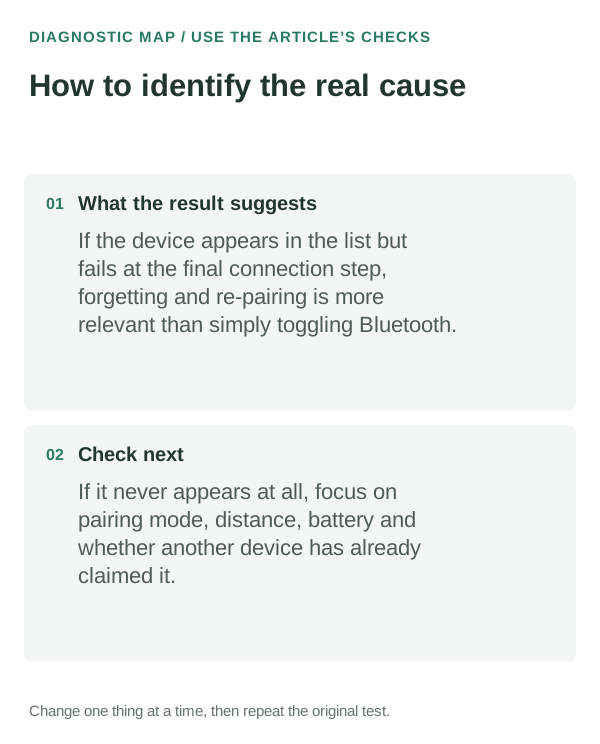
If the device appears in the list but fails at the final connection step, forgetting and re-pairing is more relevant than simply toggling Bluetooth. If it never appears at all, focus on pairing mode, distance, battery and whether another device has already claimed it.
Common mistakes that waste time
- Repeatedly tapping the saved device without putting the accessory back into pairing mode.
- Leaving the accessory connected to another computer during troubleshooting.
- Resetting all phone settings before testing the accessory with another device.
- Using random default PIN codes unless the accessory documentation actually calls for one.
When this is probably not a settings problem
If the accessory fails to pair with multiple phones, the accessory is the more likely problem. If your phone fails with several known-good Bluetooth devices, contact the phone maker.
If you need repair or manufacturer support, write down what you already tested. A short list of known-good cables, devices, networks or apps you tried is much more useful than saying only that the feature “doesn't work.”
Use a two-device cross-test
Pair the accessory with another phone, then pair your phone with a different accessory. If only one accessory fails everywhere, troubleshoot that accessory. If your phone fails with several known-good devices, the phone is the common factor. This simple cross-test is more informative than repeating the same pairing attempt twenty times.
Check multipoint and remembered hosts
Headphones, car systems and keyboards can remember several devices. Some automatically reconnect to the last active host before your Android phone gets a chance. Turn Bluetooth off on nearby previously paired devices during testing so the accessory is truly available.
Frequently asked questions
Why does my Bluetooth device show but not connect?
A stale pairing, connection to another host, low accessory battery or compatibility problem can allow discovery but block the final connection.
Should I forget the Bluetooth device?
Yes, when simple reconnects fail. Removing the saved pairing forces both devices to negotiate again.
Does Location need to be on for Bluetooth?
Some Fast Pair and scanning experiences can require related permissions or services, depending on Android version and device.
How close should devices be while pairing?
Keep them very close during initial pairing; Google advises close proximity for Fast Pair devices.
Official sources and further reading
Pairing controls and accessory support vary by Android version and device hardware. Put the accessory itself into pairing mode before selecting it.