Face unlock and fingerprint checks depend on enrollment quality, sensor visibility, and the phone's security policy. A repeated failure can be a sensor/lighting issue rather than a missing app permission. Unlock once with the PIN, password, or pattern; this may be required after restart or repeated attempts. Clean and uncover the appropriate sensor, then test the device's own biometric unlock rather than an individual app.
Android Settings labels differ across Pixel, Samsung, and other brands; search Settings for the named control and change one item at a time.
What this symptom usually means
Face unlock and fingerprint checks depend on enrollment quality, sensor visibility, and the phone's security policy. A repeated failure can be a sensor/lighting issue rather than a missing app permission.
- The camera or fingerprint sensor is obstructed, dirty, wet, or covered by an incompatible protector.
- The current angle, lighting, or finger position differs from enrollment.
- Too many attempts triggered a temporary PIN/pattern requirement.
- The biometric enrollment changed after a repair, update, or physical damage.
- An app requires the stronger PIN/pattern rather than biometric unlock.
Work through these checks
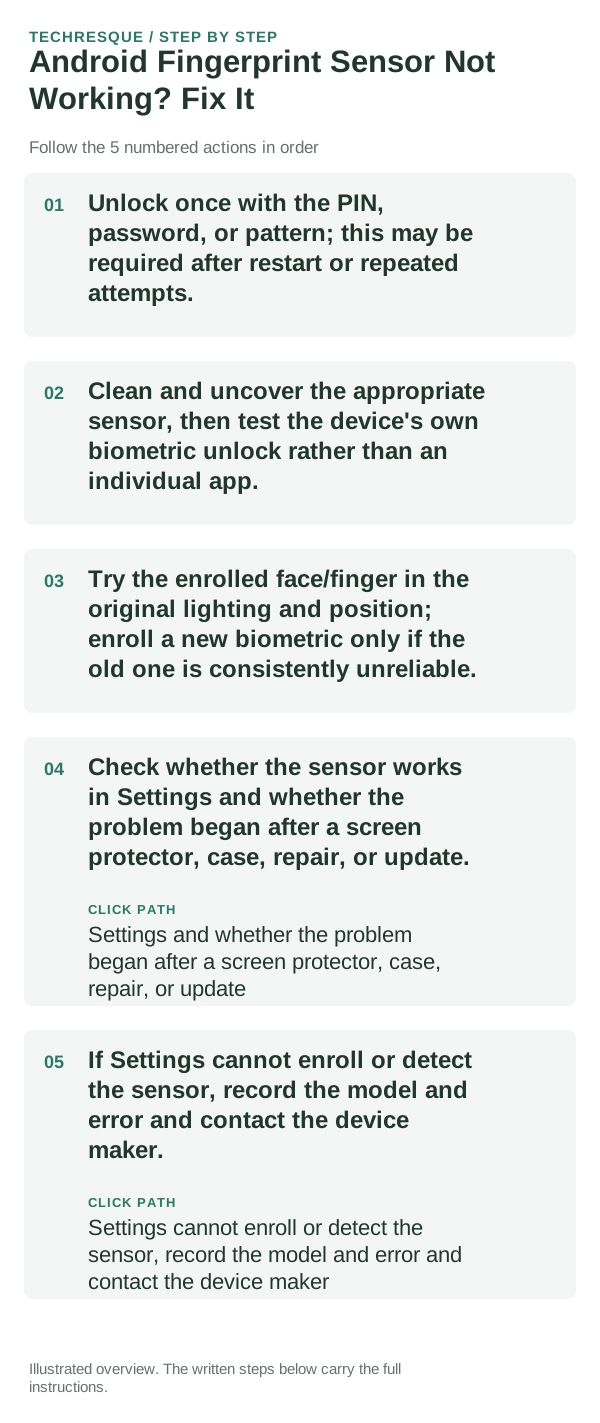
- Unlock once with the PIN, password, or pattern; this may be required after restart or repeated attempts.
- Clean and uncover the appropriate sensor, then test the device's own biometric unlock rather than an individual app.
- Try the enrolled face/finger in the original lighting and position; enroll a new biometric only if the old one is consistently unreliable.
- Check whether the sensor works in Settings and whether the problem began after a screen protector, case, repair, or update.
- If Settings cannot enroll or detect the sensor, record the model and error and contact the device maker.
How to tell which cause applies
Compare device unlock with one app that supports biometrics; security prompts can require a PIN even when the sensor is healthy.
Compare device unlock with one app that supports biometrics; security prompts can require a PIN even when the sensor is healthy.
Shortcuts that usually waste time
- Do not remove all biometrics until you know the device password.
- Do not treat a PIN fallback requirement as sensor failure.
Verify before you move on
Compare device unlock with one app that supports biometrics; security prompts can require a PIN even when the sensor is healthy.
When to use support or repair
If several apps fail after updates and a restart, compare Safe Mode if supported. Swelling, unusual heat, damaged ports or shutdowns need service.
Note the phone model, Android version, affected app or setting, exact message and whether restarting or Safe Mode changes the result.
Frequently asked questions
What should I check first?
Unlock once with the PIN, password, or pattern; this may be required after restart or repeated attempts. Clean and uncover the appropriate sensor, then test the device's own biometric unlock rather than an individual app. Try the enrolled face/finger in the original lighting and position; enroll a new biometric only if the old one is consistently unreliable.
Should I reset the whole device immediately?
Usually not. Test the affected feature with a built-in tool or second app first. Back up local-only files before clearing app storage or considering a factory reset.
How do I know when the fix is real?
Compare device unlock with one app that supports biometrics; security prompts can require a PIN even when the sensor is healthy.
Official sources and further reading
Android labels differ across Pixel, Samsung and other brands. Use Settings search for the named control if a menu path does not match your phone.