Android-to-Windows transfer needs a data-capable USB path and the phone's file-transfer mode. A cable that charges may not carry data, and an unlocked phone may still default to charging only. Unlock the phone, connect directly to the PC with a known data-capable cable, and keep the phone awake. Open the phone's USB notification and select File transfer/Android Auto (wording varies), then approve access if prompted.
Android Settings labels differ across Pixel, Samsung, and other brands; search Settings for the named control and change one item at a time.
What this symptom usually means
Android-to-Windows transfer needs a data-capable USB path and the phone's file-transfer mode. A cable that charges may not carry data, and an unlocked phone may still default to charging only.
- The USB cable supports charging but not data, or the cable/port is damaged.
- The phone is locked or USB is set to Charge only.
- Windows has not recognized the portable device or its MTP driver.
- A hub, dock, or USB port is interrupting the connection.
- The phone's screen, cable, or USB port needs service.
The practical troubleshooting sequence
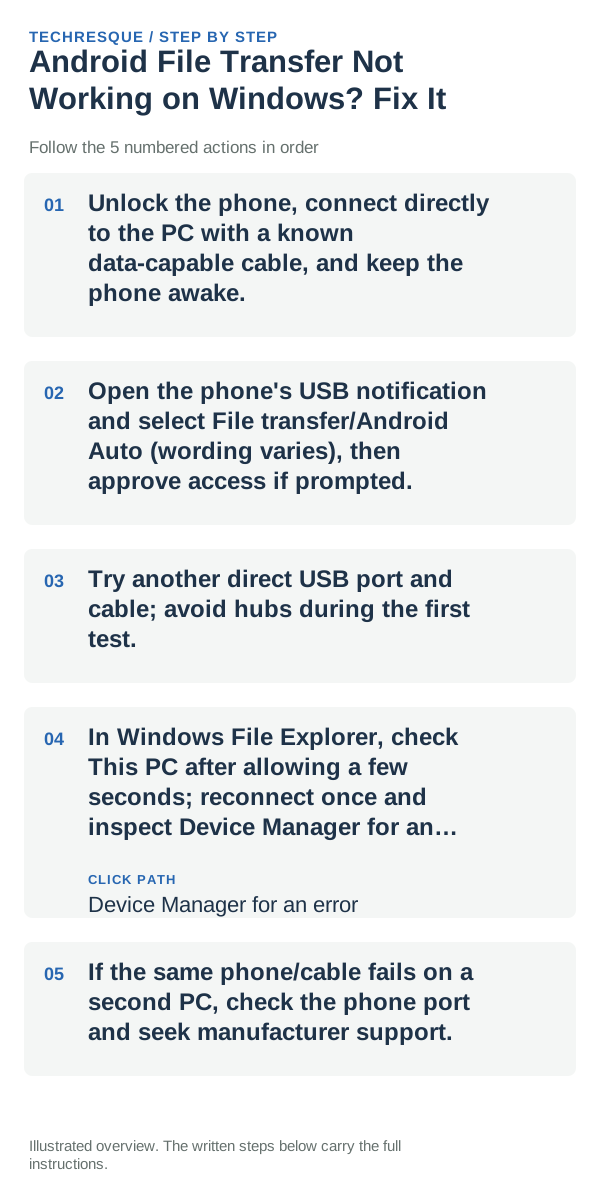
- Unlock the phone, connect directly to the PC with a known data-capable cable, and keep the phone awake.
- Open the phone's USB notification and select File transfer/Android Auto (wording varies), then approve access if prompted.
- Try another direct USB port and cable; avoid hubs during the first test.
- In Windows File Explorer, check This PC after allowing a few seconds; reconnect once and inspect Device Manager for an error.
- If the same phone/cable fails on a second PC, check the phone port and seek manufacturer support.
How to tell which cause applies
Test the same unlocked phone and a small file with a direct cable connection. The USB mode menu can disappear when the phone is locked.
Test the same unlocked phone and a small file with a direct cable connection. The USB mode menu can disappear when the phone is locked.
Do not make troubleshooting harder
- Do not use a charge-only cable as proof of phone failure.
- Avoid repeatedly bending or scraping the USB port.
What success should look like
Test the same unlocked phone and a small file with a direct cable connection. The USB mode menu can disappear when the phone is locked.
When to use support or repair
If several apps fail after updates and a restart, compare Safe Mode if supported. Swelling, unusual heat, damaged ports or shutdowns need service.
Note the phone model, Android version, affected app or setting, exact message and whether restarting or Safe Mode changes the result.
Frequently asked questions
What should I check first?
Unlock the phone, connect directly to the PC with a known data-capable cable, and keep the phone awake. Open the phone's USB notification and select File transfer/Android Auto (wording varies), then approve access if prompted. Try another direct USB port and cable; avoid hubs during the first test.
Should I reset the whole device immediately?
Usually not. Test the affected feature with a built-in tool or second app first. Back up local-only files before clearing app storage or considering a factory reset.
How do I know when the fix is real?
Test the same unlocked phone and a small file with a direct cable connection. The USB mode menu can disappear when the phone is locked.
Official sources and further reading
Android labels differ across Pixel, Samsung and other brands. Use Settings search for the named control if a menu path does not match your phone.