An alarm can be saved correctly yet remain inaudible because its schedule, alarm-volume channel, sound, or battery behavior differs from the phone's general notification settings. Open the alarm and verify its time, AM/PM, repeat days, and enabled switch. Raise the dedicated Alarm volume and preview the selected tone; choose a built-in tone for a test.
Android Settings labels differ across Pixel, Samsung, and other brands; search Settings for the named control and change one item at a time.
Why this can happen
An alarm can be saved correctly yet remain inaudible because its schedule, alarm-volume channel, sound, or battery behavior differs from the phone's general notification settings.
- The alarm is set for the wrong day, time, or AM/PM.
- Alarm volume is low even though media volume is high.
- The selected sound is silent, unavailable, or routed to a connected device.
- Do Not Disturb or a clock-app setting is suppressing the alert.
- An exact-alarm or background restriction affects a third-party clock app.
The practical troubleshooting sequence
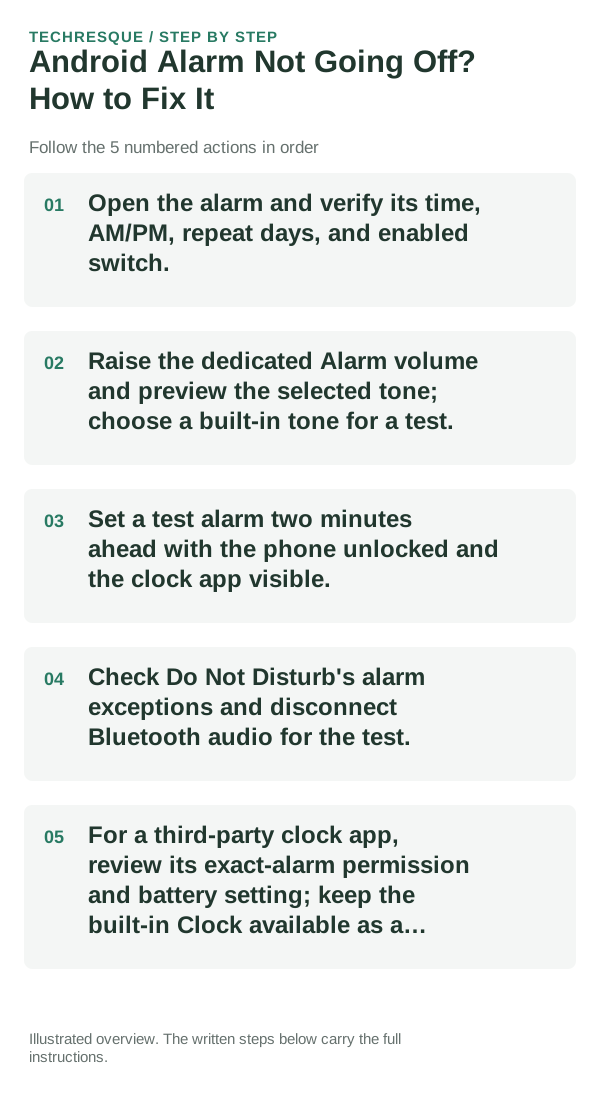
- Open the alarm and verify its time, AM/PM, repeat days, and enabled switch.
- Raise the dedicated Alarm volume and preview the selected tone; choose a built-in tone for a test.
- Set a test alarm two minutes ahead with the phone unlocked and the clock app visible.
- Check Do Not Disturb's alarm exceptions and disconnect Bluetooth audio for the test.
- For a third-party clock app, review its exact-alarm permission and battery setting; keep the built-in Clock available as a cross-check.
How to tell which cause applies
Use a short test alarm with the same tone and volume you plan to use, then repeat once with the screen locked. Labels and exact-alarm controls vary by Android version.
Test the same alert in the same app. Compare its notification category with background and battery restrictions.
Do not make troubleshooting harder
- Do not assume media volume controls alarm volume.
- Do not clear clock data unless you have recorded alarms you need to recreate.
How to confirm the fix
Use a short test alarm with the same tone and volume you plan to use, then repeat once with the screen locked. Labels and exact-alarm controls vary by Android version.
When to use support or repair
If alerts fail across apps after their notification and background settings are checked, contact the device maker with versions and examples.
Record phone model, Android version, app name, notification category and whether alerts arrive with the app open. Hide message content in screenshots.
Frequently asked questions
What should I check first?
Open the alarm and verify its time, AM/PM, repeat days, and enabled switch. Raise the dedicated Alarm volume and preview the selected tone; choose a built-in tone for a test. Set a test alarm two minutes ahead with the phone unlocked and the clock app visible.
Should I reset the whole device immediately?
Usually not. Check the app’s notification categories and background restrictions first; a full reset may not re-enable a disabled alert channel.
How do I know when the fix is real?
Use a short test alarm with the same tone and volume you plan to use, then repeat once with the screen locked. Labels and exact-alarm controls vary by Android version.
Official sources and further reading
Notification channels and background controls vary by Android version. Check the affected app’s own notification category before changing system-wide settings.