Vibration has separate controls for calls, notifications, touch feedback, and individual apps. A silent mode or one app's notification channel can silence only part of the phone. Open Sound & vibration and check call, notification, and touch-feedback controls separately. Set a built-in ringtone/notification test and disable Do Not Disturb temporarily for that test.
Android Settings labels differ across Pixel, Samsung, and other brands; search Settings for the named control and change one item at a time.
Start by narrowing the cause
Vibration has separate controls for calls, notifications, touch feedback, and individual apps. A silent mode or one app's notification channel can silence only part of the phone.
- Ring/notification vibration is disabled while touch haptics remain enabled, or vice versa.
- The phone is in a silent or Do Not Disturb mode with vibration suppressed.
- A per-app notification channel or contact setting overrides the system default.
- An accessibility or power mode changes haptic behavior.
- The vibration motor has a hardware fault.
Troubleshoot from low-risk to high-risk
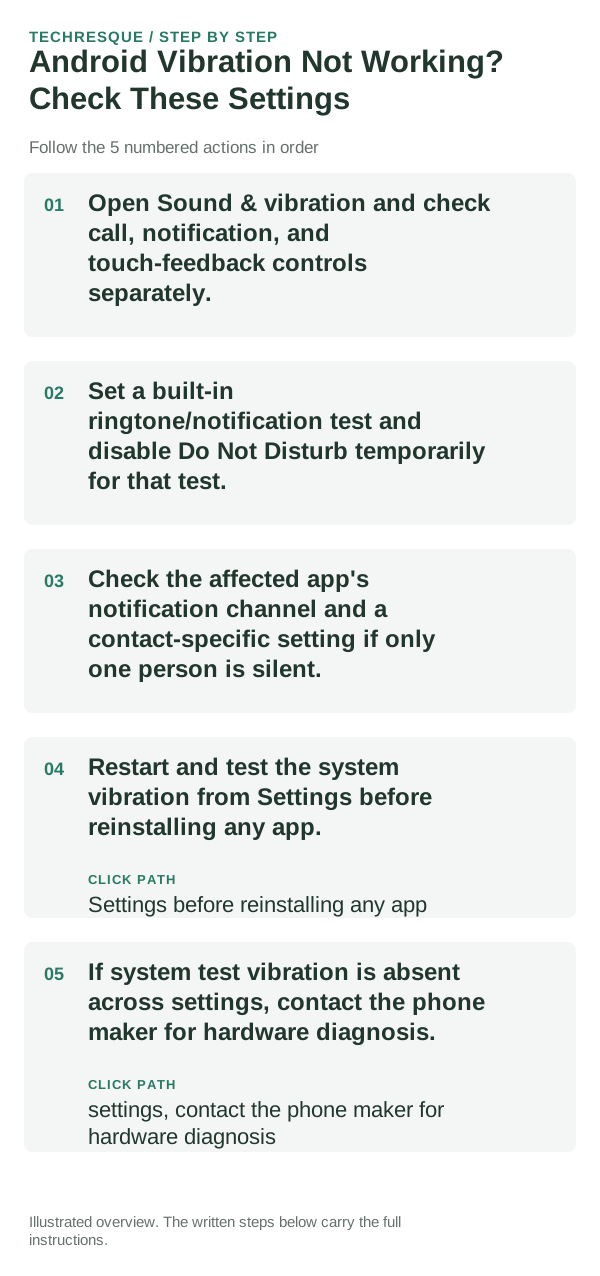
- Open Sound & vibration and check call, notification, and touch-feedback controls separately.
- Set a built-in ringtone/notification test and disable Do Not Disturb temporarily for that test.
- Check the affected app's notification channel and a contact-specific setting if only one person is silent.
- Restart and test the system vibration from Settings before reinstalling any app.
- If system test vibration is absent across settings, contact the phone maker for hardware diagnosis.
Isolate the failing layer
Test a system haptic and one incoming notification separately; this locates which vibration channel is affected.
Test a system haptic and one incoming notification separately; this locates which vibration channel is affected.
What not to change first
- Do not assume a silent ringtone means the vibration motor is broken.
- Restore any temporary Do Not Disturb change after testing.
How to confirm the fix
Test a system haptic and one incoming notification separately; this locates which vibration channel is affected.
When to use support or repair
If several apps fail after updates and a restart, compare Safe Mode if supported. Swelling, unusual heat, damaged ports or shutdowns need service.
Note the phone model, Android version, affected app or setting, exact message and whether restarting or Safe Mode changes the result.
Frequently asked questions
What should I check first?
Open Sound & vibration and check call, notification, and touch-feedback controls separately. Set a built-in ringtone/notification test and disable Do Not Disturb temporarily for that test. Check the affected app's notification channel and a contact-specific setting if only one person is silent.
Should I reset the whole device immediately?
Usually not. Test the affected feature with a built-in tool or second app first. Back up local-only files before clearing app storage or considering a factory reset.
How do I know when the fix is real?
Test a system haptic and one incoming notification separately; this locates which vibration channel is affected.
Official sources and further reading
Android labels differ across Pixel, Samsung and other brands. Use Settings search for the named control if a menu path does not match your phone.