First find the scope: if every device fails, focus on the router/ISP; if only one device fails, forget and reconnect that network on the affected device.
On Windows 11, menu names vary by build. Use built-in Settings and Microsoft Support guidance before registry edits or third-party repair tools.
Start by narrowing the cause
- the device has a Wi-Fi link but no usable route to the internet
- saved network credentials or DHCP information are stale
- the router is overloaded or the ISP connection is down
- a VPN, DNS filter or captive portal is interfering
- signal quality is poor even though the network name is visible
The practical troubleshooting sequence
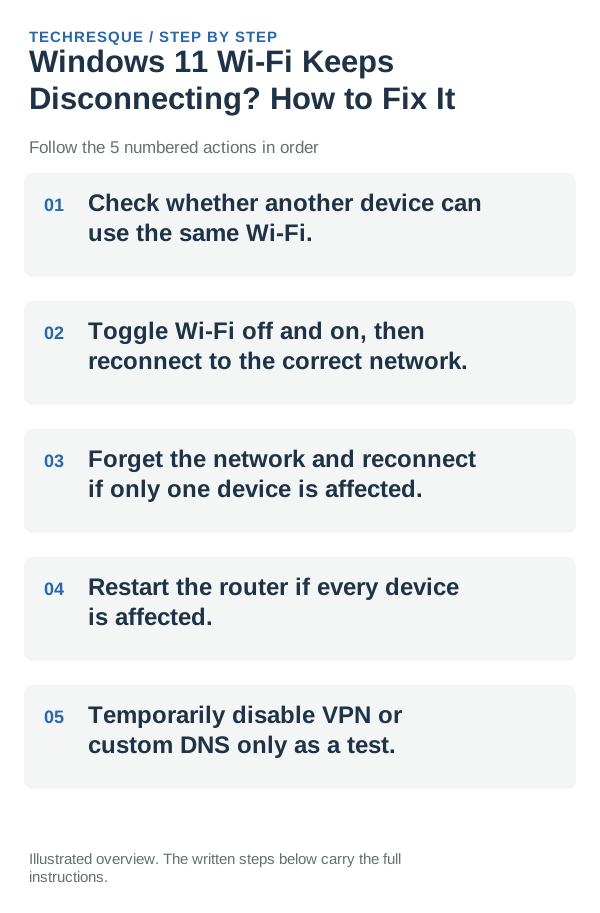
- Check whether another device can use the same Wi-Fi.
- Toggle Wi-Fi off and on, then reconnect to the correct network.
- Forget the network and reconnect if only one device is affected.
- Restart the router if every device is affected.
- Temporarily disable VPN or custom DNS only as a test.
A quick way to narrow it down
If the same Wi-Fi fails on every device, the router or ISP is the common point. If other devices work normally but Windows 11 does not, keep troubleshooting on the affected device. If one website fails while others work, the network itself may be fine.
Keep the PC in the same spot on the same Wi-Fi network and repeat the activity that used to disconnect; check whether another device remains connected at that moment.
Do not make troubleshooting harder
- Do not factory-reset the phone/PC before checking whether every device is affected.
- Do not keep changing DNS, VPN and router settings at the same time.
- Do not judge Wi-Fi by signal bars alone; internet routing can fail with full signal.
- Avoid pressing the router reset pin unless you know the ISP/router setup details.
How to confirm the fix
Use both a browser and another network-dependent app; a single cached webpage is not enough to prove the connection is healthy.
When to use support or repair
Contact the ISP/router provider if every device loses internet and the modem/router shows a fault state. Contact the device maker only after the same device fails on more than one known-good Wi-Fi network.
Record Windows build, affected app, exact error code and whether it repeats in another account or built-in app. Keep recovery keys private.
A useful network split test
Test the affected device on a second known-good Wi-Fi network, such as a trusted hotspot. Then test another device on the original Wi-Fi. Those two checks quickly separate device problems from router/ISP problems.
Windows-specific disconnect clues
On Windows 11, compare the Wi-Fi adapter status in Device Manager, power-management settings and the PC maker’s current WLAN driver. If the disconnect appears only after sleep, power management and driver behavior deserve more attention than DNS settings.
Frequently asked questions
What should I check first for windows 11 wi-fi keeps disconnecting? how to fix it?
First find the scope: if every device fails, focus on the router/ISP; if only one device fails, forget and reconnect that network on the affected device.
Should I reset the whole device immediately?
Usually not. Try the guide’s reversible checks first and confirm whether the problem is limited to one app, file, device, or Windows component. Back up important files before considering Reset this PC.
How do I know when the fix is real?
Use both a browser and another network-dependent app; a single cached webpage is not enough to prove the connection is healthy.
Official sources and further reading
Windows Settings paths can shift between releases. Search for the named control and note your Windows build if an option is missing.