Free storage is only one part of phone performance. A phone can have plenty of disk space and still lag because of high memory or CPU use, heat, background activity, a problematic app, an update or a weak network connection.
The part people often miss
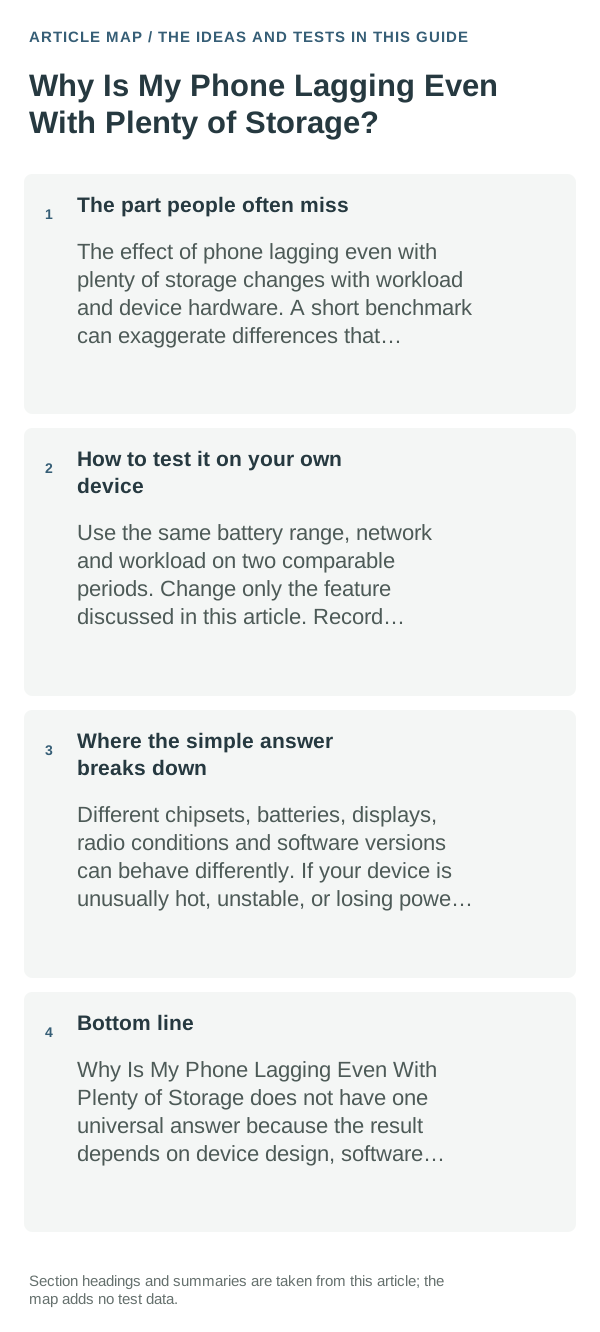
Storage holds apps and files; RAM and processor capacity determine how active work runs. Thermal limits can slow the processor, and a slow webpage may be a network problem rather than a slow phone. First identify whether the whole interface, one app or online content is delayed.
How to apply this without overthinking it
- Restart once and check for Android and app updates. Note whether the lag started after a specific app install or system update.
- Compare offline actions, such as opening Settings or the app drawer, with online tasks. If only online pages stall, compare Wi‑Fi/cellular and another app before changing device settings.
- Check Battery and memory/performance screens for an app using unusual resources; close or update that app rather than installing a cleaner that runs in the background.
- If the whole phone remains slow, test Safe Mode using the manufacturer’s instructions. Improvement there points toward a downloaded app; no change suggests a system, hardware or thermal cause.
How to test it on your own device
Repeat one slow action after a restart and once in Safe Mode, if your phone supports it. Keep the same network and app task. Record the model, Android version and recent changes so a support request includes useful evidence.
Where the simple answer breaks down
Safe Mode steps and available memory tools vary by manufacturer. Factory reset can erase data and should come only after backup and model-specific troubleshooting; a storage figure alone cannot identify the cause.
Bottom line
Treat free storage as one clue, not a performance diagnosis. Separate offline UI delay from app-specific, network and heat-related slowdown, then change one reversible cause at a time.
Know whether the problem is local storage, cloud state or sync
Local free space and cloud quota are separate limits. A device can have plenty of storage while a cloud account is full, or the cloud can have room while the phone is too full to create temporary files for an upload.
Sync is not the same as backup. Confirm which account is active, whether the item exists locally, and whether the service reports it as uploaded before deleting the original copy.
When a transfer is stuck, test one small file first. A small successful upload points away from authentication and toward file size, format, naming or network stability.
| What you observe | What it points to | Best next check |
|---|---|---|
| File exists locally but not online | Sync paused, account mismatch or upload failure | Verify active account and sync status |
| Small files sync, large files do not | Size, timeout or connection stability | Test a smaller sample and another network |
| Account says full | Cloud quota or retained items | Check service storage breakdown |
Frequently asked questions
Can a phone lag even when storage is mostly empty?
Yes. Free storage is different from working memory and processing capacity. Heat, background tasks, software bugs and hardware condition can affect responsiveness even with room left.
Should I install a phone-cleaner app to fix lag?
Start with Android’s built-in battery, app and storage information. A cleaner adds another app and may not address the cause; test one change at a time and compare the same task.
Official sources and further reading
- Android Help — Speed up a slow Android device
- Android Help — Fix an Android device that is restarting or crashing
Google’s slow-device guidance below lists supported Android checks and notes that Settings paths vary by phone maker.