Restarting a router can restore a connection temporarily because it reloads the router software and establishes network sessions again. That can clear a transient stuck state, but it will not fix a bad cable, weak Wi‑Fi coverage, recurring ISP fault or underlying hardware problem.
What changes the outcome
A router handles local Wi‑Fi and routing; a separate modem or ONT connects to the provider. Restarting either can make devices renegotiate addresses or the internet link. Which unit needs attention depends on where the connection is failing.
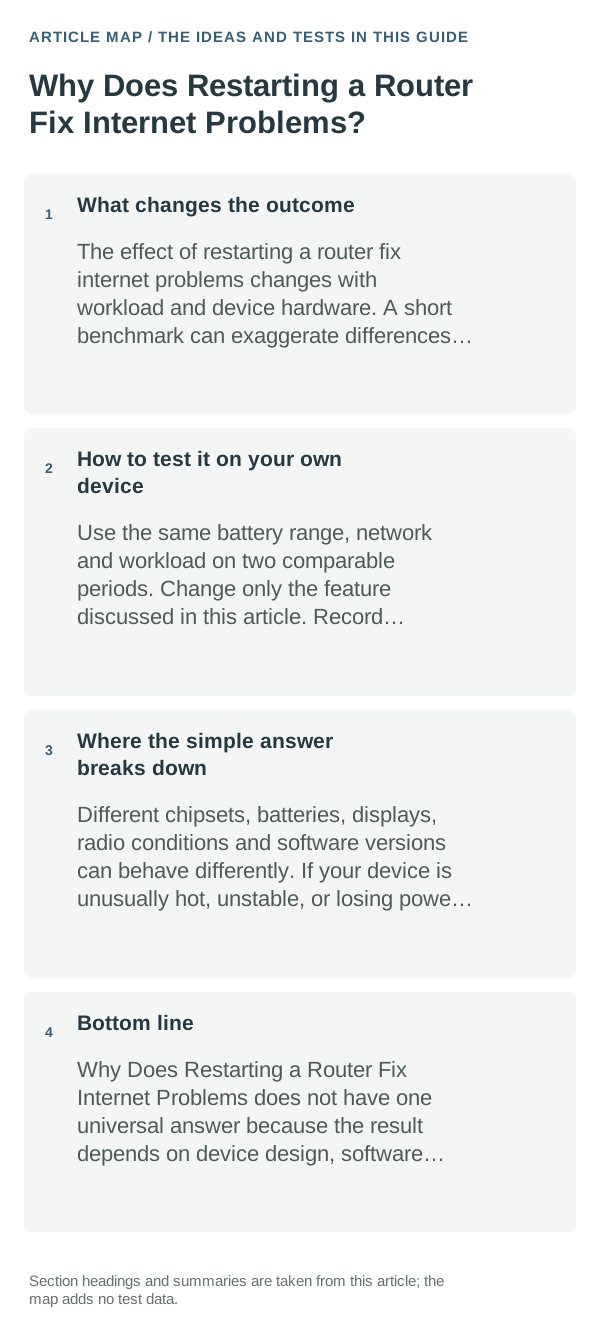
The sensible everyday approach
- Check the ISP’s outage notice and the router/modem status lights. Test another device on the same Wi‑Fi and test the affected device on a different network if possible.
- If only Wi‑Fi is affected, move near the router and compare another band or wired connection before rebooting the modem.
- If all devices lose internet, record the modem’s WAN/Internet light and router uptime. Restart the units using the manufacturer’s documented order.
- If service returns only briefly, save timestamps and logs, then contact the ISP or router maker instead of repeating reboots.
How to test it on your own device
After restarting, check one wired or nearby device and one distant Wi‑Fi device. If the wired connection also drops, investigate the modem/ISP path; if only the distant device fails, focus on Wi‑Fi signal or interference.
Where the simple answer breaks down
A restart is not a factory reset. Avoid pressing Reset or changing DNS, DHCP or firmware settings without the router’s instructions; those changes can disconnect every device.
Bottom line
A restart helps when a temporary router/modem state is stuck. If it becomes a regular ritual, use device scope, status lights and logs to find the failing link.
What the network test actually tells you
For band or speed questions, compare in the same room with the same server or task. Distance, walls, congestion and router channel choice can change the result more than the label on the Wi‑Fi band.
A Wi‑Fi or cellular icon only proves that a radio link exists; it does not prove DNS, routing or the upstream internet connection is healthy. Separate “connected to the router” from “can reach the internet” before changing several settings at once.
If the same network works on other devices, keep the first tests on the affected device. If every device fails together, move the investigation toward the router, modem or provider instead of repeatedly resetting one phone or laptop.
| What you observe | What it points to | Best next check |
|---|---|---|
| Only one device fails | Device settings, saved network or software state | Forget/rejoin or compare with another network |
| Every device fails | Router, modem or provider path | Restart network gear and check provider status |
| Works nearby, fails farther away | Signal/range or band choice | Compare location and band before replacing hardware |
Frequently asked questions
How is restarting different from resetting a router?
Restarting power-cycles the router and normally keeps its settings. Factory reset clears configuration such as Wi-Fi names and provider setup, so use it only when you can reconfigure the device.
How long should I leave the router unplugged?
Follow the router or provider’s instructions for your model. After it reconnects, check another device and a fresh website; a single cached page is not enough to confirm service is restored.
Official sources and further reading
Google’s modem restart guide applies directly to Nest/Google Wifi equipment. Use the documented steps for your own router, modem or fiber ONT.