Check power, ventilation, indicator lights, and whether the router restarts with all client devices disconnected. A repeated reboot can come from its adapter, overheating, firmware, or an ISP-side event.
Likely causes to check first
A full reboot is different from a brief Wi-Fi drop: the router's lights and uptime reset. A loose or failing power adapter, blocked airflow, damaged cable, or repeated firmware crash can cause that pattern.
Fix it in this order
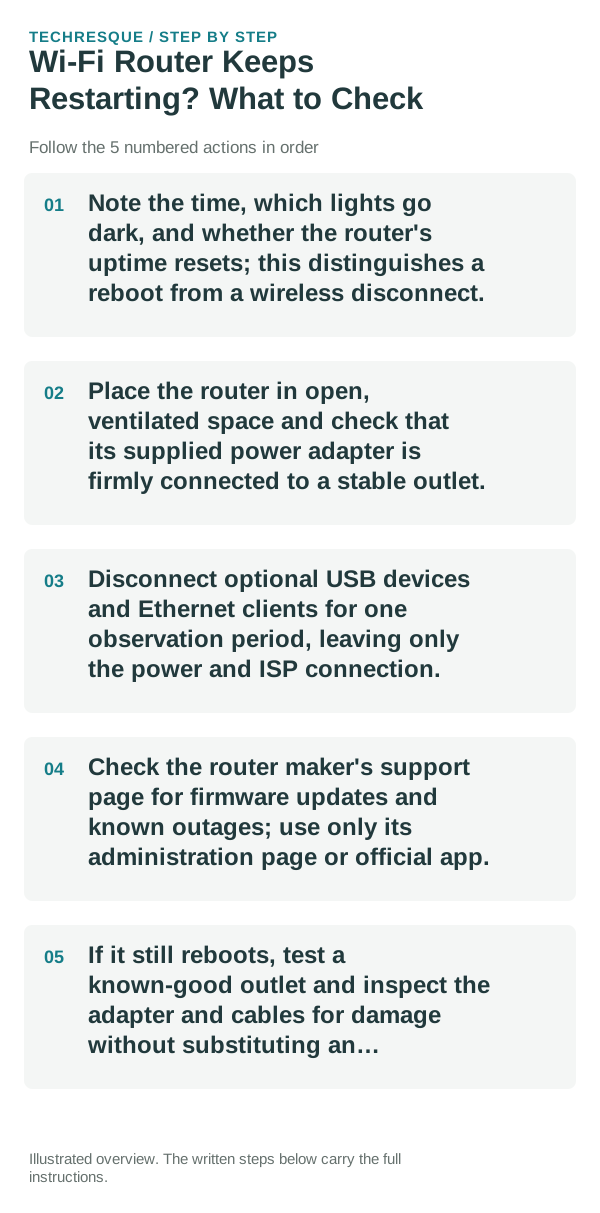
- Note the time, which lights go dark, and whether the router's uptime resets; this distinguishes a reboot from a wireless disconnect.
- Place the router in open, ventilated space and check that its supplied power adapter is firmly connected to a stable outlet.
- Disconnect optional USB devices and Ethernet clients for one observation period, leaving only the power and ISP connection.
- Check the router maker's support page for firmware updates and known outages; use only its administration page or official app.
- If it still reboots, test a known-good outlet and inspect the adapter and cables for damage without substituting an incompatible power supply.
Use a clean A/B test
If uptime resets even with clients disconnected, suspect power, heat, firmware, or hardware. If uptime stays steady while Wi-Fi disappears, investigate wireless interference or client settings instead.
Changes to avoid until you know the cause
Do not factory-reset the router before recording its ISP, Wi-Fi, and custom configuration. Do not install firmware from a third-party mirror or use a power adapter with different ratings.
Verify before you move on
Watch the uptime and indicator sequence through a normal use period. A stable uptime with Wi-Fi and wired clients online is a better confirmation than a single successful page load.
When to use support or repair
Contact the ISP or router maker with the model, firmware version, reset times, indicator sequence, and whether wired clients also drop. Ask the ISP to check the line before replacing equipment.
Frequently asked questions
Should I reset the whole device immediately?
Usually not. Compare another device on the same network and this device on a second network before resetting equipment.
How do I know when the fix is real?
Watch the uptime and indicator sequence through a normal use period. A stable uptime with Wi-Fi and wired clients online is a better confirmation than a single successful page load.