
Check the backup status message rather than only the progress percentage. Then confirm available cloud storage.
On Android, menu names vary by maker, so use Settings search when a path in a guide does not match your phone exactly.
Start by narrowing the cause
- cloud storage quota is full
- the app is waiting for Wi-Fi or power
- a folder is excluded from backup
- the account/session needs attention
- a large or unsupported file is blocking progress
The practical troubleshooting sequence
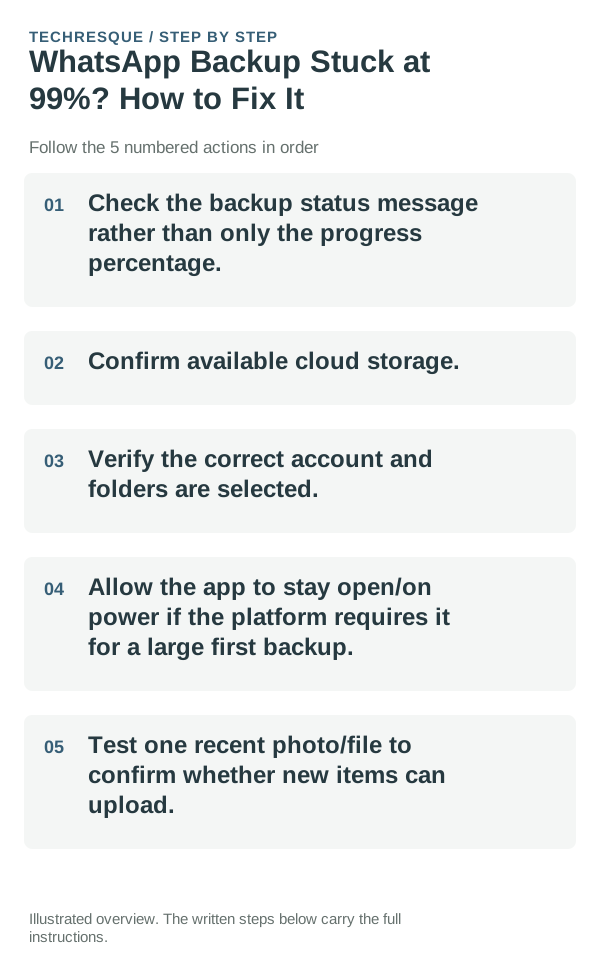
- Check the backup status message rather than only the progress percentage.
- Confirm available cloud storage.
- Verify the correct account and folders are selected.
- Allow the app to stay open/on power if the platform requires it for a large first backup.
- Test one recent photo/file to confirm whether new items can upload.
How to tell which cause applies
Create one small new test item and see whether it appears in the cloud from another device. That is more informative than staring at an old progress bar, because it tells you whether new uploads can complete at all.
Compare the same account and device meters after each change. Check the provider quota separately from local storage.
Changes to avoid until you know the cause
- Do not delete local originals until you verify a copy exists in the cloud.
- Do not assume 99% means frozen; inspect the backup status/message first.
- Do not switch accounts during a large backup without confirming where existing uploads went.
- Do not clear app data until you know whether unsynced items are stored only locally.
Verify before you move on
Open the cloud service from another device or browser and confirm that a newly created test item appears there.
When to use support or repair
If provider and device totals still conflict after refresh, contact the service with the quota screen; do not share login codes.
Record whether the full meter is local storage or cloud quota, the service/device and whether the provider page agrees.
Protect the originals while testing
Until you have verified a cloud copy from another device or browser, treat the local file as the only copy. Troubleshooting a backup should never require gambling with the source data.
Frequently asked questions
Should I reset the whole device immediately?
Usually not. Check which quota is full and confirm a backup before removing originals; clearing the wrong storage can lose files.
How do I know when the fix is real?
Open the cloud service from another device or browser and confirm that a newly created test item appears there.
Official sources and further reading
Cloud quota and local storage are separate. Confirm whether the warning appears in the provider account or on the device before deleting files.