
Usually, no. A router does not need a daily reboot as routine maintenance unless its manufacturer or network administrator says otherwise. Restarting can temporarily restore a stuck connection, but a recurring need is a symptom to diagnose.
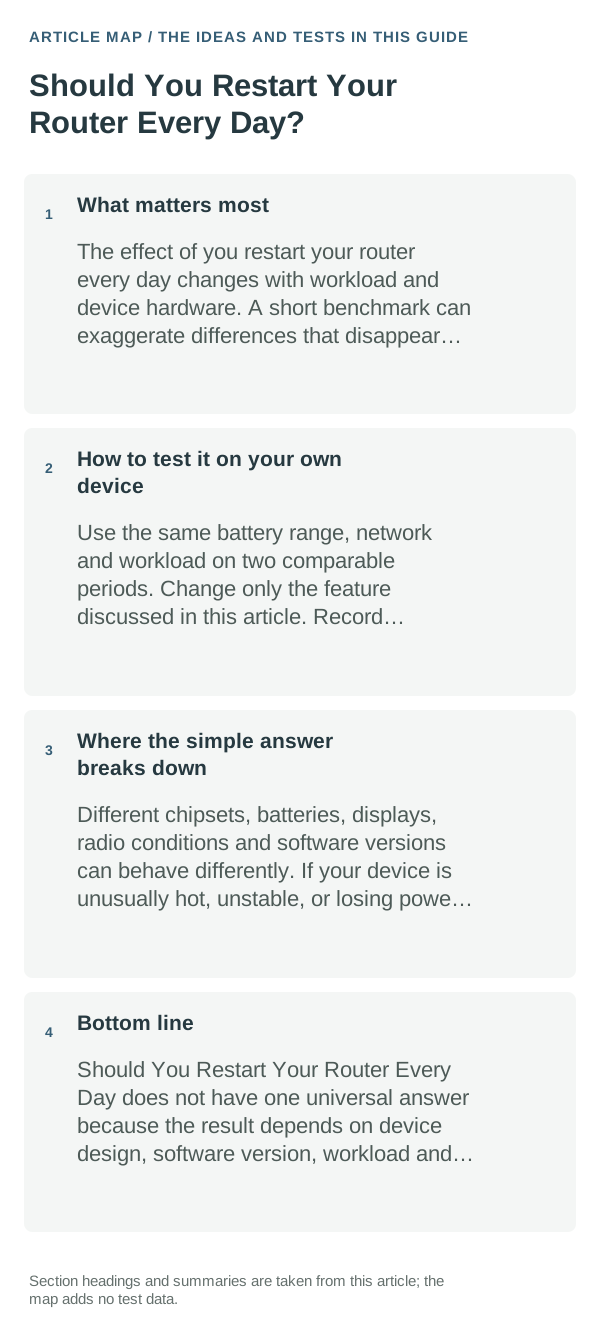
What matters most
A reboot starts the router’s software and network sessions again. That can clear a temporary fault or force a fresh connection to the modem/ISP; it does not fix weak coverage, a damaged cable, overheating, a firmware bug or an ISP outage.
A practical way to use this
- When the connection fails, check whether the modem/router reports an outage or warning light and whether every device or just one device is affected.
- If you restart, use the model’s manual. For separate modem and router units, power them back on in the order the manufacturer specifies and wait for service lights to stabilize.
- Record the time, affected devices, router uptime and how long service stays restored. Repeated short-lived fixes point to a fault beyond normal uptime.
- Check the vendor’s firmware/support guidance and cables, and contact the ISP if the modem’s internet/WAN status drops across devices.
How to test it on your own device
After one restart, note whether service stays stable for the next day and whether all devices remain online. If the fault returns at a similar interval, save the pattern and router logs for the manufacturer or ISP rather than scheduling daily reboots.
Where the simple answer breaks down
Restart and reset are different: a factory reset can erase network names and settings. Do not hold a reset button unless the manufacturer’s instructions specifically call for it.
Bottom line
Use a restart to recover a temporary fault, not as a daily cure. If the connection keeps dropping, identify whether the router, modem, Wi‑Fi coverage or ISP is responsible.
Use a controlled test instead of changing several settings at once
Restart the router when it is unresponsive or the connection needs recovery, then observe how long service stays stable. Leave it powered normally unless its manual or ISP instructs otherwise.
Record whether devices lose internet before and after one router restart, and note the router uptime and indicator lights. If service repeatedly drops, a reboot is evidence of an outage or router issue, not a daily maintenance requirement.
If restarting only restores service briefly, check ISP outage notices, cable/line status, router firmware, and logs or support options. Persistent drops should be diagnosed instead of masked by a schedule of reboots.
| What you observe | What it points to | Best next check |
|---|---|---|
| Known-good alternative works | Original component likely involved | Replace/reconfigure that component |
| No change after reversible checks | Deeper system or service issue | Escalate with test results documented |
| Only one app/device fails | Local configuration or hardware path | Keep troubleshooting scoped locally |
Frequently asked questions
Will restarting my router erase its settings?
A normal restart or power cycle should preserve its configuration. The recessed Reset button often restores factory defaults, so do not press it unless you are ready to set the router up again.
When is an automatic restart useful?
Only when the router supports a schedule and you have a specific reason, such as recovering from a repeatable temporary fault. If the connection keeps dropping, record when it happens and investigate the line, firmware or hardware.
Official sources and further reading
The Google restart guide is specific to Nest/Google Wifi equipment; follow your own router and modem manufacturer’s instructions for other models.