Touch and hold Screen Recording in Control Center and turn Microphone on before you start. Test with a simple screen; some apps do not allow recording their audio or video.
On iPhone, prefer Apple’s built-in Settings and reset options; use “Reset All Settings” or a full erase only when a narrower fix has failed and you have a backup.
Why this can happen
Screen recording has separate paths for what the iPhone plays and what its microphone hears. The microphone option is off by default for a recording, and an app can block capture of protected content. A silent recording does not automatically mean the iPhone speaker or microphone is broken.
- Microphone audio was not enabled in the Screen Recording control before capture.
- The app restricts recording of protected video or sound.
- The recording saved, but playback volume or the selected output makes it seem silent.
- A call, screen mirroring, or other audio session changes what iOS can capture.
- The capture has audio, but the original file or transfer was altered after recording.
Troubleshoot from low-risk to high-risk
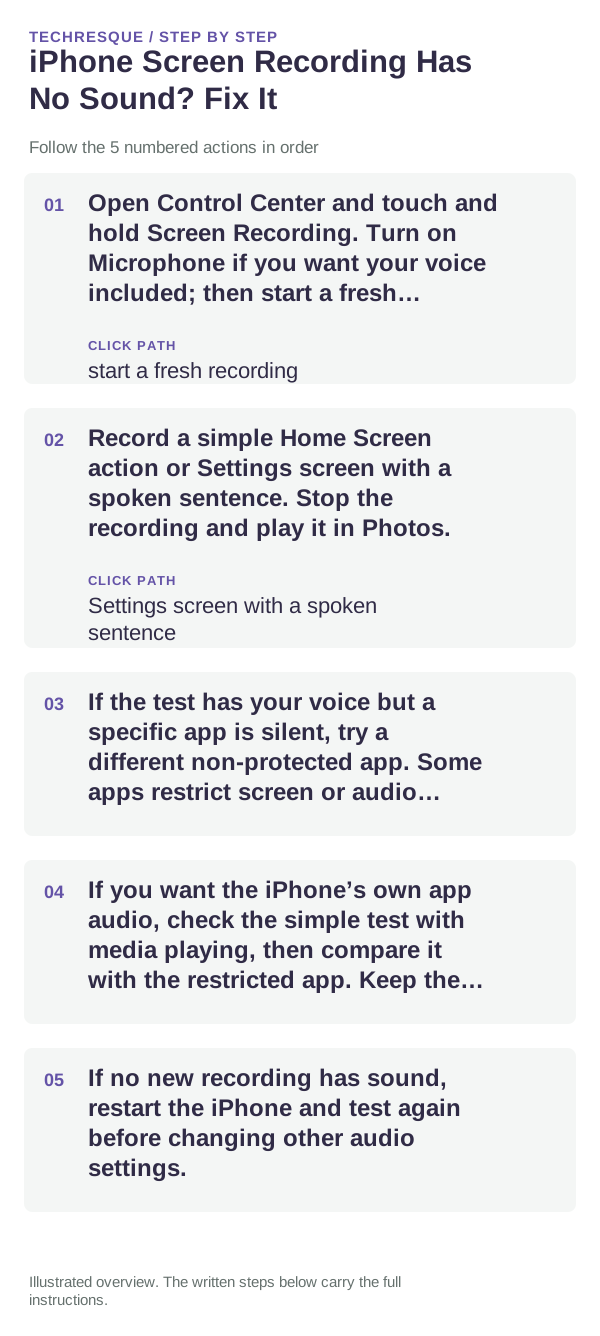
- Open Control Center and touch and hold Screen Recording. Turn on Microphone if you want your voice included; then start a fresh recording.
- Record a simple Home Screen action or Settings screen with a spoken sentence. Stop the recording and play it in Photos.
- If the test has your voice but a specific app is silent, try a different non-protected app. Some apps restrict screen or audio capture.
- If you want the iPhone’s own app audio, check the simple test with media playing, then compare it with the restricted app. Keep the original recording in Photos.
- If no new recording has sound, restart the iPhone and test again before changing other audio settings.
How to tell which cause applies
A recording with your voice but no protected app audio points to an app restriction. No voice in the test recording usually means Microphone was off when recording started. Check the saved video in Photos before sending it through a messaging service, which may recompress the file.
What not to change first
- Do not reset audio or network settings; screen-recording audio uses the Control Center capture option.
- Do not expect every streaming or financial app to allow its protected screen content to be recorded.
- Do not delete the original clip before checking playback in Photos.
- Do not record private messages or account details while capturing a support example.
Retest the original failure
Make a new short clip after enabling Microphone, then play it in Photos. Repeat the same app action only after the simple test works; if only that app stays silent, its capture restriction may be expected.
When to use support or repair
If simple Home Screen recordings still have no audio after checking the microphone option and playback in Photos, update iOS and contact Apple Support with the iPhone model and iOS version. For one app only, ask the app developer whether it blocks screen capture.
Frequently asked questions
How do I record my voice with the screen?
In Control Center, touch and hold Screen Recording, turn on Microphone, and start a new recording. The switch does not add audio to a clip already saved.
Why is one app’s sound missing?
Some apps block screen or audio capture for protected content. Compare with a simple Home Screen recording before changing iPhone audio settings.
Where are screen recordings saved?
iPhone saves screen recordings to Photos. Play the original there before sharing or moving it.
Official sources and further reading
Apple documents the Control Center microphone option and notes that some apps may block audio or video recording.