Background activity can help messages, backups, and widgets arrive on time, but it also uses battery and data. Identify the specific app and task before restricting it. Check Battery usage and mobile-data usage for the same time window, then identify the specific app. Open that app's sync, upload, or location controls and disable only the background task you do not need.
Android may manage background activity automatically, and brand-specific battery controls can delay alerts. Change only a named app after checking its usage and role.
Before you start
Check battery or mobile-data usage over a useful time range and identify one app before restricting anything. Background work may include messages, uploads, backups, widgets, or navigation.
A reversible workflow
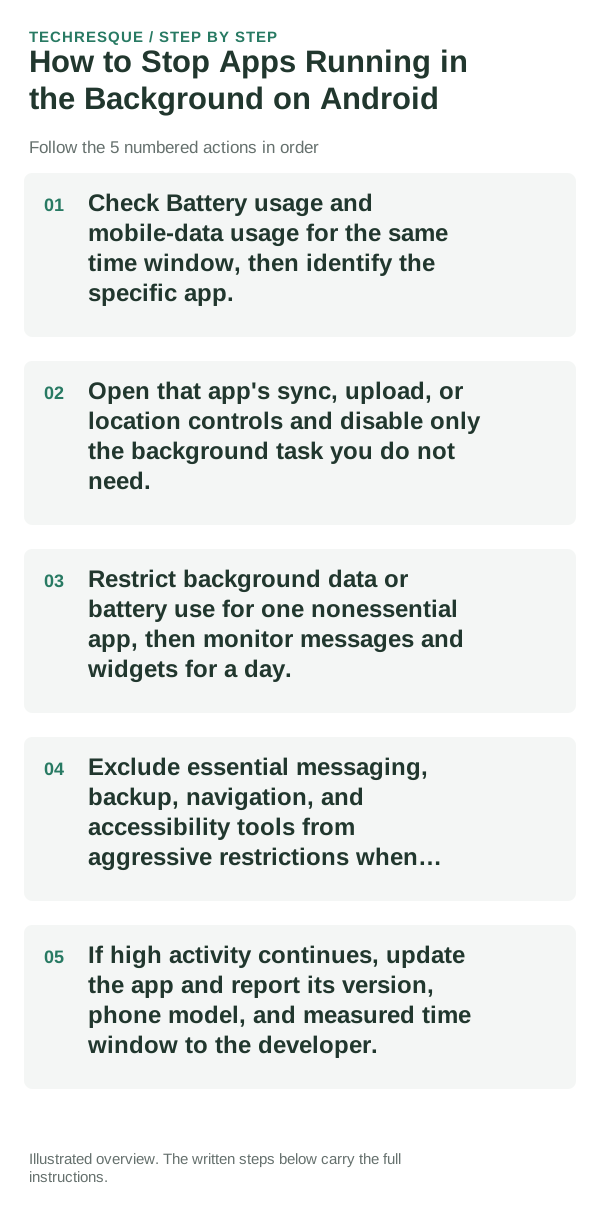
- Check Battery usage and mobile-data usage for the same time window, then identify the specific app.
- Open that app's sync, upload, or location controls and disable only the background task you do not need.
- Restrict background data or battery use for one nonessential app, then monitor messages and widgets for a day.
- Exclude essential messaging, backup, navigation, and accessibility tools from aggressive restrictions when timely behavior matters.
- If high activity continues, update the app and report its version, phone model, and measured time window to the developer.
How to check the result
Compare the same app over a similar time window after one change. Confirm that important notifications, backups, widgets, and location features still arrive or update on time.
If the option is missing
Battery and background-data controls differ by Android version and manufacturer. Search Settings for Battery usage, App battery usage, or Background data; some system apps are managed automatically.
Keep the change easy to undo
Record the original battery/background setting for the one app you change. Restore it if notifications, uploads, or widgets become delayed.
What to do if it still fails
If usage remains high, check the app's own sync, location, and upload settings and whether weak signal is causing retries. Update the app before restricting more services.
Use a controlled test instead of changing several settings at once
Compare the same app over a similar time range, then change one background control and check battery use, data use, and notifications.
If the app's use is reasonable or essential alerts start arriving late, restore the prior background setting and stop restricting it.
Android manages most app memory itself. Focus on an app's measured background activity instead of clearing every recent app.
| What you observe | What it points to | Best next check |
|---|---|---|
| No change after reversible checks | Deeper system or service issue | Escalate with test results documented |
| Only one app/device fails | Local configuration or hardware path | Keep troubleshooting scoped locally |
| Known-good alternative works | Original component likely involved | Replace/reconfigure that component |
Before you make a bigger change
Before force-stopping or restricting many apps, identify which task is using power and which notifications matter. Android already manages most app memory; closing everything can delay useful work.
Frequently asked questions
Should I close every app to save battery?
No. Start with the app shown in battery or data usage. Restrict only a background task you do not need, then check that messages and backups still work.
Will background limits delay notifications?
They can. Test one nonessential app first and keep time-sensitive messaging, safety, accessibility, and backup apps unrestricted when you depend on them.
How do I know which app to limit?
Use the phone's battery or data usage view for the same time range, then compare foreground and background activity. A high total by itself does not explain what the app was doing.