To match android widgets with your wallpaper, make the change in the launcher/home-screen layer first, keep the original setup easy to restore, and test gestures/widgets after each major change.
Home-screen menus and layout options depend on Android version, manufacturer, and active launcher. Confirm the Home app before changing layout or default settings.
Before you start
Before changing the Home screen, capture the current layout or use the launcher's export/backup option. Note the active Home app so you can return to it.
Step-by-step
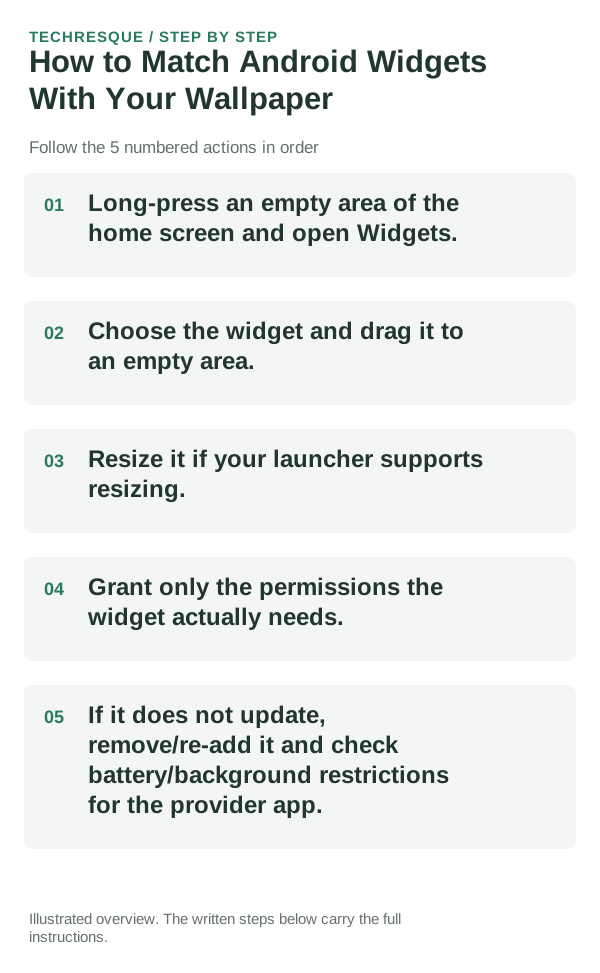
- Long-press an empty area of the home screen and open Widgets.
- Choose the widget and drag it to an empty area.
- Resize it if your launcher supports resizing.
- Grant only the permissions the widget actually needs.
- If it does not update, remove/re-add it and check battery/background restrictions for the provider app.
How to check the result
Press Home, lock and unlock once, then restart the phone and check the same icons, folders, widgets, grid, and default Home app. Confirm the layout stays as intended.
If the option is missing
Home-screen controls vary by phone brand, Android version, and launcher. Search Settings for Home app or Home screen, and check the launcher's own help before installing a replacement.
Keep the change easy to undo
Keep the previous launcher installed and preserve its layout export until the new arrangement survives a restart. Switch the Default apps > Home app selection back to restore the prior launcher.
What to do if it still fails
If a layout or icon disappears, check the app drawer and active Home app before reinstalling anything. Compare the stock launcher, then restore the saved layout if needed.
Widgets: Pixel Theme
a pixel-inspired widget app with clock, weather, battery, music, photo, app-shortcut, device-information and productivity widgets plus matching wallpapers. Its Play listing states no data is shared or collected. It is most relevant here when the goal is a coordinated Android Home screen rather than a system-level troubleshooting fix.
View Widgets: Pixel Theme on Google Play →Judge the launcher by the home-screen workflow, not screenshots
If a launcher keeps resetting or widgets disappear, first check whether Android has changed the default Home app, restricted background activity or removed widget permissions after an update.
A launcher mainly controls the home screen and app drawer; it does not replace Android itself. Gesture behavior, recents animations and some widgets can still depend on the phone maker and Android version.
When comparing launchers, recreate one real home screen rather than judging the default setup. Test search, folders, icon packs, widgets, backup/restore and the gestures you use every day.
| What you observe | What it points to | Best next check |
|---|---|---|
| Gestures feel different | OEM/Android navigation integration | Test the exact gesture before switching permanently |
| Home button opens another launcher | Default Home app changed | Set the intended launcher as default |
| Widgets stop refreshing | Battery/background restriction or widget host issue | Remove/re-add widget and review restrictions |
Before you make a bigger change
Before clearing launcher data or removing the old launcher, export its layout and verify the backup can be restored. Clearing launcher storage can erase folders, icon positions, and widgets.
Frequently asked questions
Will this erase my Home-screen layout?
A setting change usually affects only the selected layout option, but clearing launcher data can remove the whole arrangement. Export or capture the layout first.
Why are the Home-screen menus different?
Pixel, Samsung, Xiaomi, OnePlus, and third-party launchers use different labels and features. Search Settings for the named default or layout control and check the launcher's help.
How do I return to the old launcher?
Leave the old launcher installed, then choose it under Settings > Apps > Default apps > Home app. Restore its exported layout if the previous arrangement changed.
Official sources and further reading
Android customization controls vary by launcher and device skin. Confirm which app supplies the Home screen, widget or gesture before changing defaults.