Windows has no universal free-space target for every PC. Leave room for updates, temporary files, applications, and your own work; use Settings to see which drive and category are filling up.
On Windows 11, menu names vary by build. Use built-in Settings and Microsoft Support guidance before registry edits or third-party repair tools.
Why this can happen
The amount of headroom depends on drive size, update packages, installed applications, and whether the disk holds only Windows or large projects too. A nearly full system drive can prevent updates and ordinary temporary-file work.
The practical troubleshooting sequence
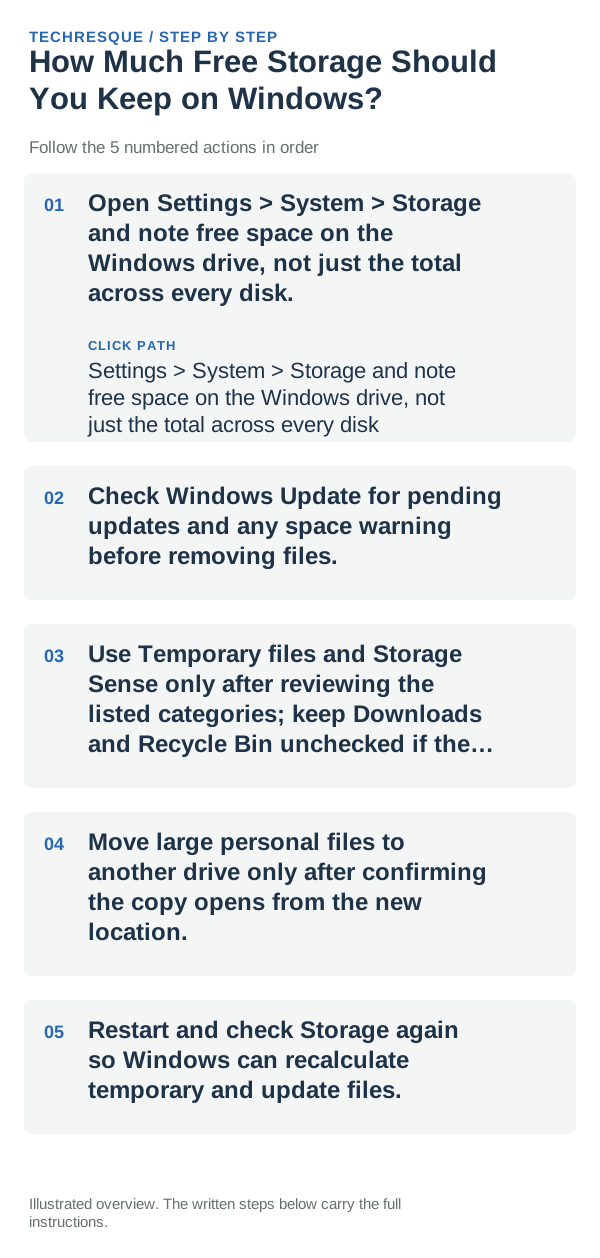
- Open Settings > System > Storage and note free space on the Windows drive, not just the total across every disk.
- Check Windows Update for pending updates and any space warning before removing files.
- Use Temporary files and Storage Sense only after reviewing the listed categories; keep Downloads and Recycle Bin unchecked if they contain files you still need.
- Move large personal files to another drive only after confirming the copy opens from the new location.
- Restart and check Storage again so Windows can recalculate temporary and update files.
Use a clean A/B test
If the system drive is low but another drive has space, identify whether apps or personal files can safely move. If free space drops after every restart, look for update caches, growing app data, or a repeatedly generated file.
Do not delete Windows, Program Files, or user-profile folders by hand. Do not use Disk Cleanup to remove previous Windows installations until you are sure you will not need rollback.
What success should look like
Confirm the C: drive has room for regular updates and that the affected app can save a test file. The correct buffer varies with disk size and workload; do not treat a fixed GB value as a guarantee.
When to use support or repair
If Storage reports large system files that do not change after cleanup, use Microsoft's Storage guidance or the PC maker's support before running third-party cleanup tools.
Frequently asked questions
Should I reset the whole device immediately?
Repeat the same action after one change, and note the result.
How do I know when the fix is real?
Confirm the C: drive has room for regular updates and that the affected app can save a test file. The correct buffer varies with disk size and workload; do not treat a fixed GB value as a guarantee.