There is no single free-space number that fits every Android phone. Keep enough room for the next system update, temporary files, app growth, and the photos or downloads you expect to save.
On Android, menu names vary by maker, so use Settings search when a path in a guide does not match your phone exactly.
Why this can happen
Storage pressure depends on the phone's capacity, update size, app use, and whether large media files are stored locally. The Settings storage page shows what is consuming space, but its categories can take time to recalculate after deletion.
The practical troubleshooting sequence
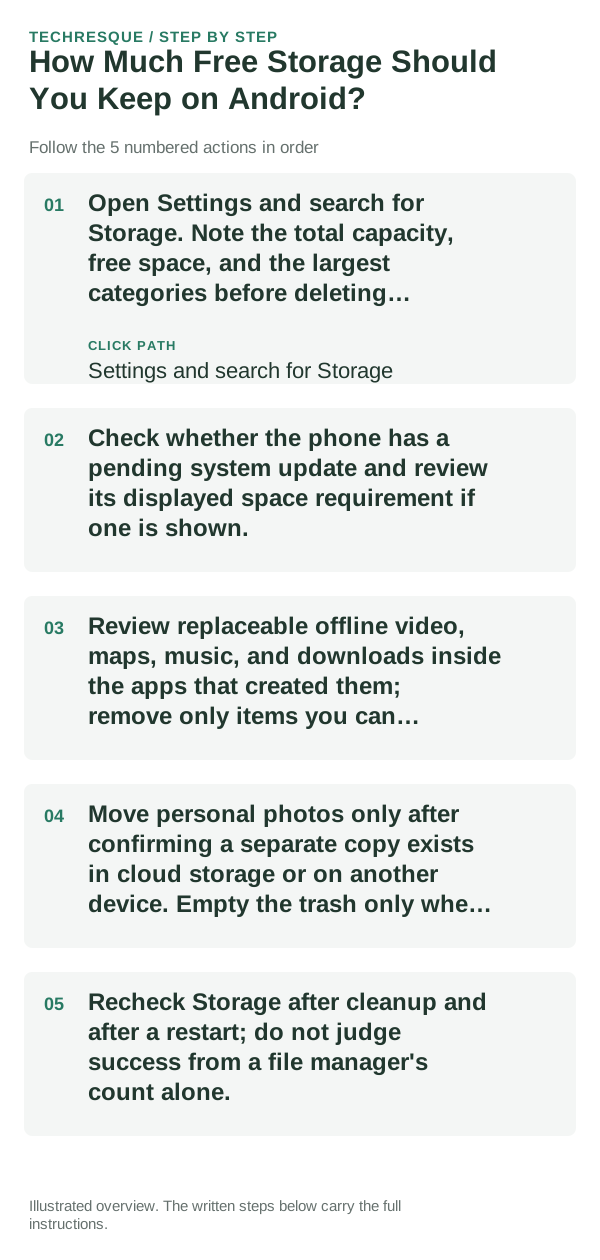
- Open Settings and search for Storage. Note the total capacity, free space, and the largest categories before deleting anything.
- Check whether the phone has a pending system update and review its displayed space requirement if one is shown.
- Review replaceable offline video, maps, music, and downloads inside the apps that created them; remove only items you can download again.
- Move personal photos only after confirming a separate copy exists in cloud storage or on another device. Empty the trash only when you are sure.
- Recheck Storage after cleanup and after a restart; do not judge success from a file manager's count alone.
How to tell which cause applies
If free space falls quickly again, inspect recently installed apps and media caches. If a large System or Other category changes after a restart, wait for the storage index to refresh before assuming files are lost.
Shortcuts that usually waste time
Avoid cleaner apps that promise a fixed amount of free space, and never delete unknown Android or app folders manually. Cloud backup is not confirmed until individual files show as backed up.
How to confirm the fix
Keep a practical buffer for updates and normal app use, then check that new photos save and the phone can install a routine update. Revisit the number after adding large games or offline media.
When to use support or repair
If Storage remains full while visible files are small, use the phone maker's support for its storage breakdown. Include the model, Android version, total capacity, and category totals.
Frequently asked questions
Should I reset the whole device immediately?
Repeat the same action after one change, and note the result.
How do I know when the fix is real?
Keep a practical buffer for updates and normal app use, then check that new photos save and the phone can install a routine update. Revisit the number after adding large games or offline media.