Open the site in a normal Chrome window and check whether it is listed to clear cookies when Chrome closes.
Likely causes to check first
- one extension or profile is misbehaving
- cached site data is stale
- memory pressure is forcing tabs to reload
- DNS/network problems affect only some sites
- security software or a proxy is intercepting connections
Work through these checks
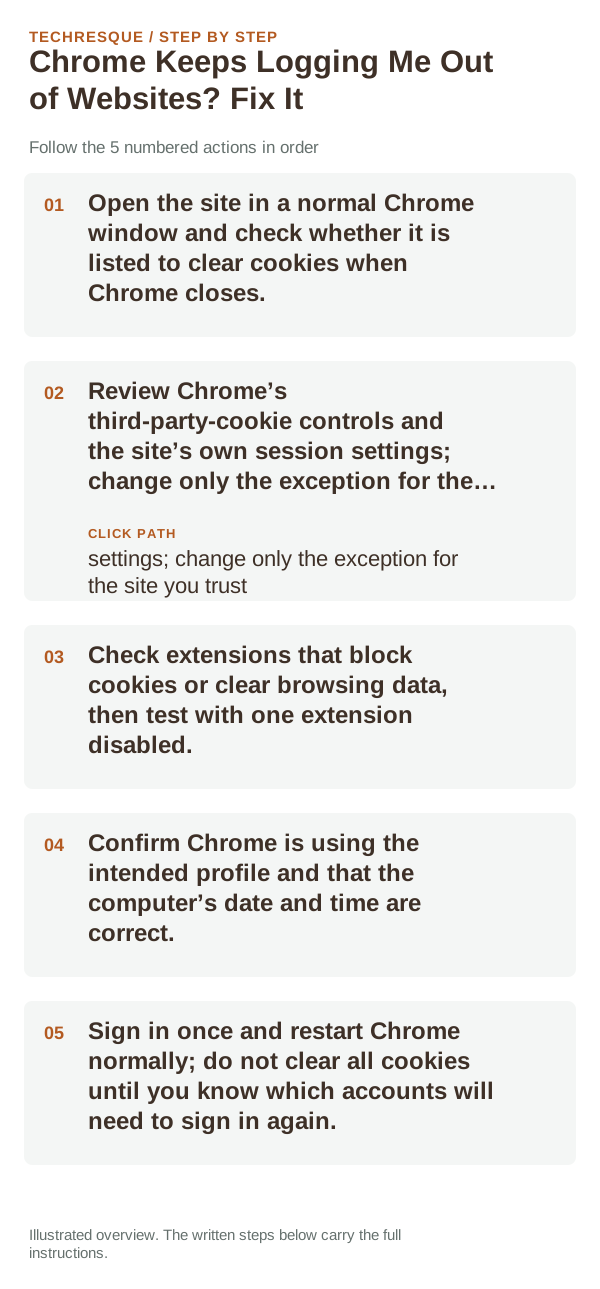
- Open the site in a normal Chrome window and check whether it is listed to clear cookies when Chrome closes.
- Review Chrome’s third-party-cookie controls and the site’s own session settings; change only the exception for the site you trust.
- Check extensions that block cookies or clear browsing data, then test with one extension disabled.
- Confirm Chrome is using the intended profile and that the computer’s date and time are correct.
- Sign in once and restart Chrome normally; do not clear all cookies until you know which accounts will need to sign in again.
Use a clean A/B test
If the sign-out happens only on one site, its session rules or a site-specific cookie exception may be involved. If several sites forget sessions at once, check Chrome’s clear-on-exit setting and privacy extensions.
Shortcuts that usually waste time
What success should look like
Sign in to one affected site, close and reopen Chrome, and check whether that site keeps its session. Compare its cookie settings without clearing data for unrelated sites.
When to use support or repair
If the same page fails in another browser, contact the site or network owner; if only Chrome fails, report its version and reproduction steps.
Record Chrome version, device/OS, profile and extension state, and the affected page without private tokens or account data.
Frequently asked questions
Should I reset the whole device immediately?
Usually not. Compare a private window and another browser first. Reset Chrome only after checking the profile, extensions and sync.
How do I know when the fix is real?
Sign in to one affected site, close and reopen Chrome, and check whether that site keeps its session. Compare its cookie settings without clearing data for unrelated sites.
Official sources and further reading
Sync and saved information belong to a Chrome profile; confirm the account and backup before deleting local browser data.