Open Settings > Autofill and passwords > Google Password Manager and check whether Offer to save passwords is enabled.
Likely causes to check first
- one extension or profile is misbehaving
- cached site data is stale
- memory pressure is forcing tabs to reload
- DNS/network problems affect only some sites
- security software or a proxy is intercepting connections
Troubleshoot from low-risk to high-risk
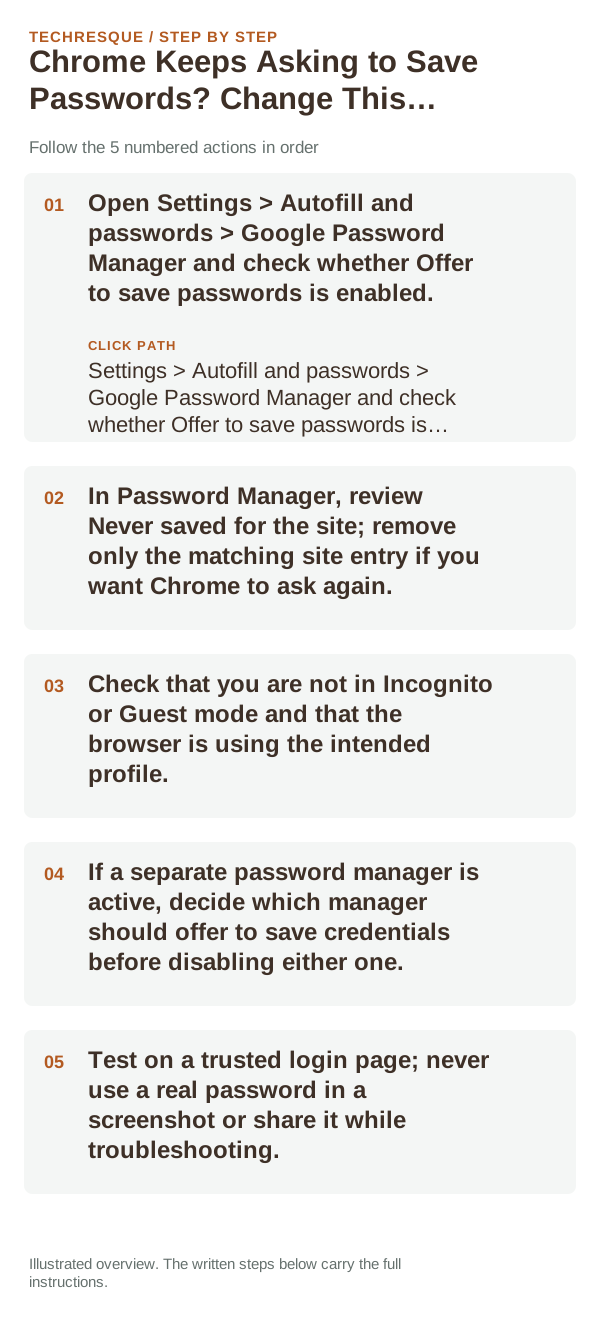
- Open Settings > Autofill and passwords > Google Password Manager and check whether Offer to save passwords is enabled.
- In Password Manager, review Never saved for the site; remove only the matching site entry if you want Chrome to ask again.
- Check that you are not in Incognito or Guest mode and that the browser is using the intended profile.
- If a separate password manager is active, decide which manager should offer to save credentials before disabling either one.
- Test on a trusted login page; never use a real password in a screenshot or share it while troubleshooting.
Isolate the failing layer
If Chrome asks on other sites but not one, that site may be in Never saved or use a custom login form. If no site triggers a prompt, check the global save setting, profile, and any competing password manager.
What not to change first
Retest the original failure
Use a non-sensitive test account to confirm Chrome’s save-password prompt follows the chosen setting. Check the intended profile’s Password Manager without exposing saved credentials.
When to use support or repair
If the same page fails in another browser, contact the site or network owner; if only Chrome fails, report its version and reproduction steps.
Record Chrome version, device/OS, profile and extension state, and the affected page without private tokens or account data.
Frequently asked questions
Should I reset the whole device immediately?
Usually not. Compare a private window and another browser first. Reset Chrome only after checking the profile, extensions and sync.
How do I know when the fix is real?
Use a non-sensitive test account to confirm Chrome’s save-password prompt follows the chosen setting. Check the intended profile’s Password Manager without exposing saved credentials.
Official sources and further reading
Sync and saved information belong to a Chrome profile; confirm the account and backup before deleting local browser data.