A launcher can see information needed to display and manage the Home screen, but being the default launcher alone does not grant SMS, photo, contact or location permissions. Its actual access depends on permissions, special access, Android APIs and the developer’s own data practices.
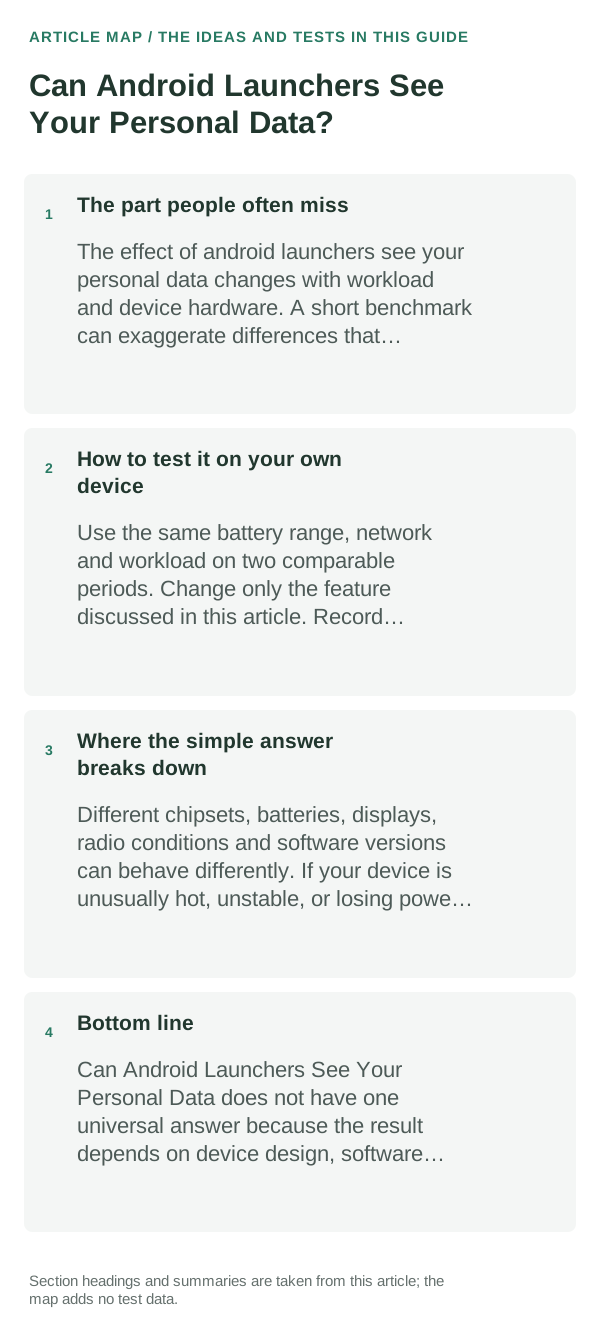
The part people often miss
The app drawer needs to know which apps are installed; that is different from reading their files or account contents. Notification access, accessibility services, usage access and broad file/media permissions can expose more, so review those grants separately.
How to apply this without overthinking it
- Open the launcher’s App info page and review Permissions, Special app access and Notification access. Remove any grant whose purpose you do not understand.
- Read the current Play Store Data safety disclosure and the linked privacy policy. Look for what data is collected, shared, retained and why; disclosures are developer-provided and can change.
- Check the publisher, update history and source of the install. Keep Google Play Protect enabled, especially if you install an app outside Play.
- If you want to compare behavior, revoke optional access and confirm the launcher’s core Home-screen functions still work.
How to test it on your own device
Record the permissions before and after enabling one launcher feature, such as notification badges. If the feature asks for notification or usage access, decide whether that specific benefit justifies the extra visibility.
Where the simple answer breaks down
Android’s permission screen does not show every category of information an app may transmit, and Play Data safety is not an independent security audit. No generic “safe” label can replace checking the current app, version and publisher.
Bottom line
Judge a launcher by its current permissions, special access, publisher disclosures and update source. Keep only the access needed for features you actually use; do not treat the default Home role as a blanket data grant.
Hysoft app: Minimalistic: Launcher
For users who want a clean, distraction-light Android Home screen, Minimalistic: Launcher fits naturally here: a focused Android launcher with a clean monochrome Home screen, fast app search, favourites and folders, focus profiles, mindful launch delays, optional app blocking, and local backup. Its Play listing states that it has no advertisements, analytics, trackers, accounts or cloud sync.
View Minimalistic: Launcher on Google Play →Judge the launcher by the home-screen workflow, not screenshots
When comparing launchers, recreate one real home screen rather than judging the default setup. Test search, folders, icon packs, widgets, backup/restore and the gestures you use every day.
If a launcher keeps resetting or widgets disappear, first check whether Android has changed the default Home app, restricted background activity or removed widget permissions after an update.
A launcher mainly controls the home screen and app drawer; it does not replace Android itself. Gesture behavior, recents animations and some widgets can still depend on the phone maker and Android version.
| What you observe | What it points to | Best next check |
|---|---|---|
| Widgets stop refreshing | Battery/background restriction or widget host issue | Remove/re-add widget and review restrictions |
| Gestures feel different | OEM/Android navigation integration | Test the exact gesture before switching permanently |
| Home button opens another launcher | Default Home app changed | Set the intended launcher as default |
Frequently asked questions
What can a launcher see without extra permissions?
It can manage the Home screen and may list installed apps. Sensitive information such as photos, messages or notifications generally requires a separate permission or special access.
How do I check what my launcher can access?
Open Settings, find the launcher under Apps, then review Permissions and any Special app access pages. Menu names vary by phone; disable optional access you do not recognize and retest the feature.
Official sources and further reading
Google Play Protect and Android permission guidance explain platform safeguards, not a security audit or endorsement of any named launcher.