Disconnect the accessory from other devices, forget the pairing on both sides, pair again, then confirm the correct audio/input profile is selected.
Likely causes to check first
- the accessory is still connected to another device
- the pairing record is stale on one side
- the device profile required for audio, calls or input is not active
- distance or 2.4 GHz interference is causing drops
- a driver, firmware or OS update changed Bluetooth behavior
Fix it in this order
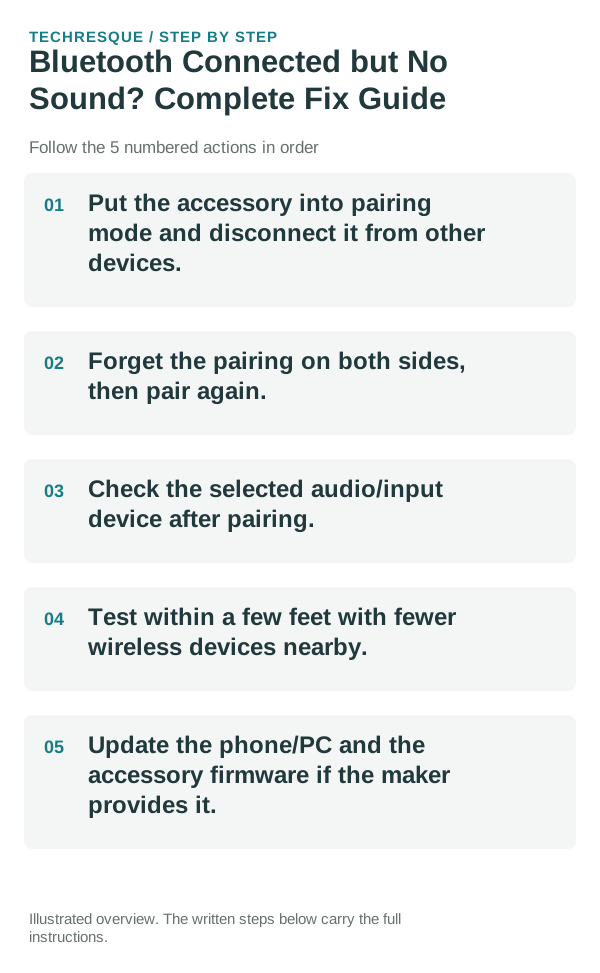
- Put the accessory into pairing mode and disconnect it from other devices.
- Forget the pairing on both sides, then pair again.
- Check the selected audio/input device after pairing.
- Test within a few feet with fewer wireless devices nearby.
- Update the phone/PC and the accessory firmware if the maker provides it.
A quick way to narrow it down
Compare pairing, media playback and microphone/call use separately. Bluetooth can connect successfully while the wrong profile or output device is selected, so “Connected” is not the same as “working for this feature.”
Use the same host and accessory for each pairing test. Remove only the affected pairing after checking charge and distance.
Changes to avoid until you know the cause
- Do not keep the accessory actively connected to another phone while pairing.
- Do not reset all network settings before forgetting one problematic pairing.
- Do not treat “paired” as proof that the correct audio/microphone profile is active.
- Do not troubleshoot from several rooms away or through heavy interference.
Retest the original failure
Test the exact profile that failed: music audio, call microphone, keyboard input or file transfer.
When to use support or repair
If multiple known-good Bluetooth accessories fail only with one device after updates and re-pairing, use the device maker’s support path. If only one accessory fails everywhere, focus on that accessory.
Record accessory and host model, software versions, pairing message, distance and whether another compatible host connects. Do not post serials.
Pairing and audio are separate tests
First prove that the devices can pair. Then prove that the intended profile—media, calls, microphone or input—works. Solving the wrong layer is why many Bluetooth fixes appear inconsistent.
Confirm the active audio path before changing drivers or apps
A device can be paired without being the active input or output. Check the selected microphone, speaker or Bluetooth profile first, then reproduce the problem in a second app so you know whether the fault follows the accessory or only one application.
Bluetooth audio adds another layer: call audio and media audio can use different profiles, and multipoint devices can silently switch to another phone or computer. Disconnect extra devices during testing.
For microphones and cameras, permission can be granted at both the operating-system level and inside the app or browser. A correct hardware connection will still fail if either permission layer blocks access.
| What you observe | What it points to | Best next check |
|---|---|---|
| Cuts out or crackles | Signal, codec, driver or hardware path | Test closer, wired, or with another known-good device |
| Works in one app only | App permission or app-specific routing | Compare permissions and selected device |
| Paired but silent | Wrong output/profile or another device took focus | Select output manually and disconnect extras |
Frequently asked questions
What should I check first for bluetooth connected but no sound? complete fix guide?
Disconnect the accessory from other devices, forget the pairing on both sides, pair again, then confirm the correct audio/input profile is selected.
Should I reset the whole device immediately?
Usually not. Recheck charge, distance and the current pairing first; remove only the affected pairing before resetting devices.
How do I know when the fix is real?
A device can be paired without being the active input or output. Check the selected microphone, speaker or Bluetooth profile first, then reproduce the problem in a second app so you know whether the fault follows the accessory or only one application.
Official sources and further reading
- Google Android Help — Find and set up Bluetooth devices
- Microsoft Support — Fix Bluetooth problems in Windows
Bluetooth labels differ by host and accessory. Check charge and pairing state before removing unrelated saved devices.