Remove moisture and accessories, clean and dry the screen, and test whether touch fails in one app or everywhere. A cracked or swollen screen needs service rather than repeated restarts.
On Android, menu names vary by maker, so use Settings search when a path in a guide does not match your phone exactly.
What this symptom usually means
A screen can ignore touch because of moisture, a thick protector, a charging accessory, a frozen app, or damaged digitizer hardware. Button response and touch response should be tested separately.
Troubleshoot from low-risk to high-risk
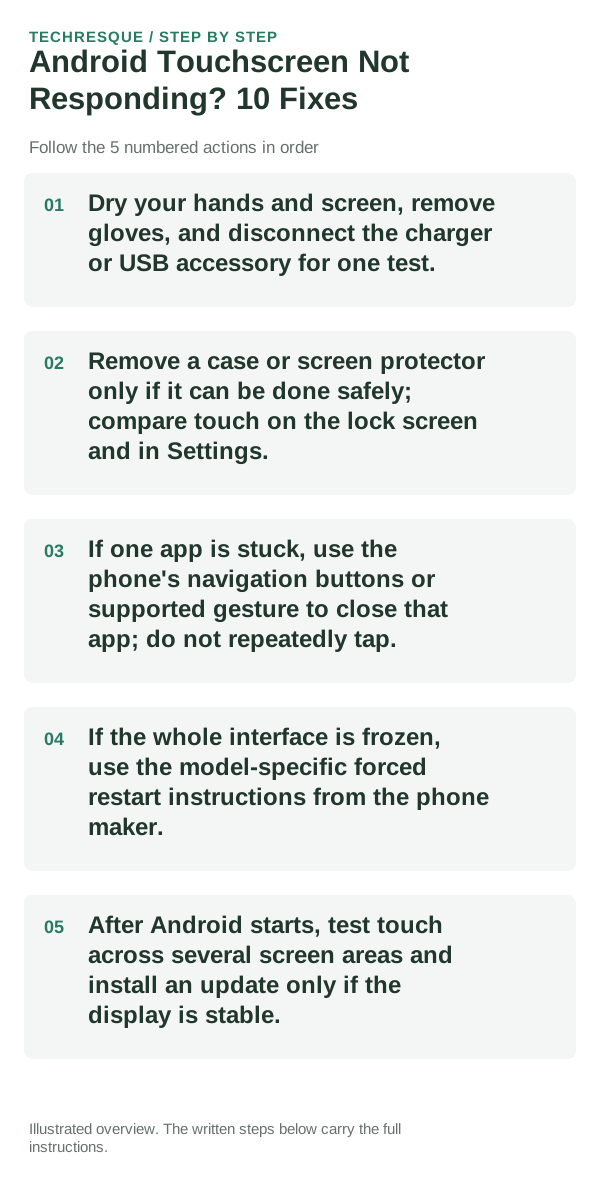
- Dry your hands and screen, remove gloves, and disconnect the charger or USB accessory for one test.
- Remove a case or screen protector only if it can be done safely; compare touch on the lock screen and in Settings.
- If one app is stuck, use the phone's navigation buttons or supported gesture to close that app; do not repeatedly tap.
- If the whole interface is frozen, use the model-specific forced restart instructions from the phone maker.
- After Android starts, test touch across several screen areas and install an update only if the display is stable.
How to tell which cause applies
Touch failing only in one app suggests that app is frozen or misbehaving. A dead strip across multiple screens, especially after a drop or liquid exposure, points to the display hardware.
Shortcuts that usually waste time
Do not press hard, heat the screen, or enter a reset sequence that could erase data. If the glass is broken or the battery is bulging, stop and seek service.
Confirm that the problem is actually gone
Swipe, type, and tap in multiple areas of Settings and the lock screen. Confirm the same touch region works after disconnecting accessories.
When to use support or repair
If the same area stays unresponsive across the system, contact the phone maker or an authorized repair provider and back up data if touch becomes available.
Frequently asked questions
Should I reset the whole device immediately?
Usually not. Test the affected feature with a built-in tool or second app first. Back up local-only files before clearing app storage or considering a factory reset.
How do I know when the fix is real?
Swipe, type, and tap in multiple areas of Settings and the lock screen. Confirm the same touch region works after disconnecting accessories.