Record a short clip in the built-in recorder. If it sounds clear but one app is silent, check that app’s Microphone permission; if all recordings fail, turn on the system microphone access switch and disconnect external audio.
On Android, menu names vary by maker, so use Settings search when a path in a guide does not match your phone exactly.
Where this problem usually comes from
Android has a device-wide microphone access switch and separate per-app permissions. A Bluetooth headset or USB accessory can also become the selected input, so a working phone microphone may be hidden by the active audio route.
- Microphone access is off in Quick Settings or Privacy settings.
- The affected app is not allowed to use the microphone.
- Bluetooth or USB audio is selected instead of the built-in microphones.
- A case or debris partly covers a microphone opening.
- One app fails while the built-in recorder or calls still record clearly.
Fix it in this order
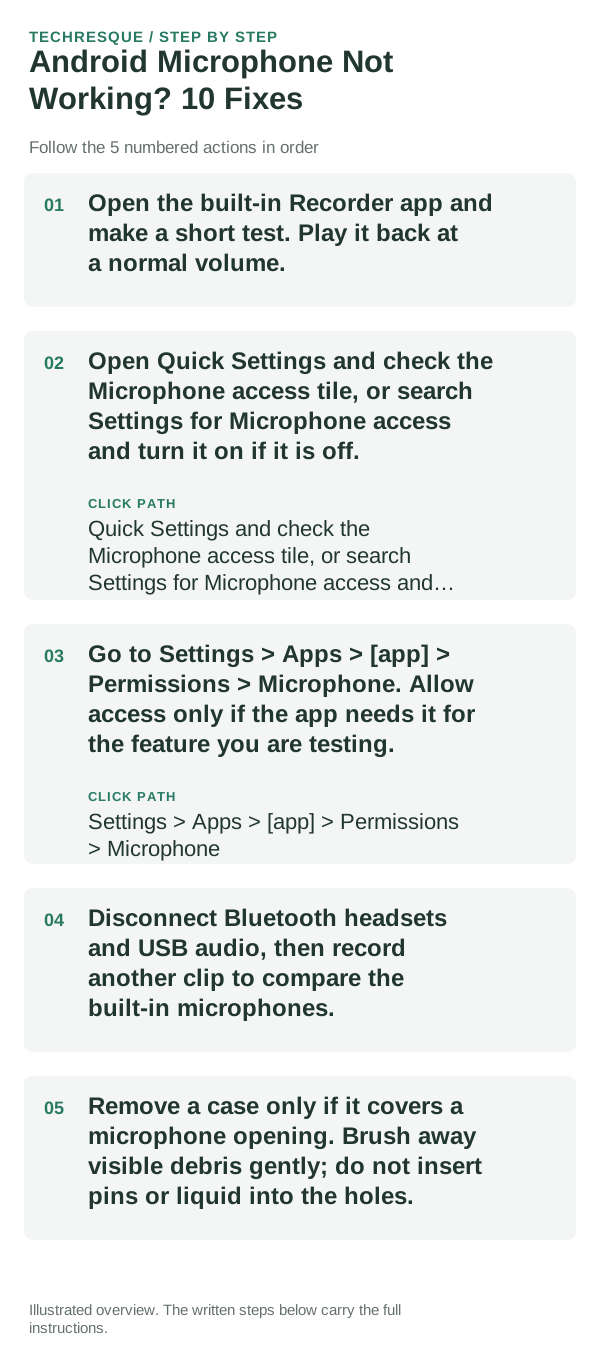
- Open the built-in Recorder app and make a short test. Play it back at a normal volume.
- Open Quick Settings and check the Microphone access tile, or search Settings for Microphone access and turn it on if it is off.
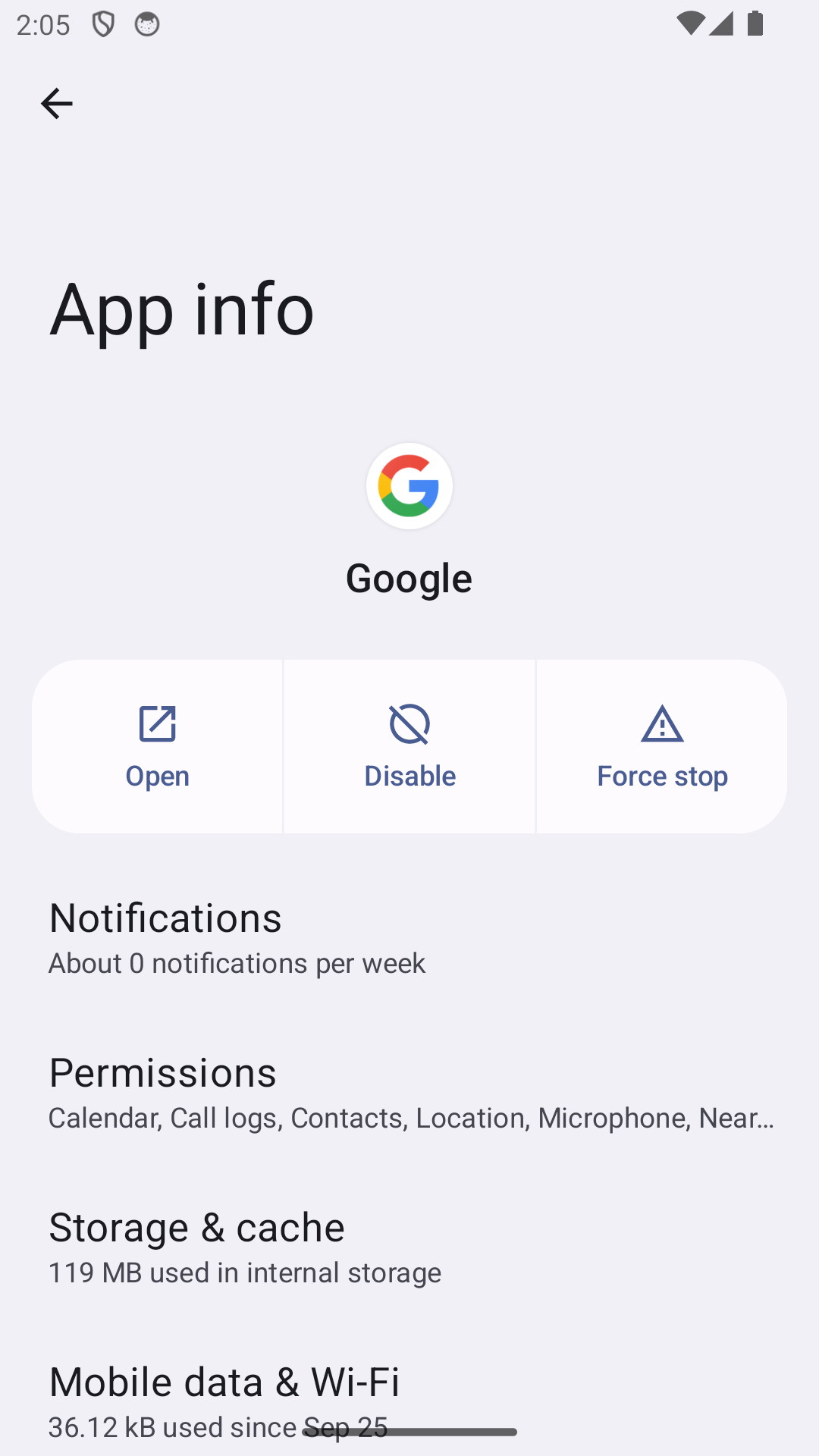
- Go to Settings > Apps > [app] > Permissions > Microphone. Allow access only if the app needs it for the feature you are testing.
- Disconnect Bluetooth headsets and USB audio, then record another clip to compare the built-in microphones.
- Remove a case only if it covers a microphone opening. Brush away visible debris gently; do not insert pins or liquid into the holes.
Use a clean A/B test
Record the same short sentence in Recorder and in the affected app, with Bluetooth disconnected. A clear system recording and a silent app recording points to that app’s permission or settings. If both recordings fail, check the privacy switch and the phone’s microphone openings.
Shortcuts that usually waste time
- Do not grant microphone access to every app; allow only the app you are testing.
- Do not clean an opening with a pin, liquid, or compressed air.
- Do not reset the phone before comparing the built-in Recorder with the failing app.
- Do not assume a Bluetooth headset is using the phone’s built-in microphone.
Verify before you move on
Record a new clip in Recorder and another in the affected app after the single change. Play both back. If only one app still fails, keep investigating that app’s settings rather than changing system-wide privacy controls.
When to use support or repair
If Recorder, calls, and multiple apps all capture silence after the privacy switch is on and external audio is disconnected, contact the phone maker for model-specific diagnostics. Include the model, Android version, and whether each microphone mode fails.
Frequently asked questions
Why does the microphone work in calls but not in one app?
That app may lack Microphone permission or may select a different input. Test a built-in recorder, then review that app’s permission and audio settings.
Where is Android microphone access?
Search Settings for Microphone access or look for its privacy tile in Quick Settings. Names vary by phone maker and Android version.
Should I clean the microphone opening?
Remove a covering case and brush away visible debris gently. Do not push tools or liquid into the opening.
Official sources and further reading
Android menu names vary by phone. Keep microphone permission limited to apps that need it, and test a built-in recorder before changing more settings.