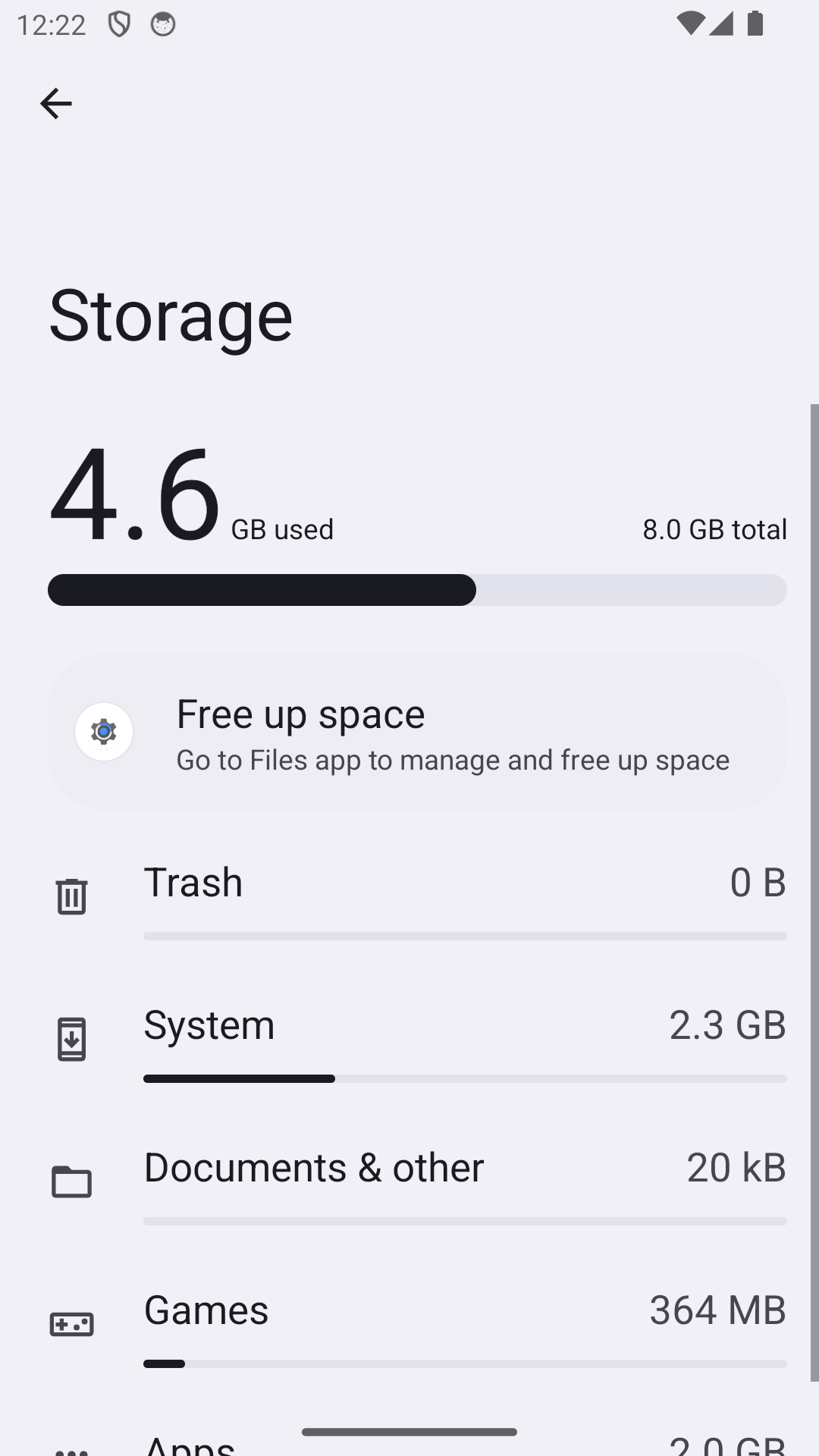
Let Android finish calculating the storage breakdown, then compare System with apps, media, downloads, and cached data. Do not delete hidden system folders to force the number down.
On Android, menu names vary by maker, so use Settings search when a path in a guide does not match your phone exactly.
Start by narrowing the cause
Android's System or Other category can include operating-system files, temporary data, and app-managed content. Category labels and accounting vary by manufacturer, so one large number does not identify a corrupt file.
Troubleshoot from low-risk to high-risk
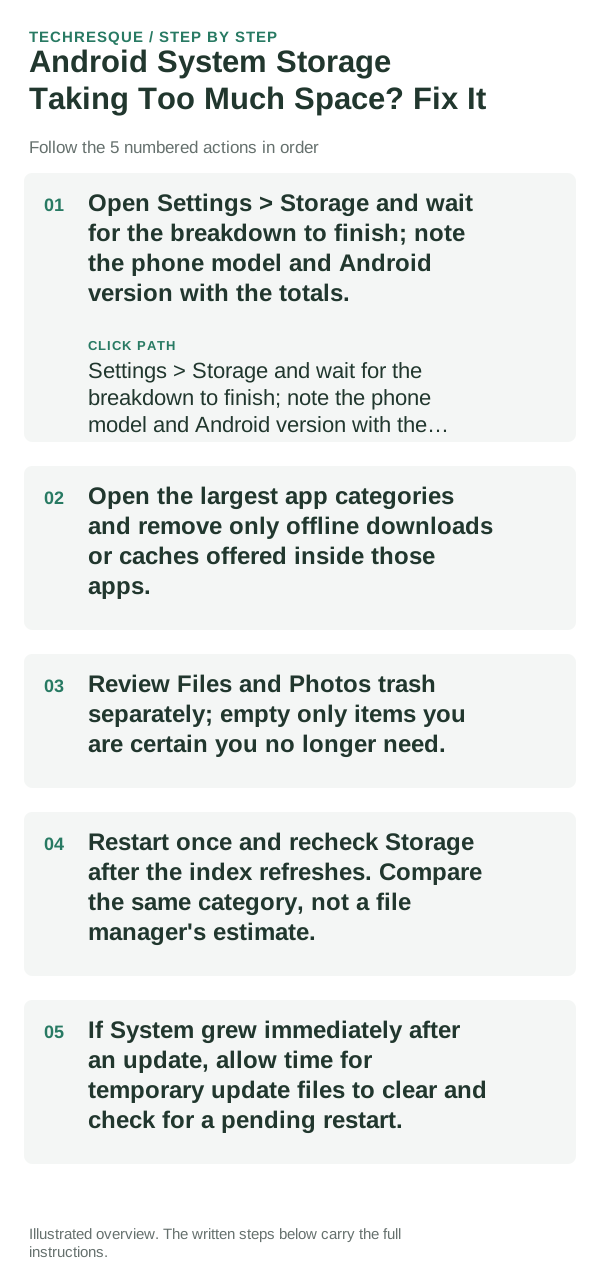
- Open Settings > Storage and wait for the breakdown to finish; note the phone model and Android version with the totals.
- Open the largest app categories and remove only offline downloads or caches offered inside those apps.
- Review Files and Photos trash separately; empty only items you are certain you no longer need.
- Restart once and recheck Storage after the index refreshes. Compare the same category, not a file manager's estimate.
- If System grew immediately after an update, allow time for temporary update files to clear and check for a pending restart.
Isolate the failing layer
A large System total that changes after restart may reflect recalculation or update work. A large app or media category points to content managed by that app; unexplained growth across rechecks deserves support.
Do not use a root file manager, remove Android folders, or install a cleaner that promises to erase system data. Back up personal files before any repair or reset.
How to confirm the fix
Check the same Storage screen after restart and confirm you still have space for normal app updates and camera use. Do not chase a particular System number if the phone works and the total is stable.
When to use support or repair
If System keeps growing or updates fail because the category is large, contact the phone maker with the model, Android version, and storage breakdown.
Frequently asked questions
Should I reset the whole device immediately?
Usually not. Identify whether phone storage or cloud quota is full. Delete only files you can replace or have verified in backup.
How do I know when the fix is real?
Check the same Storage screen after restart and confirm you still have space for normal app updates and camera use. Do not chase a particular System number if the phone works and the total is stable.