Calls can go to voicemail because of phone-side filtering, forwarding, SIM selection, or the carrier network. Compare multiple callers and outgoing service before resetting the phone. Check signal and place one outgoing call; confirm the correct SIM is enabled for calls if using dual SIM. Temporarily disable Focus/Do Not Disturb and unknown-caller or spam filtering, then ask two known callers to test.
Android Settings labels differ across Pixel, Samsung, and other brands; search Settings for the named control and change one item at a time.
Why this can happen
Calls can go to voicemail because of phone-side filtering, forwarding, SIM selection, or the carrier network. Compare multiple callers and outgoing service before resetting the phone.
- Do Not Disturb, call screening, blocked numbers, or unknown-caller filtering is active.
- Call forwarding or a carrier voicemail rule is enabled.
- The wrong SIM is selected or has weak/no service.
- A carrier outage, account restriction, or number-port issue affects incoming calls.
- The problem affects one caller/contact rather than all callers.
Troubleshoot from low-risk to high-risk
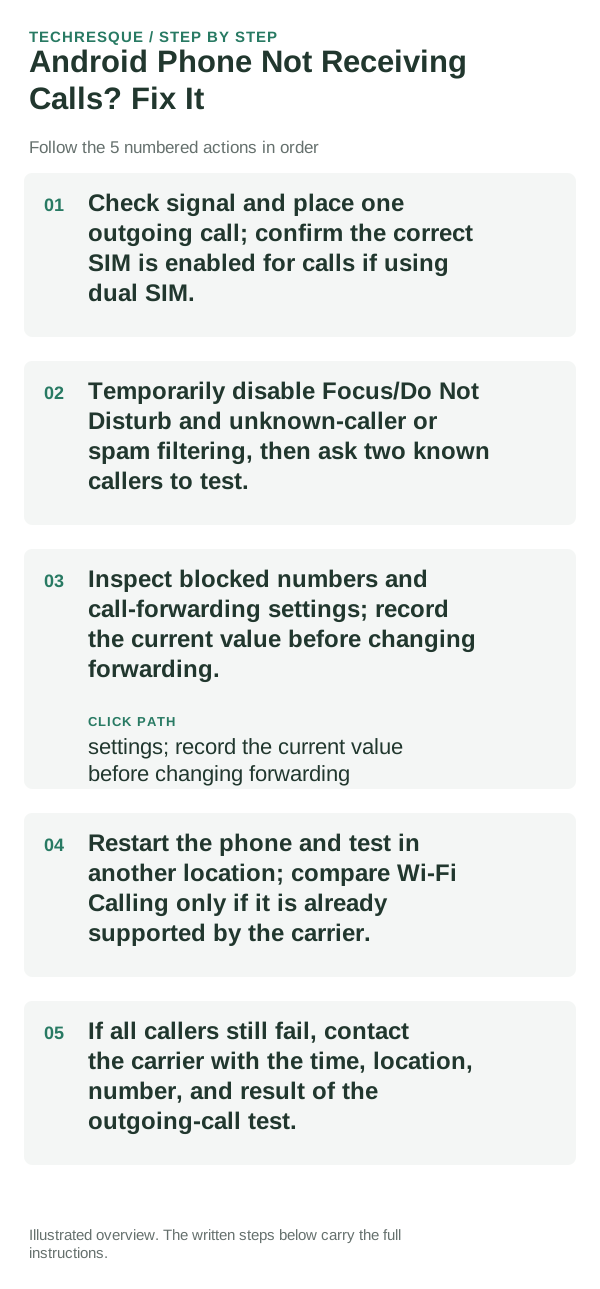
- Check signal and place one outgoing call; confirm the correct SIM is enabled for calls if using dual SIM.
- Temporarily disable Focus/Do Not Disturb and unknown-caller or spam filtering, then ask two known callers to test.
- Inspect blocked numbers and call-forwarding settings; record the current value before changing forwarding.
- Restart the phone and test in another location; compare Wi-Fi Calling only if it is already supported by the carrier.
- If all callers still fail, contact the carrier with the time, location, number, and result of the outgoing-call test.
How to tell which cause applies
Use two callers and note whether outgoing calls work; one contact failing points to a different cause than all incoming calls. Carrier menus differ.
Test the same alert in the same app. Compare its notification category with background and battery restrictions.
Shortcuts that usually waste time
- Do not share one-time codes or account PINs in screenshots.
- Do not reset network settings before checking SIM and carrier status.
Verify before you move on
Use two callers and note whether outgoing calls work; one contact failing points to a different cause than all incoming calls. Carrier menus differ.
When to use support or repair
If alerts fail across apps after their notification and background settings are checked, contact the device maker with versions and examples.
Record phone model, Android version, app name, notification category and whether alerts arrive with the app open. Hide message content in screenshots.
Frequently asked questions
What should I check first?
Check signal and place one outgoing call; confirm the correct SIM is enabled for calls if using dual SIM. Temporarily disable Focus/Do Not Disturb and unknown-caller or spam filtering, then ask two known callers to test. Inspect blocked numbers and call-forwarding settings; record the current value before changing forwarding.
Should I reset the whole device immediately?
Usually not. Check the app’s notification categories and background restrictions first; a full reset may not re-enable a disabled alert channel.
How do I know when the fix is real?
Use two callers and note whether outgoing calls work; one contact failing points to a different cause than all incoming calls. Carrier menus differ.
Official sources and further reading
Notification channels and background controls vary by Android version. Check the affected app’s own notification category before changing system-wide settings.