
Safe Mode starts Android with most downloaded apps disabled. Re-entry usually points to a physical button/case or a boot choice, while a one-time boot may have been accidental. Choose Restart from the power menu and allow the phone to boot normally; do not uninstall apps just because Safe Mode appeared once. Remove the case and check that power and volume buttons move freely before restarting again.
Android Settings labels differ across Pixel, Samsung, and other brands; search Settings for the named control and change one item at a time.
Likely causes to check first
Safe Mode starts Android with most downloaded apps disabled. Re-entry usually points to a physical button/case or a boot choice, while a one-time boot may have been accidental.
- A volume button is held or stuck during startup.
- A case presses the power or volume key.
- The restart menu selected Safe Mode.
- A downloaded app is being investigated rather than Safe Mode being a fault.
- A damaged button or repeated startup failure needs service.
The practical troubleshooting sequence
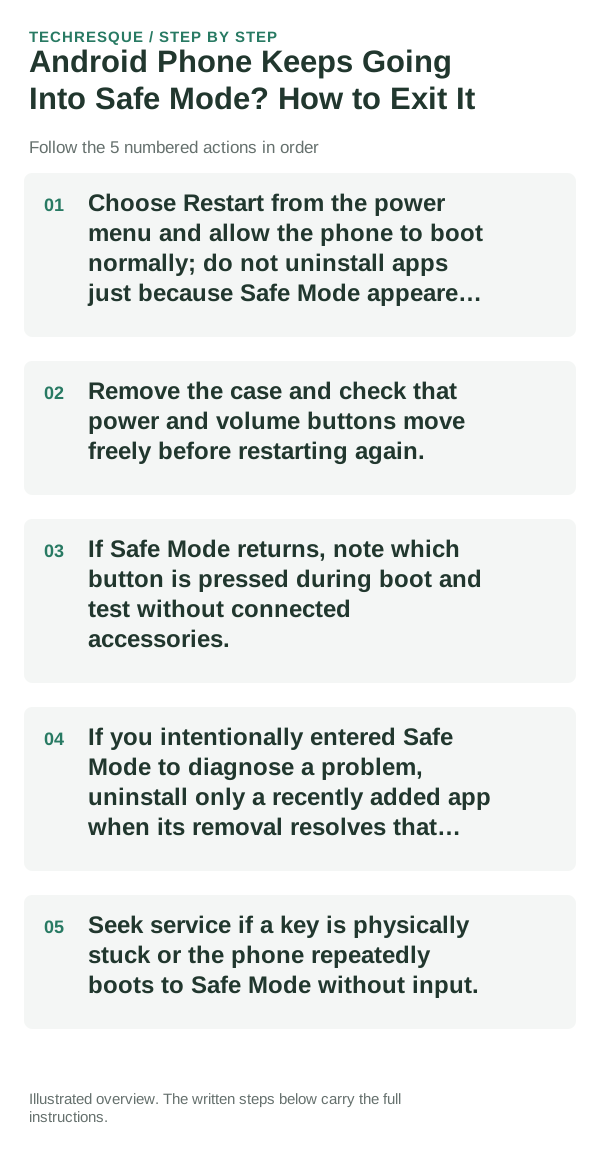
- Choose Restart from the power menu and allow the phone to boot normally; do not uninstall apps just because Safe Mode appeared once.
- Remove the case and check that power and volume buttons move freely before restarting again.
- If Safe Mode returns, note which button is pressed during boot and test without connected accessories.
- If you intentionally entered Safe Mode to diagnose a problem, uninstall only a recently added app when its removal resolves that problem.
- Seek service if a key is physically stuck or the phone repeatedly boots to Safe Mode without input.
Isolate the failing layer
Restart once without the case and check whether the Safe Mode label disappears. The exact exit gesture varies by manufacturer.
Restart once without the case and check whether the Safe Mode label disappears. The exact exit gesture varies by manufacturer.
Changes to avoid until you know the cause
- Do not factory-reset or remove multiple apps before checking the physical keys and restart menu.
Verify before you move on
Restart once without the case and check whether the Safe Mode label disappears. The exact exit gesture varies by manufacturer.
When to use support or repair
If several apps fail after updates and a restart, compare Safe Mode if supported. Swelling, unusual heat, damaged ports or shutdowns need service.
Note the phone model, Android version, affected app or setting, exact message and whether restarting or Safe Mode changes the result.
Frequently asked questions
What should I check first?
Choose Restart from the power menu and allow the phone to boot normally; do not uninstall apps just because Safe Mode appeared once. Remove the case and check that power and volume buttons move freely before restarting again. If Safe Mode returns, note which button is pressed during boot and test without connected accessories.
Should I reset the whole device immediately?
Usually not. Test the affected feature with a built-in tool or second app first. Back up local-only files before clearing app storage or considering a factory reset.
How do I know when the fix is real?
Restart once without the case and check whether the Safe Mode label disappears. The exact exit gesture varies by manufacturer.
Official sources and further reading
Android labels differ across Pixel, Samsung and other brands. Use Settings search for the named control if a menu path does not match your phone.