Automatic brightness uses the light sensor and the phone's learned brightness adjustments. Manual brightness, Extra Dim, battery saving, and a screen protector can change what you see, so test these controls separately. Open Display settings and confirm Adaptive Brightness is on; move to steady indoor light and wait for the level to settle. Adjust the slider once to the level you want so the phone can learn that preference; avoid repeated slider changes during this test.
Android Settings labels differ across Pixel, Samsung, and other brands; search Settings for the named control and change one item at a time.
Why this can happen
Automatic brightness uses the light sensor and the phone's learned brightness adjustments. Manual brightness, Extra Dim, battery saving, and a screen protector can change what you see, so test these controls separately.
- Adaptive Brightness is off or has learned an unusually low/high adjustment.
- A case or screen protector partly covers the ambient-light sensor.
- Extra Dim, a bedtime/accessibility filter, or a battery mode is changing perceived brightness.
- Heat or a manufacturer display feature is limiting brightness temporarily.
- The issue appears only in one app, which may control its own screen brightness.
Fix it in this order
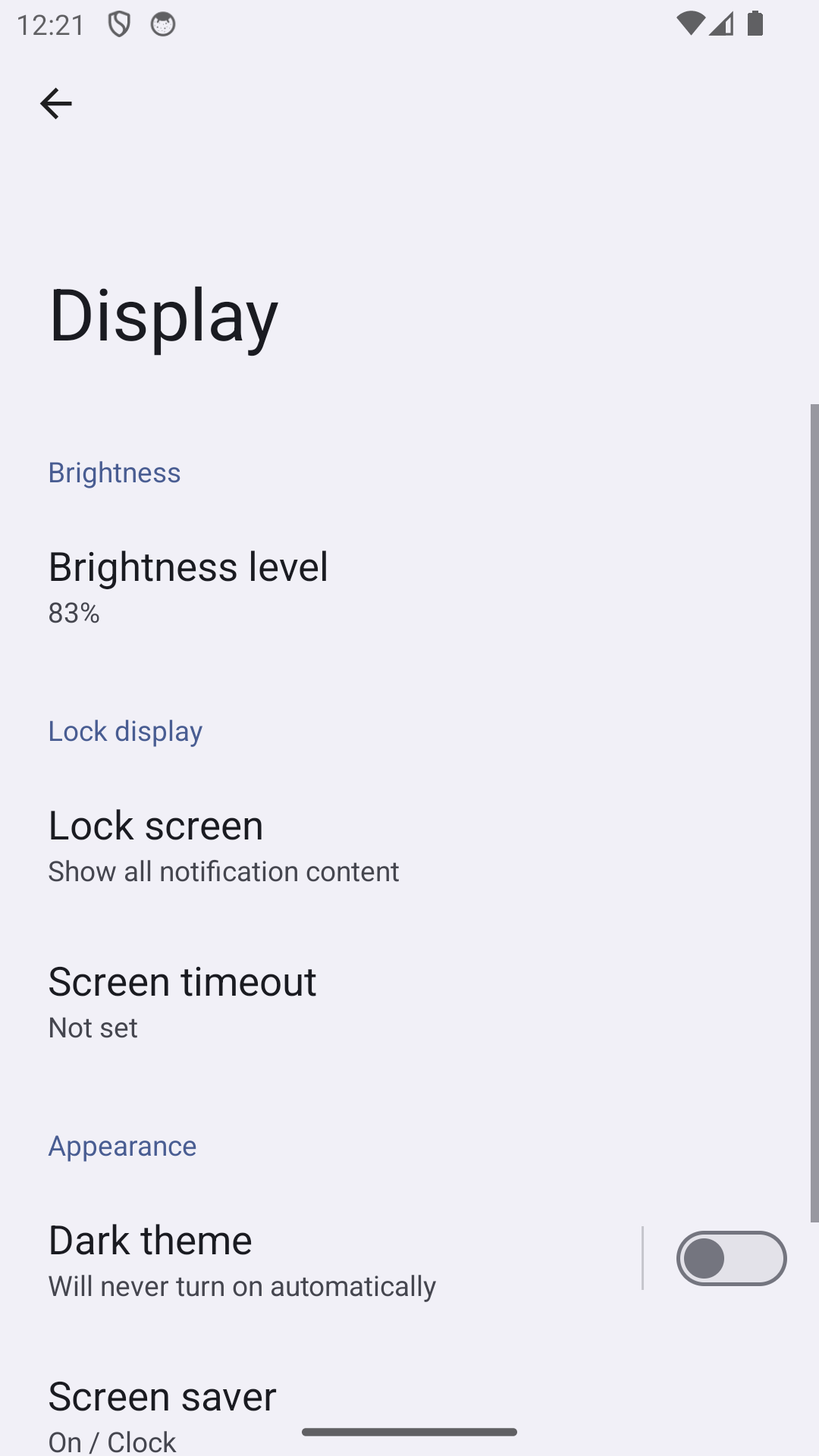
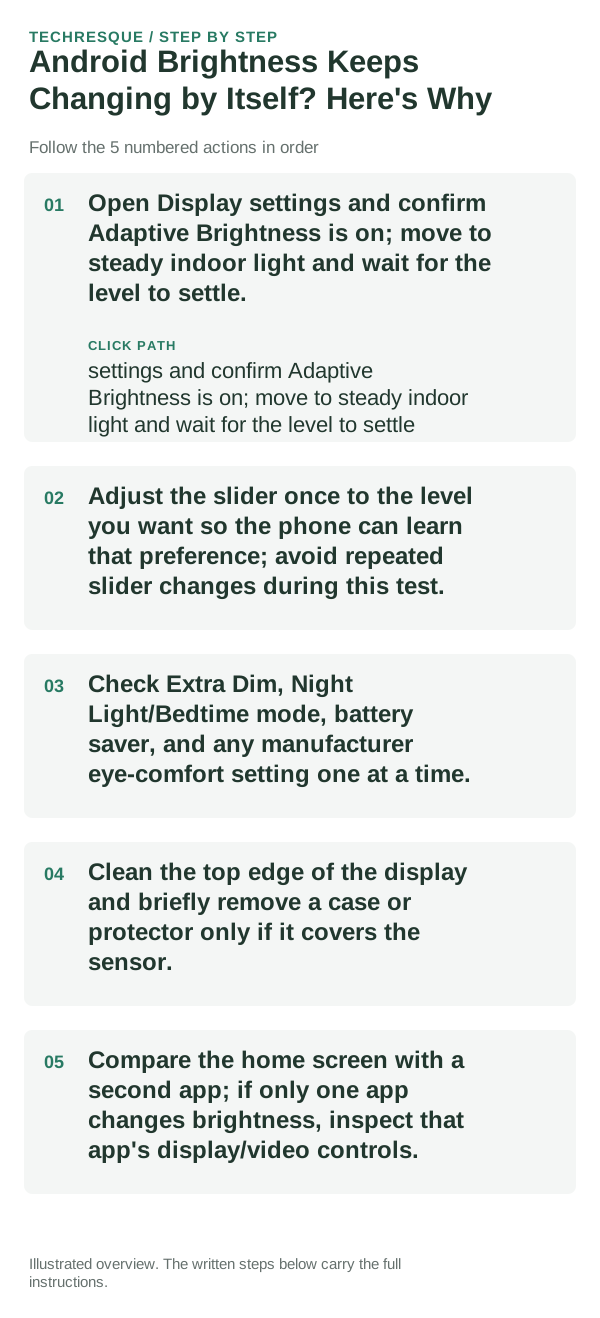
- Open Display settings and confirm Adaptive Brightness is on; move to steady indoor light and wait for the level to settle.
- Adjust the slider once to the level you want so the phone can learn that preference; avoid repeated slider changes during this test.
- Check Extra Dim, Night Light/Bedtime mode, battery saver, and any manufacturer eye-comfort setting one at a time.
- Clean the top edge of the display and briefly remove a case or protector only if it covers the sensor.
- Compare the home screen with a second app; if only one app changes brightness, inspect that app's display/video controls.
What each result tells you
Compare brightness on the home screen and in one known app under steady lighting, then change one display control and repeat. Android menu names vary by phone brand and version.
Compare brightness on the home screen and in one known app under steady lighting, then change one display control and repeat. Android menu names vary by phone brand and version.
What not to change first
- Do not factory-reset the phone or change multiple display/accessibility controls together; note the original values so they can be restored.
What success should look like
Compare brightness on the home screen and in one known app under steady lighting, then change one display control and repeat. Android menu names vary by phone brand and version.
When to use support or repair
If several apps fail after updates and a restart, compare Safe Mode if supported. Swelling, unusual heat, damaged ports or shutdowns need service.
Note the phone model, Android version, affected app or setting, exact message and whether restarting or Safe Mode changes the result.
Frequently asked questions
What should I check first?
Open Display settings and confirm Adaptive Brightness is on; move to steady indoor light and wait for the level to settle. Adjust the slider once to the level you want so the phone can learn that preference; avoid repeated slider changes during this test. Check Extra Dim, Night Light/Bedtime mode, battery saver, and any manufacturer eye-comfort setting one at a time.
Should I reset the whole device immediately?
Usually not. Test the affected feature with a built-in tool or second app first. Back up local-only files before clearing app storage or considering a factory reset.
How do I know when the fix is real?
Compare brightness on the home screen and in one known app under steady lighting, then change one display control and repeat. Android menu names vary by phone brand and version.