Rotation is controlled by the phone's orientation setting, the current app, and motion sensors. Some screens intentionally stay portrait even when auto-rotate is enabled. Turn Auto-rotate on in Quick Settings, then rotate the Settings screen as a control. Test a second app known to support landscape; check the app's own rotation/full-screen control.
Android Settings labels differ across Pixel, Samsung, and other brands; search Settings for the named control and change one item at a time.
What this symptom usually means
Rotation is controlled by the phone's orientation setting, the current app, and motion sensors. Some screens intentionally stay portrait even when auto-rotate is enabled.
- Auto-rotate is off or a rotation suggestion was dismissed.
- The app does not support landscape on that screen.
- A cover, dock, or accessibility setting is affecting rotation.
- The motion sensor is not responding consistently.
- The problem follows one app rather than the entire interface.
Fix it in this order
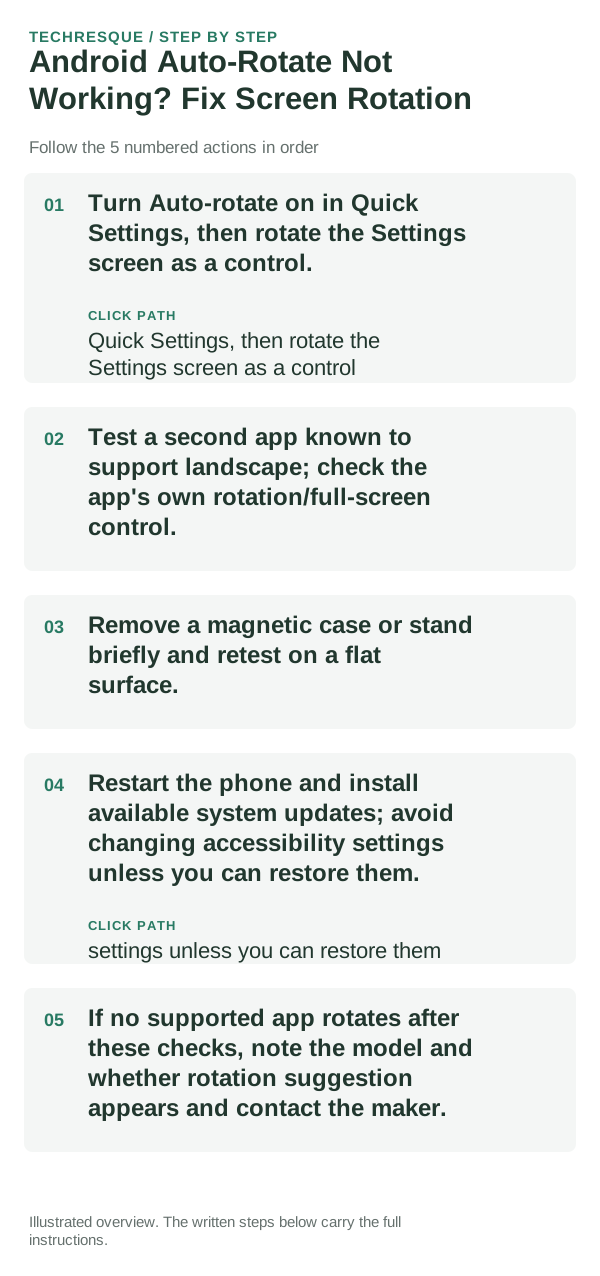
- Turn Auto-rotate on in Quick Settings, then rotate the Settings screen as a control.
- Test a second app known to support landscape; check the app's own rotation/full-screen control.
- Remove a magnetic case or stand briefly and retest on a flat surface.
- Restart the phone and install available system updates; avoid changing accessibility settings unless you can restore them.
- If no supported app rotates after these checks, note the model and whether rotation suggestion appears and contact the maker.
A quick way to narrow it down
Test one landscape-capable app and Settings separately; this distinguishes an app design choice from a sensor or phone setting. Controls vary by brand.
Test one landscape-capable app and Settings separately; this distinguishes an app design choice from a sensor or phone setting. Controls vary by brand.
Avoid these common mistakes
- Do not assume every app or video screen supports rotation.
- Do not reset all settings before checking a second app.
What success should look like
Test one landscape-capable app and Settings separately; this distinguishes an app design choice from a sensor or phone setting. Controls vary by brand.
When to use support or repair
If several apps fail after updates and a restart, compare Safe Mode if supported. Swelling, unusual heat, damaged ports or shutdowns need service.
Note the phone model, Android version, affected app or setting, exact message and whether restarting or Safe Mode changes the result.
Frequently asked questions
What should I check first?
Turn Auto-rotate on in Quick Settings, then rotate the Settings screen as a control. Test a second app known to support landscape; check the app's own rotation/full-screen control. Remove a magnetic case or stand briefly and retest on a flat surface.
Should I reset the whole device immediately?
Usually not. Test the affected feature with a built-in tool or second app first. Back up local-only files before clearing app storage or considering a factory reset.
How do I know when the fix is real?
Test one landscape-capable app and Settings separately; this distinguishes an app design choice from a sensor or phone setting. Controls vary by brand.
Official sources and further reading
Android labels differ across Pixel, Samsung and other brands. Use Settings search for the named control if a menu path does not match your phone.