Airplane Mode can save battery because it disables or reduces cellular radio activity, which is especially useful in weak-signal areas where the modem would otherwise keep searching or transmitting at higher power.
What matters most
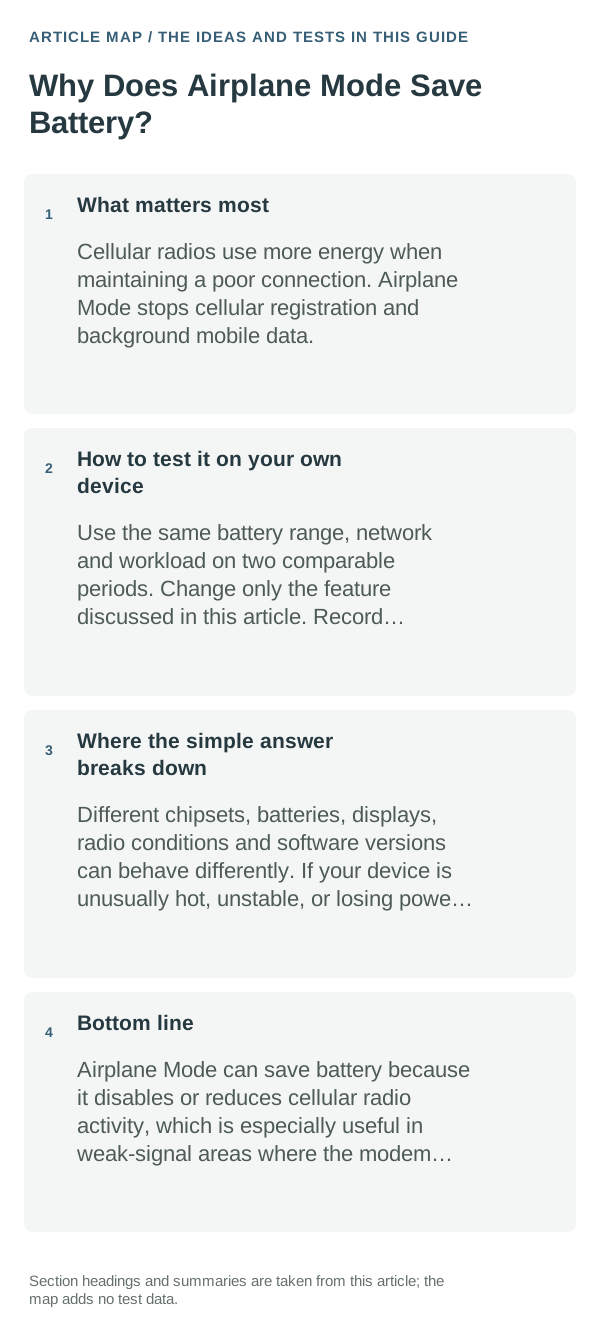
Cellular radios use more energy when maintaining a poor connection. Airplane Mode stops cellular registration and background mobile data.
- Wi-Fi/Bluetooth can often be re-enabled separately if needed.
- The benefit is larger in bad coverage than in strong coverage.
The sensible everyday approach
- Use Airplane Mode in places with no usable signal if you do not need cellular service.
- Re-enable Wi-Fi separately when available.
- Do not use Airplane Mode as a substitute for finding a runaway app if battery usage shows one.
- For overnight drain, compare one night with Airplane Mode to isolate radio-related power use.
How to test it on your own device
Use the same battery range, network and workload on two comparable periods. Change only the feature discussed in this article. Record screen-on time, idle drain or the specific behavior you care about. One controlled comparison is more useful than several settings changed together.
Where the simple answer breaks down
Different chipsets, batteries, displays, radio conditions and software versions can behave differently. If your device is unusually hot, unstable, or losing power rapidly while idle, troubleshoot that underlying problem instead of treating airplane mode save battery as the sole cause.
Bottom line
Airplane Mode can save battery because it disables or reduces cellular radio activity, which is especially useful in weak-signal areas where the modem would otherwise keep searching or transmitting at higher power.
Use built-in battery/performance information when possible. It shows what is actually consuming power or resources on your device and keeps the decision grounded in your real usage.
Separate battery use from battery-health guesses
Battery percentage is an estimate, so one sudden drop does not automatically prove the cell is damaged. Heat, weak signal, display time, background activity and a recent update can all change short-term drain.
Look at the device’s battery-usage screen over a meaningful window rather than judging from a few minutes. A single app dominating active or background use points to a different fix than high idle drain with the screen off.
Charging speed is also conditional: charger capability, cable quality, temperature, battery level and device limits all affect the rate. Test with known-good hardware before assuming the battery itself is the problem.
| What you observe | What it points to | Best next check |
|---|---|---|
| Charging slows when warm or near full | Thermal or battery-protection behavior | Let the device cool and retest with known-good power gear |
| Drain mostly while screen is on | Display, radios or heavy foreground apps | Compare brightness, signal and active apps |
| Drain while idle | Background work, sync or poor signal | Check background usage and overnight conditions |
Frequently asked questions
Is there one rule that applies to every phone?
No. Hardware, software, temperature, signal and workload can change the result.
What is the best way to test this?
Compare two similar periods while changing only one setting or behavior.
Should I install an optimizer app?
Usually not as a first step. Built-in battery and performance tools give cleaner evidence and avoid adding another background process.
Official sources and further reading
Repeat the same action after one change, and note the result.