A launcher reverting to the default Home app usually means Android changed the default role or the launcher is being stopped or updated. The phone's layout and installed apps are separate from the selected Home app. Open Settings > Apps > Default apps > Home app and select the intended installed launcher. Open the launcher once and complete setup before pressing Home; confirm its version and official publisher.
Android Settings labels differ across Pixel, Samsung, and other brands; search Settings for the named control and change one item at a time.
Why this can happen
A launcher reverting to the default Home app usually means Android changed the default role or the launcher is being stopped or updated. The phone's layout and installed apps are separate from the selected Home app.
- The Home app default changed in Android settings.
- A launcher update, reinstall, or crash reset its preference.
- A work profile, device policy, or manufacturer mode controls the Home app.
- Battery restrictions stop a launcher service or companion app.
- The launcher was removed or disabled, so Android fell back to the stock Home app.
Fix it in this order
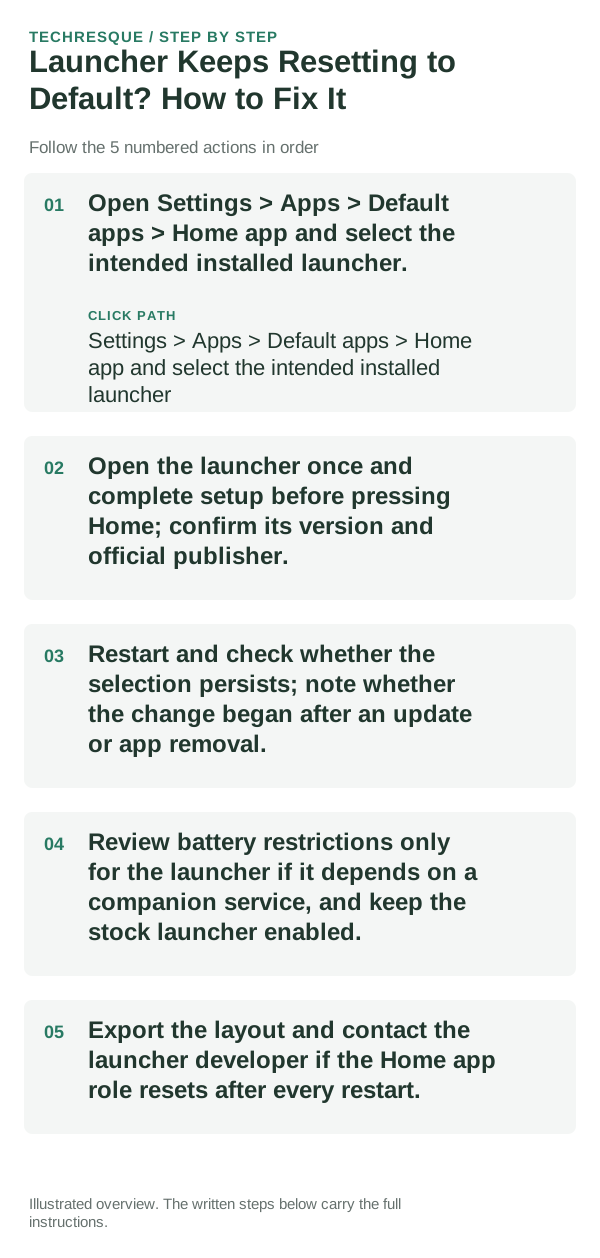
- Open Settings > Apps > Default apps > Home app and select the intended installed launcher.
- Open the launcher once and complete setup before pressing Home; confirm its version and official publisher.
- Restart and check whether the selection persists; note whether the change began after an update or app removal.
- Review battery restrictions only for the launcher if it depends on a companion service, and keep the stock launcher enabled.
- Export the layout and contact the launcher developer if the Home app role resets after every restart.
What each result tells you
Select the intended Home app, restart once, and check the same default setting before changing any app data.
Change one Home-screen element at a time and repeat the same gesture after a restart. Keep the previous launcher installed.
Avoid these common mistakes
- Do not clear launcher storage before saving its layout.
- Do not disable the stock Home app as a workaround.
Confirm that the problem is actually gone
Select the intended Home app, restart once, and check the same default setting before changing any app data.
When to use support or repair
If the issue remains in the stock launcher after restart, share the launcher version and steps; keep the only working Home app installed.
Record launcher name/version, phone model, Android version, selected Home app and the gesture or widget that fails.
Hysoft app: Minimalistic: Launcher
For users who want a clean, distraction-light Android Home screen, Minimalistic: Launcher fits naturally here: a focused Android launcher with a clean monochrome Home screen, fast app search, favourites and folders, focus profiles, mindful launch delays, optional app blocking, and local backup. Its Play listing states that it has no advertisements, analytics, trackers, accounts or cloud sync.
View Minimalistic: Launcher on Google Play →Frequently asked questions
What should I check first?
Open Settings > Apps > Default apps > Home app and select the intended installed launcher. Open the launcher once and complete setup before pressing Home; confirm its version and official publisher. Restart and check whether the selection persists; note whether the change began after an update or app removal.
Should I reset the whole device immediately?
Usually not. Undo the last Home-screen or gesture change and keep the previous launcher installed before considering a device reset.
How do I know when the fix is real?
Select the intended Home app, restart once, and check the same default setting before changing any app data.
Official sources and further reading
- Lawnchair — Official GitHub repository
- Niagara Launcher — Help center
- Smart Launcher — Official site
- Nova Launcher — Official site
Launcher gesture and widget support depends on the Android version and phone maker. Keep your current launcher until the new layout is stable.