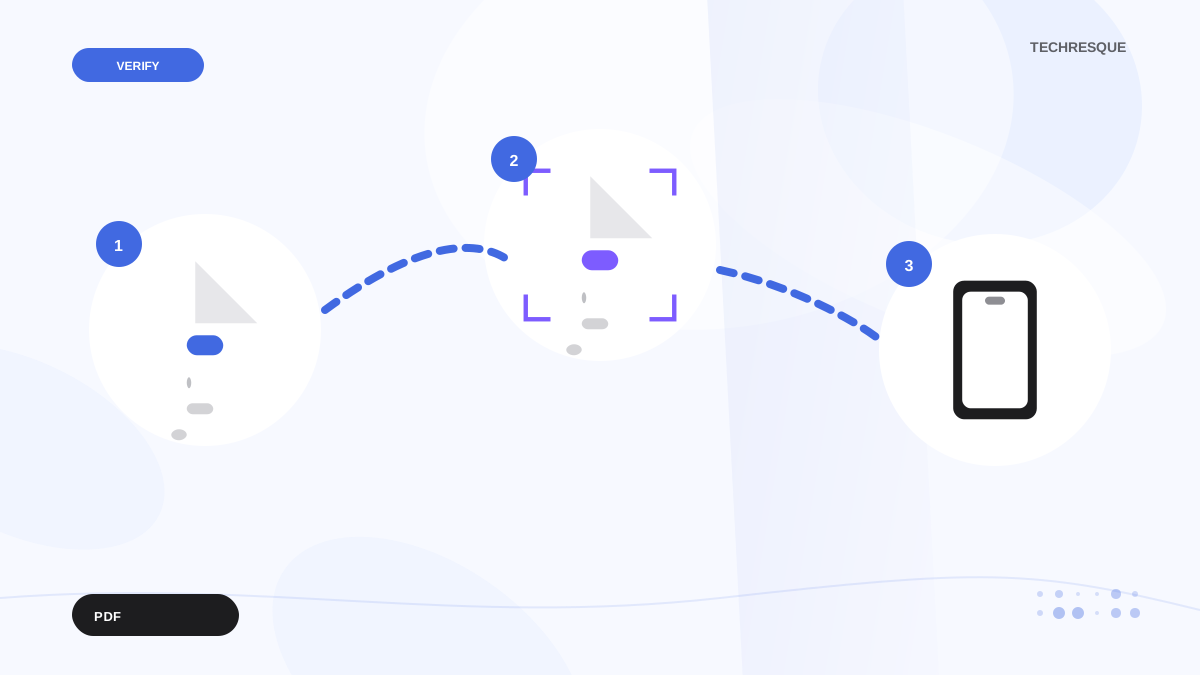
To scan a paper document into a PDF, work on a copy, use a PDF tool that supports that exact operation, save to a new file, and reopen the result before deleting or sharing the original.
PDF editor names, export options, and support for scanned or protected files vary by app. These steps preserve a source copy so you can verify the result safely.
Before you start
Before editing, save a working copy with a new name and keep the original unchanged. Confirm the copy opens before making several changes.
A reversible workflow
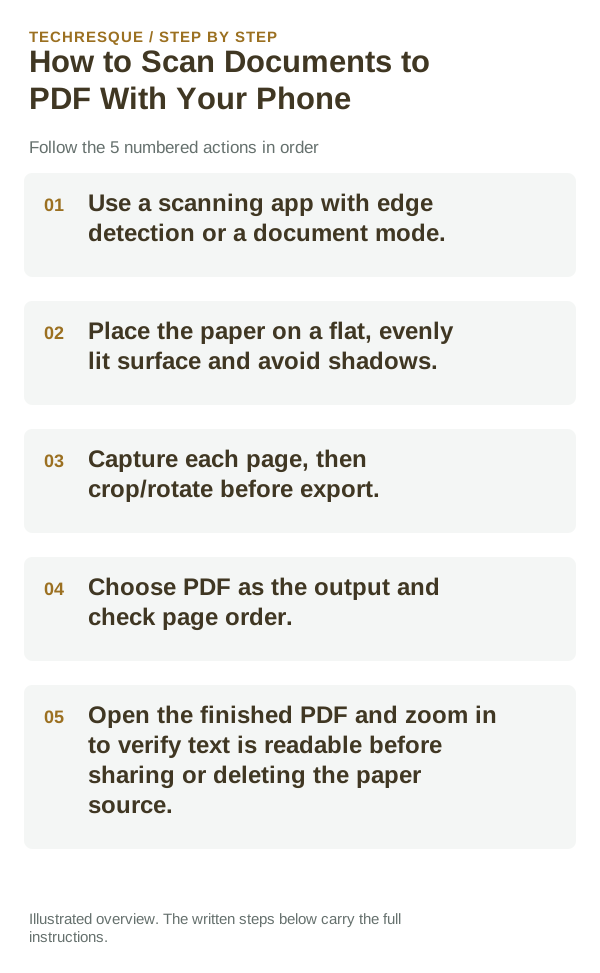
- Use a scanning app with edge detection or a document mode.
- Place the paper on a flat, evenly lit surface and avoid shadows.
- Capture each page, then crop/rotate before export.
- Choose PDF as the output and check page order.
- Open the finished PDF and zoom in to verify text is readable before sharing or deleting the paper source.
How to check the result
Open the saved copy in a second trusted PDF viewer. Check page count, orientation, text, images, and the exact pages you changed; compare with the original before sharing.
If the option is missing
PDF features vary by reader and document. If a control is missing, check the reader's help and whether the file is password-protected or scanned; do not change the file extension to force a feature.
Keep the change easy to undo
Keep the source PDF and save each edited version separately until the output is checked. For sensitive documents, use a trusted on-device app and store the copy securely.
What to do if it still fails
If the result is wrong, return to the untouched source and repeat one operation on a fresh copy. If the same document fails in two trusted readers, the file or its permissions may be the limit.
PDF Studio - pdf editor
an Android PDF reader, editor, scanner and converter with text/image editing, annotation, signing, page organization, compression and conversion tools. That makes it a natural app to consider for the workflow covered in this article rather than an unrelated promotion.
View PDF Studio - pdf editor on Google Play →Match the document format to the job you are doing
When comparing reader apps, test the same real file. Large PDFs, scanned documents and complex EPUB books can expose performance or rendering differences that a simple sample book will not.
PDF is designed to preserve page layout, while EPUB is designed to reflow text to the reader’s screen. That difference affects zooming, annotations, text-to-speech and how comfortable long reading sessions feel on a phone.
For editing or conversion, keep an untouched copy before changing pages, compression or signatures. A visually successful edit can still alter searchable text, form fields or image quality in ways that only appear later.
| What you observe | What it points to | Best next check |
|---|---|---|
| Text should resize to screen | Reflowable ebook workflow | Prefer EPUB where the source supports it |
| Exact page layout matters | Fixed-layout document workflow | Prefer PDF and verify zoom/readability |
| Editing/signing is the goal | Document tool compatibility | Test on a copy and verify the saved output |
Before you make a bigger change
Before installing another PDF editor or uploading a file to a conversion site, check whether the built-in reader or the document publisher supports this operation. Keep confidential files on-device.
Frequently asked questions
Should I keep the original PDF?
Yes. Keep it until the edited copy opens correctly and you have checked the changed pages. A separate copy also gives you a clean way to undo an edit.
Why do the PDF controls look different?
PDF readers place tools in different menus, and scanned or protected documents may disable editing. Check the app's help and file permissions before switching tools.
How can I check the saved PDF?
Close and reopen the output, inspect the changed page at normal zoom, and confirm the page count and text are intact before sharing it.
Official sources and further reading
PDF editing features vary by app, operating system and plan. Keep an original copy before optimizing, converting or annotating a document.