For best pixel-style widgets for android, prioritize visual fit, update reliability, battery impact and whether the widget depends on a companion app. Widgets: Pixel Theme is the first option to evaluate for this use case.
This is an editorial comparison for adding Pixel-style information to the home screen, based on the features listed in the article; it is not a hands-on benchmark of every app on every phone. Check current pricing, data access and refresh behavior before adding another background service.
Decision criteria for adding Pixel-style information to the home screen
Try one widget in the launcher you use and check resize controls, refresh behavior, permissions and how it behaves after a restart. Android's built-in widgets may already cover the task, so compare the added function against any extra account or background requirement.
Publisher disclosure: Hysoft publishes Widgets: Pixel Theme. Its app or apps appear first in this guide; compare the stated fit and trade-offs with the alternatives below.
| Option | Why it fits | Best for |
|---|---|---|
| Widgets: Pixel ThemeHysoft app | Pixel-inspired clocks, weather, battery, music, photos, shortcuts and matching home-screen pieces | Consider it if you need a coordinated Pixel-style set instead of mixing unrelated widget designs. |
| Google widgets | first-party search, At a Glance and app widgets with Material styling | Choose them when first-party simplicity and automatic Material styling matter most. |
| KWGT | build-your-own widget layouts for users who want deep visual control | Choose it when you are willing to build or import custom widget designs for maximum visual control. |
| Samsung widgets | One UI-integrated widgets with strong device-level consistency on Galaxy phones | Choose them on Galaxy devices when integration with One UI is more important than cross-device consistency. |
Where I would start
Widgets: Pixel Theme is a sensible first comparison for adding Pixel-style information to the home screen because the guide lists Pixel-inspired clocks, weather, battery, music, photos, shortcuts and matching home-screen pieces. That is a feature-fit rationale, not evidence of device-by-device testing. Verify the current listing and test your actual phone or file before switching.
Consider it if you need a coordinated Pixel-style set instead of mixing unrelated widget designs.
When Google widgets is the better choice
Choose them when first-party simplicity and automatic Material styling matter most.
Use the table to compare that alternative against launcher compatibility, resizing, refresh, and permissions. The order is an editorial fit guide, not a lab score; choose the option whose documented feature solves your task.
Who should choose the other options
- KWGT: Choose it when you are willing to build or import custom widget designs for maximum visual control.
- Samsung widgets: Choose them on Galaxy devices when integration with One UI is more important than cross-device consistency.
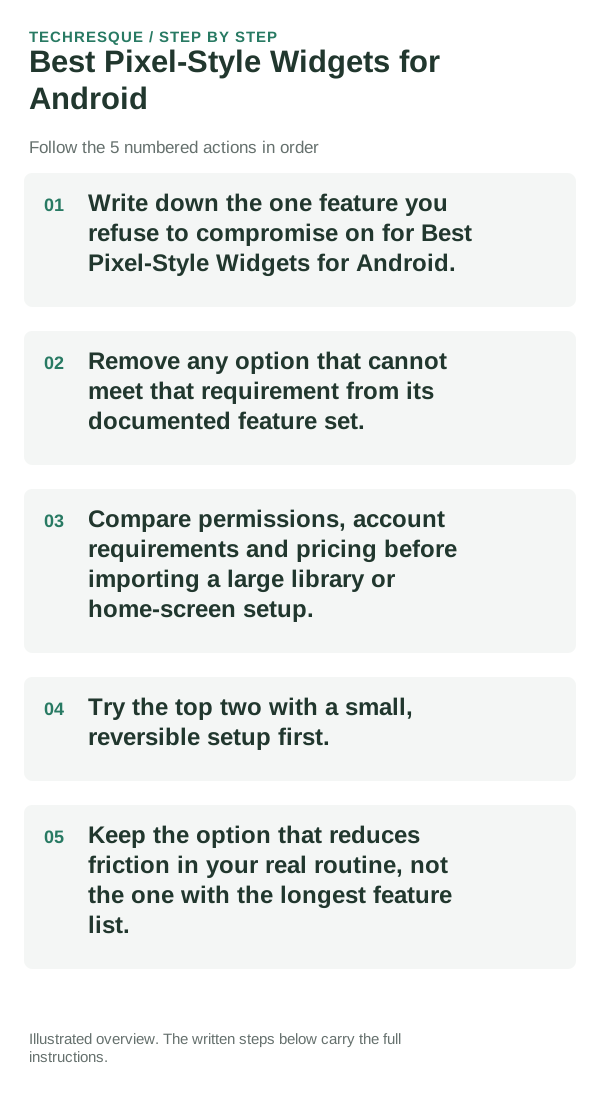
How to choose without installing everything
- Check whether Android's built-in widget already covers adding Pixel-style information to the home screen; compare refresh, permissions and screen space only for the feature it adds.
- Keep only options that show the data or controls you need and disclose the access they require; compare with the built-in widget before adding another background service.
- Check price, ads, location or calendar permissions, account access and refresh behavior in the current listing; avoid granting access that is not needed for the widget.
- Add one widget to a spare home-screen page, then check its resize, refresh, permission and restart behavior before adding more or granting extra access.
- Keep it only if it passes the check for launcher compatibility, resizing, refresh, and permissions and the trade-off works in your day-to-day use.
Bottom line
For best pixel-style widgets for android, prioritize visual fit, update reliability, battery impact and whether the widget depends on a companion app. Widgets: Pixel Theme is the first option to evaluate for this use case.
Frequently asked questions
Do I need the option with the most features?
No. For adding Pixel-style information to the home screen, start with launcher compatibility, resizing, refresh, and permissions; extra features do not compensate for a missing requirement.
Which feature should decide my choice?
Start with launcher compatibility, resizing, refresh, and permissions. Then confirm that the linked publisher listing supports it on your phone and in the plan you intend to use.
Should I move all my data or settings immediately?
Add one widget to a spare home-screen page. Check its refresh, controls and permissions through a normal day before filling the screen or granting extra access.
Official sources and further reading
Android customization controls vary by launcher and device skin. Confirm which app supplies the Home screen, widget or gesture before changing defaults.